Installing WSL 2 on Windows 11 and Troubleshooting Common Errors
Recently, I installed the Windows 11 operating system on the T-Bai Mini Host. As a developer, the Windows Subsystem for Linux (WSL) provided by Windows is an essential tool. However, installing WSL was not without its challenges. This article documents the installation method and some errors encountered.

Installing WSL 2 Subsystem on Windows 11
Open "Control Panel > Programs > Turn Windows features on or off".
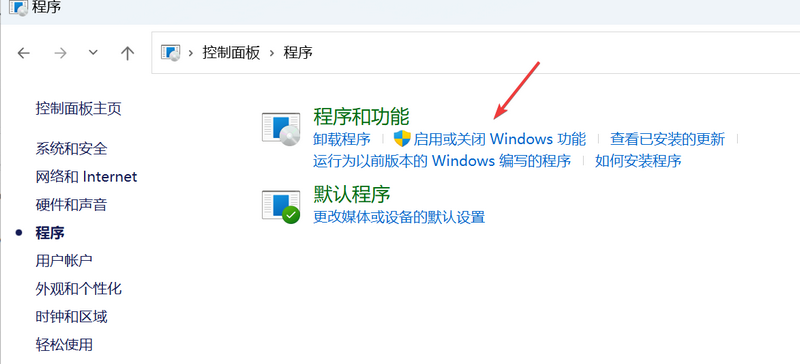
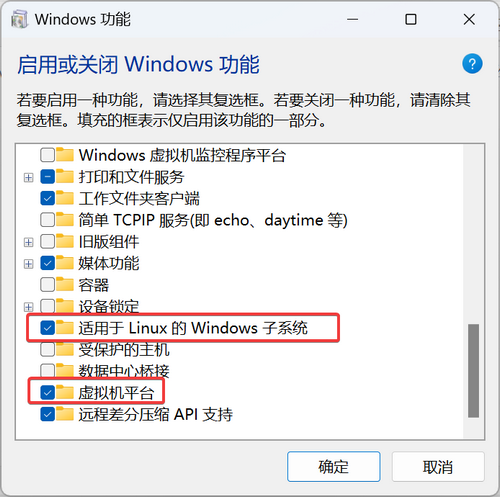
Locate the following two features, check them, and click OK.
- Windows Subsystem for Linux
- Virtual Machine Platform
After clicking OK, wait for the installation to complete and restart the operating system.
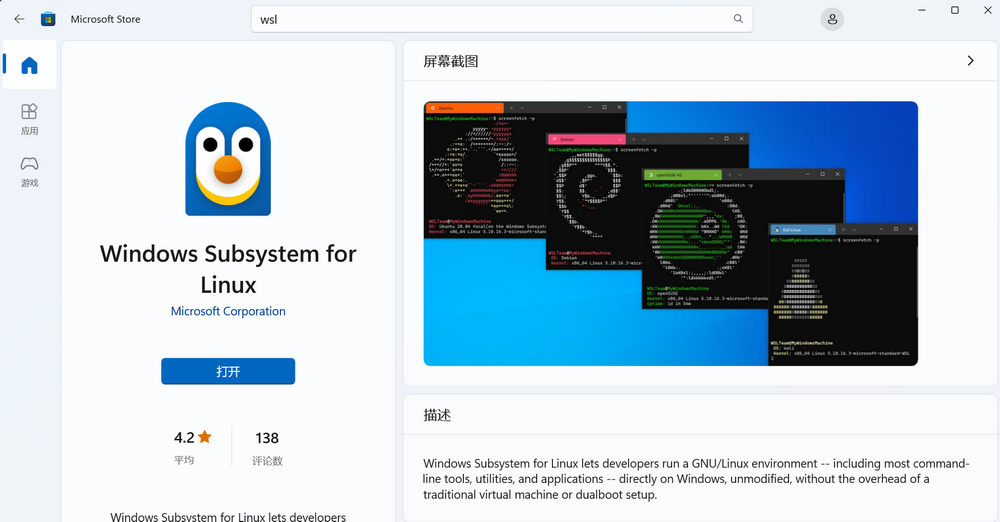
Next, open the Windows App Store, search for "WSL", and find "Windows Subsystem for Linux" to install it.
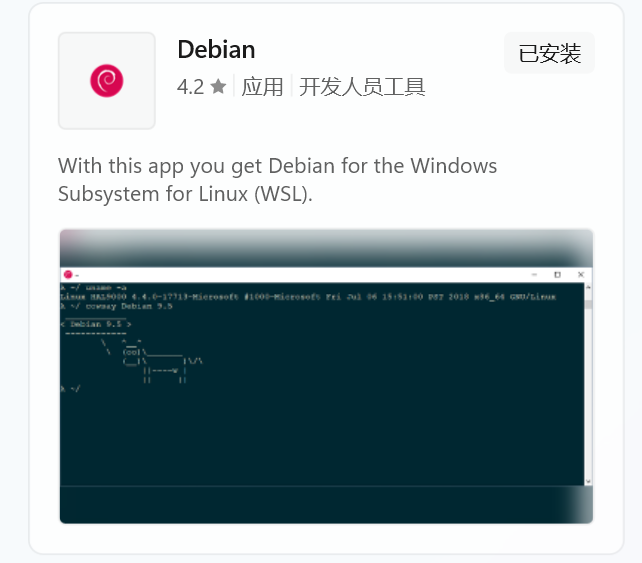
Continue searching in the Windows App Store and install a Linux distribution of your choice, such as Ubuntu or Debian.
If everything goes smoothly, you can find the Linux distribution you just installed in the Start Menu to use. However, it might not be that smooth. If you encounter errors during installation, please continue reading below.
Error Handling
WslRegisterDistribution failed with error: 0x800701bc
If you encounter the error "WslRegisterDistribution failed with error: 0x800701bc" when starting the subsystem, you need to update your WSL subsystem. Simply download wsl_update_x64.msi and install the update.
WslRegisterDistribution failed with error: 0x80370102
If you see the message "WslRegisterDistribution failed with error: 0x80370102" when starting the subsystem, it may be because virtualization is not enabled in your BIOS, or the "Virtual Machine Platform" feature was not checked in "Turn Windows features on or off". Open "Control Panel > Programs > Turn Windows features on or off", check "Virtual Machine Platform", and then restart the system.
Error code: Wsl/Service/0x800706f7
If you see the error "Error code: Wsl/Service/0x800706f7", simply run cmd as an administrator and execute the following command:
netsh winsock reset
Conclusion
The above is the process of enabling the WSL 2 subsystem on Windows 11 and handling errors. If you encounter errors not mentioned in this article during actual installation, you may need to search online for further solutions.