Pluton: Deploying a Web-Based Self-Hosted Encrypted Backup Platform with Docker
In an earlier article titled "Server Data Backup Solution: Implementing Encrypted + Incremental + Scheduled Backups with Backrest", xiaoz introduced the backup software Backrest. Today, we continue by introducing its similar counterpart, Pluton. Both rely on Restic and Rclone at their core, but I personally find Pluton's interface to be clearer and more user-friendly.
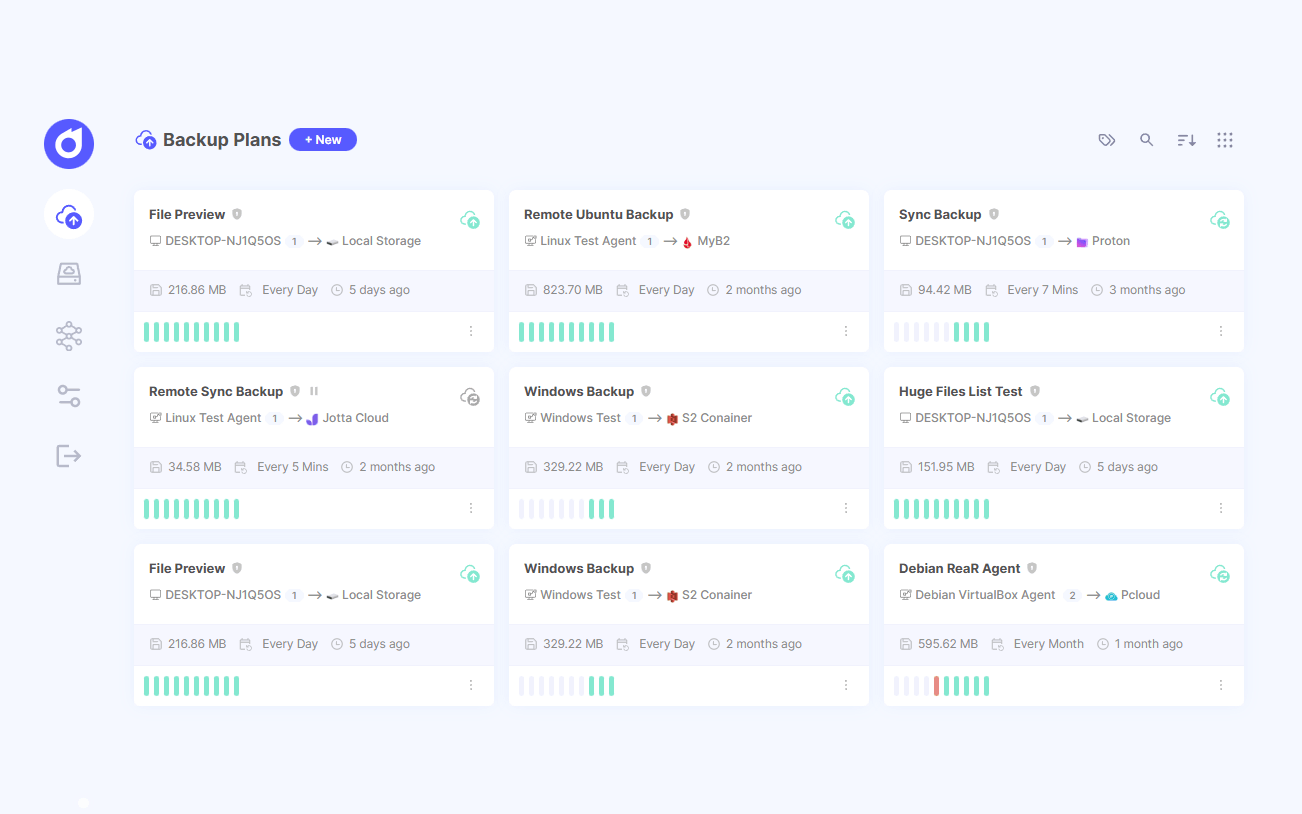
What is Pluton?
Pluton is an open-source, self-hosted backup management platform that wraps Restic and Rclone behind a web interface. It allows you to perform encrypted incremental backups and push them to multiple cloud storage providers without writing any scripts. Its main features include:
- Visual management and operation
- Encrypted backups
- Incremental backups
- Support for multiple backup methods (local, S3, WebDAV, various cloud drives)
Installing Pluton
Pluton supports various installation methods, offering both desktop and server versions. This article focuses solely on the Docker installation method, utilizing Docker Compose for deployment. First, create a compose.yaml file with the following content:
services:
  pluton:
    image: plutonhq/pluton:latest
    container_name: pluton-backup
    restart: unless-stopped

    ports:
      - "${SERVER_PORT:-5173}:${SERVER_PORT:-5173}"

    volumes:
      # Main data volume - contains database, config, logs
      - ./data:/data
      - /data/apps:/source/apps:ro
    mem_limit: 512m

    environment:
      TZ: Asia/Shanghai
      # ===== REQUIRED: Security & Authentication =====
      # Generate secure random strings (min 12 characters for the first three)
      ENCRYPTION_KEY: ${ENCRYPTION_KEY} # Encryption key for restic/rclone Snapshot encryption
      USER_NAME: ${USER_NAME} # Admin username for login
      USER_PASSWORD: ${USER_PASSWORD} # Admin password for login

      # TRUST_PROXY: ${TRUST_PROXY:-1} #Uncomment when running Pluton behind a reverse proxy (Caddy, Nginx, Traefik, ...).

      # ===== Application Settings =====
      APP_TITLE: ${APP_TITLE:-Pluton}
      APP_URL: ${APP_URL:-http://localhost:5173}
      SERVER_PORT: ${SERVER_PORT:-5173}
      MAX_CONCURRENT_BACKUPS: ${MAX_CONCURRENT_BACKUPS:-2}
      SESSION_DURATION: ${SESSION_DURATION:-7} # How long frontend login Session lasts in Days

      # ===== User Interface Security Settings =====
      ALLOW_CUSTOM_RESTORE_PATH: ${ALLOW_CUSTOM_RESTORE_PATH:-true}
      ALLOW_FILE_BROWSER: ${ALLOW_FILE_BROWSER:-true}
      DISABLE_EVENT_SCRIPTS: ${DISABLE_EVENT_SCRIPTS:-false}

      # ===== Docker-specific (do not change) =====
      NODE_ENV: production
      IS_DOCKER: "true"

    healthcheck:
      test:
        [
          "CMD",
          "sh",
          "-c",
          "wget --no-verbose --tries=1 --spider http://localhost:${SERVER_PORT:-5173}/api/health",
        ]
      interval: 30s
      timeout: 10s
      retries: 3
      start_period: 40s
Key points to note and modify include:
/data/apps:/source/apps:ro: This is a custom mount directory./data/appsis the path on the host (the directory containing your data to be backed up), while/source/appsis the custom path within the container, which can be adjusted as needed.mem_limit: 512m: This limits the container's memory usage to 512MB to prevent excessive resource consumption; adjust according to your specific requirements.TZ: Asia/Shanghai: Sets the timezone to Beijing time. Without this, the container defaults to Greenwich Mean Time, which is 8 hours behind Beijing time.
Next, create a .env environment variable file with the following content:
ENCRYPTION_KEY=xxx
USER_NAME=xxx
USER_PASSWORD=xxx

# Optional - override defaults
SERVER_PORT=5173
ENCRYPTION_KEY: The encryption key. If forgotten, your data cannot be recovered.USER_NAME: The Pluton admin username.USER_PASSWORD: The Pluton admin password.
Finally, run docker compose up -d to start Pluton and access http://ip:5173 to log in.
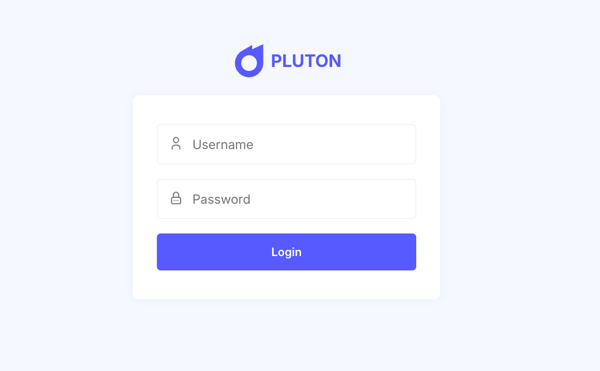
Using Pluton to Backup Data
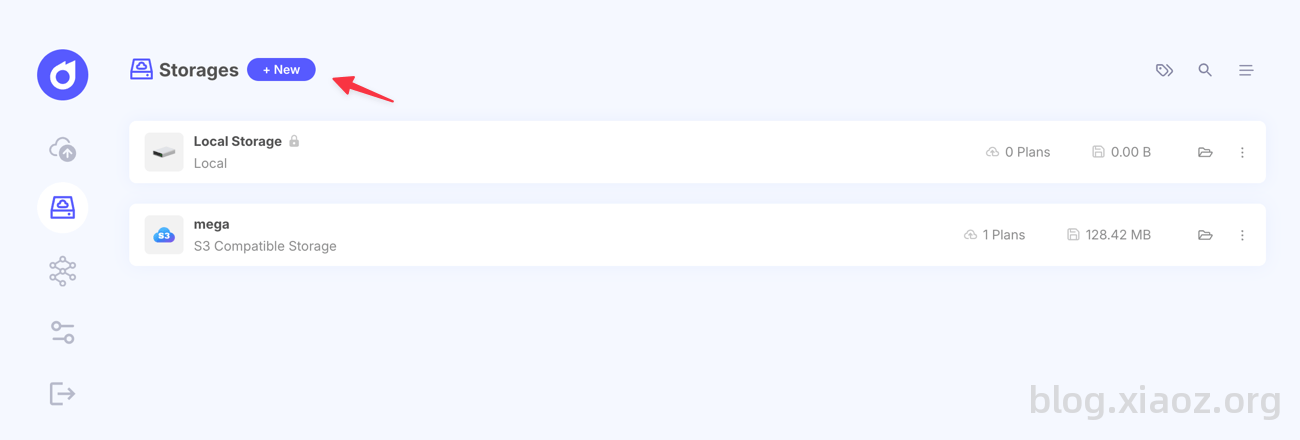
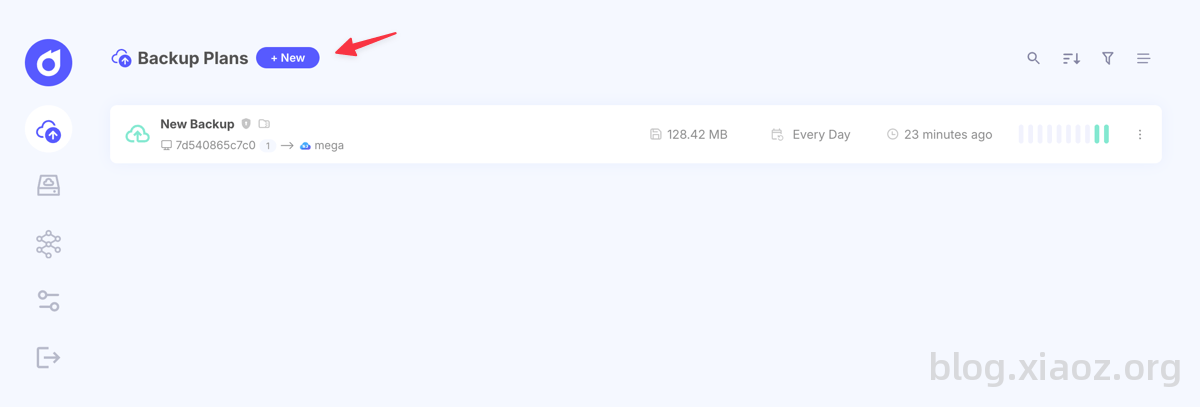
By default, Pluton uses local storage for backups. You can also add various external storage options via the Storages page by clicking + New.
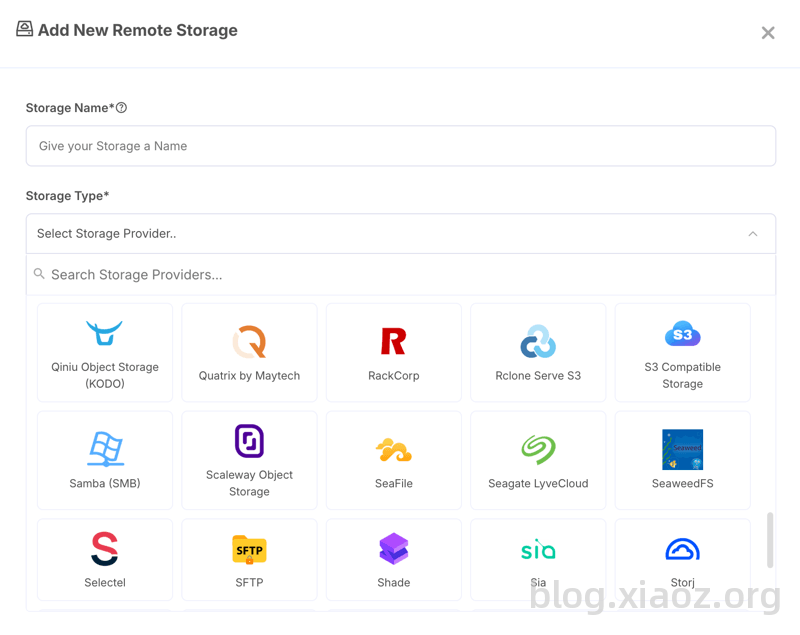
It supports dozens of external storage types, such as S3, WebDAV, SFTP, etc. Choose based on your needs.
After adding the storage, proceed to create a scheduled backup plan in the Backup Plans section.
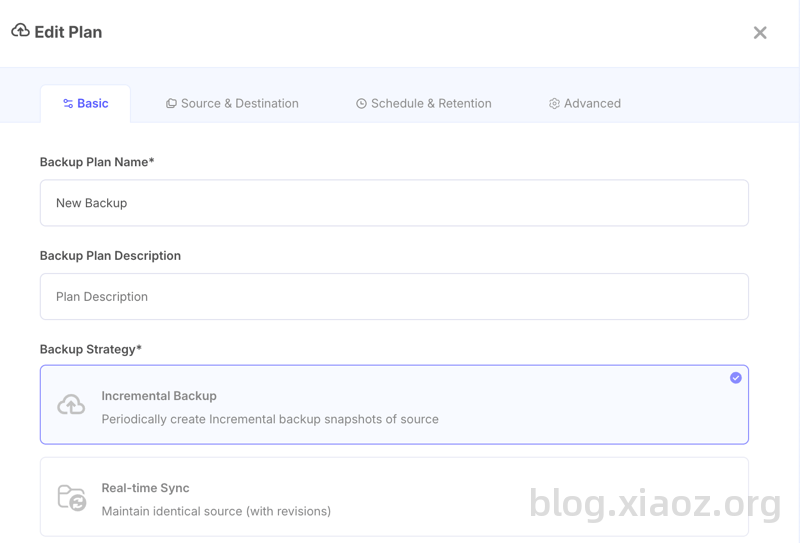
- Backup Plan Name: Enter any name.
- Backup Strategy: Select the first option, Incremental Backup.
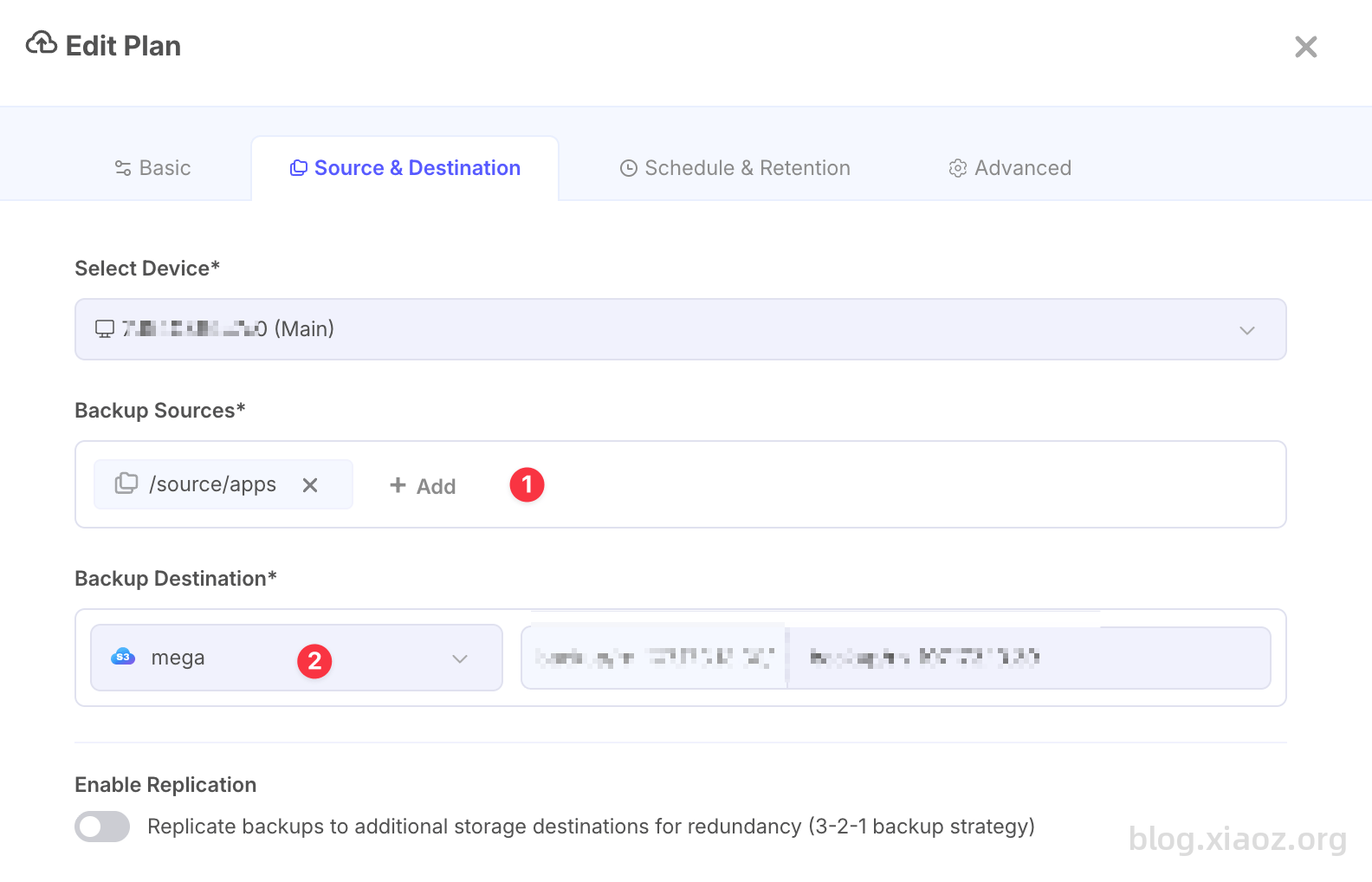
- Backup Sources: Select your custom container path (e.g.,
/source/appsas configured above). - Backup Destination: Select the external storage added previously.
Keep other settings at their defaults.
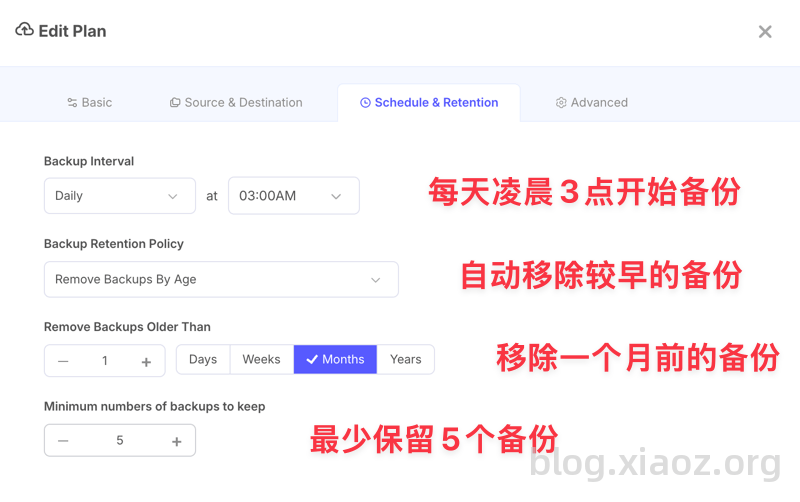
Next, configure the backup schedule. You can choose daily, weekly, or monthly backups. In the screenshot below, I have set it to back up daily at 3 AM, retaining backups from the last month and keeping at least 5 backups as a safety net. If unsure, simply follow the screenshot settings.
Leave other parameters as default. Once added, click the Backup Now button to immediately trigger a backup and verify that everything is working correctly.
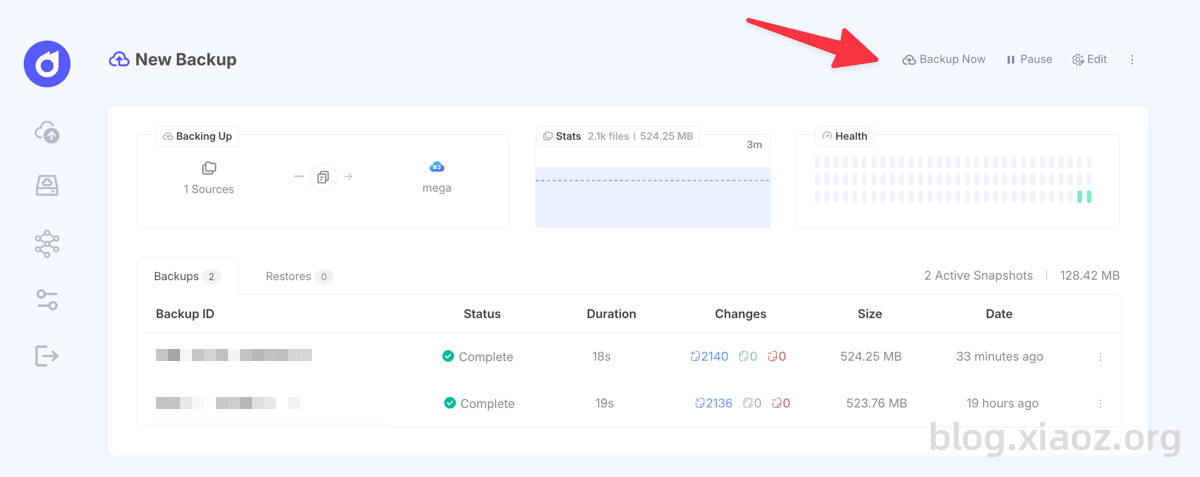
If there are no issues, the system will handle subsequent backups automatically on the scheduled times.
Additional Settings
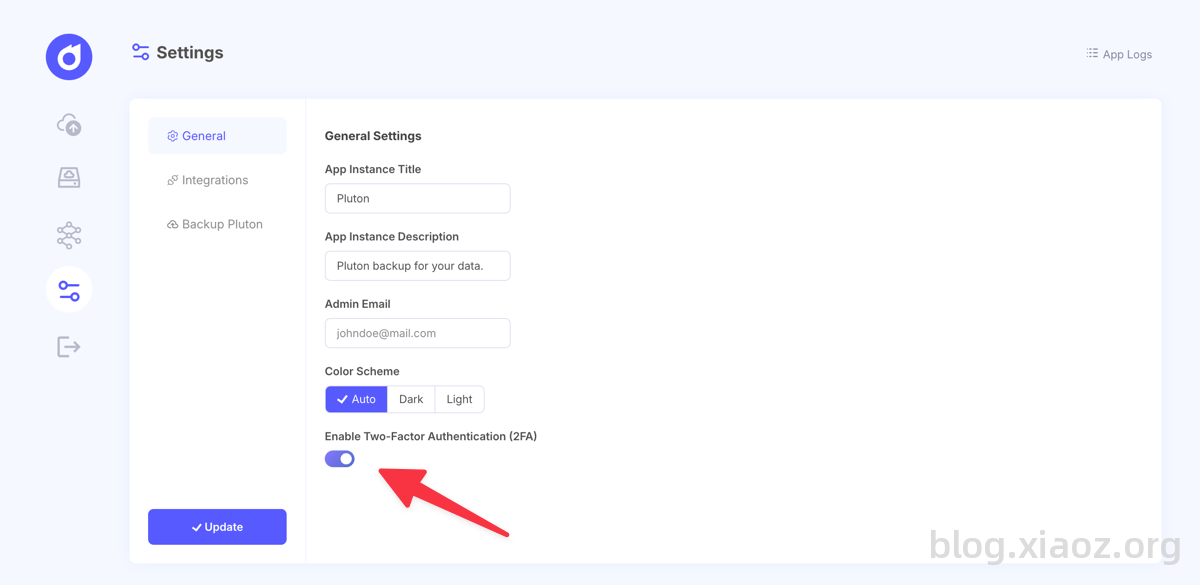
For security reasons, it is recommended to enable Two-Factor Authentication (2FA) in the settings.
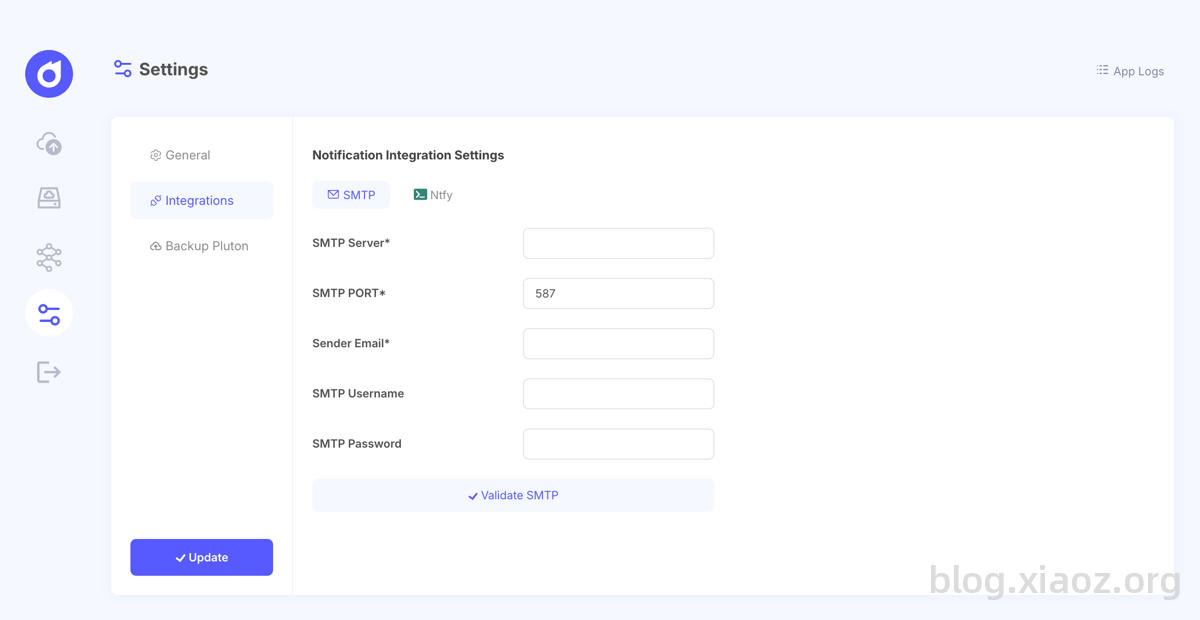
Additionally, if you wish to receive notifications after backups are completed, you can configure SMTP email notifications or Ntfy notifications.
Comparison: Pluton vs. Backrest
I use both Pluton and Backrest. Their functionalities are quite similar (though Pluton Pro offers more features), and they share the same core underlying technology. Below is my subjective comparison for reference only.
| Software Name / Feature | Pluton | backrest |
|---|---|---|
| Chinese Interface | Not Supported | Supported |
| Ease of Use | Relatively Easy | Complex |
| UI Friendliness | Excellent | Average |
| Encrypted Backup | Supported | Supported |
| Incremental Backup | Supported | Supported |
| Two-Factor Auth | Supported | Not Supported |
| Email Notifications | Supported | Not Supported |
For more detailed comparison data, refer to the official documentation: https://docs.usepluton.com/docs/getting-started/pluton-vs-others
Conclusion
In summary, Pluton is an excellent self-hosted backup tool based on Restic and Rclone. Its clear web interface significantly lowers the barrier to entry for encrypted incremental backups, and its Docker deployment is convenient with intuitive configuration. Whether backing up VPS, NAS, or computer data, Pluton is very convenient. If you are looking for encrypted incremental backup software, Pluton is definitely worth trying.
Pluton Project Address: https://github.com/plutonhq/pluton