How to Batch Enable or Disable WordPress Comments
If your blog previously had WordPress comments enabled but you are now facing issues with spam or simply no longer wish to allow visitor comments, closing them one by one for each post is not a wise approach. Instead, you should perform a batch operation.
1. Batch Close Comments for All Posts
Execute the following SQL statement in your website's database. Most virtual hosts provide an online MySQL management tool called phpMyAdmin. For example, if your database name is bsdevorg:\n
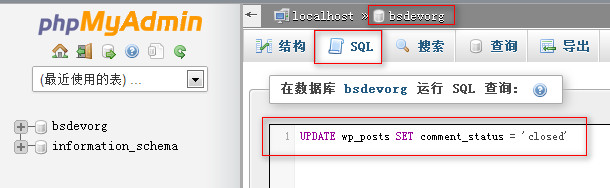
Close WordPress Comments
UPDATE wp_posts SET comment_status = 'closed'
2. Batch Open Comments for All Posts
After executing the SQL statement above, you will see the number of affected rows, indicating success. Check your newest and oldest posts to confirm that comments are now disabled. If you wish to re-enable comments, the process is simple. Use the following SQL statement:
UPDATE wp_posts SET comment_status = 'open'
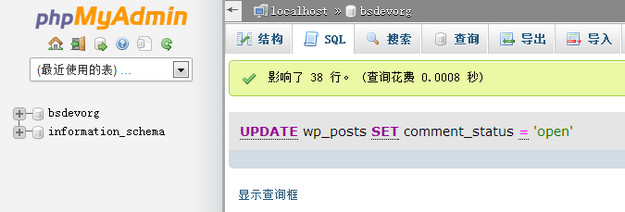
Open WordPress Comments
Summary
UPDATE wp_posts SET comment_status = 'closed' /* Close WordPress comments */
UPDATE wp_posts SET comment_status = 'open'   /* Open WordPress comments */