Automatically Back Up VPS Data to Qiniu Cloud Storage
To ensure website security, regularly backing up website data is the best measure. While some IDC providers offer automatic backup features, most are paid services. Here is a sharing on how to use Qiniu Cloud Storage's QrsBox to automatically back up VPS data to Qiniu.
The benefit of this tool is that after initialization, it can automatically detect the backup directory and upload files to Qiniu. More importantly, it supports both Windows and Linux platforms. This guide focuses on the backup method for Linux systems, as the VPS installed by the author uses the AMH panel. However, the principles are interchangeable, so you can refer to this guide.
1. Connect to the Server via SSH
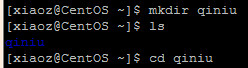
Use an SSH tool to remotely connect to the server, then use mkdir qiniu to create a folder named qiniu, and input cd qiniu to enter the folder.\n
2. Download the QrsBox Tool
If your Linux system is 64-bit, input the following command to download:
wget http://devtools.qiniu.io/qiniu-devtools-linux_amd64-current.tar.gz
For 32-bit users, please input:
wget http://devtools.qiniu.io/qiniu-devtools-linux_386-current.tar.gz

3. Unzip QrsBox
Use the tar command to unzip QrsBox:
tar -zxvf qiniu-devtools-linux_amd64-v2.7.20140630.tar.gz

4. Register Qiniu Cloud Storage and Create a Bucket
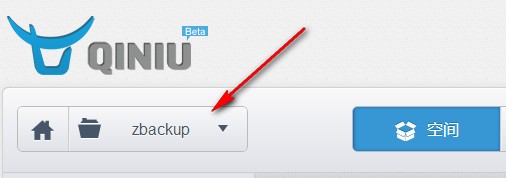
Register for Qiniu Cloud Storage and create a new bucket (space). Set the attribute to Private for data security. The author has created a space named "zbackup".
5. Initialize the Tool
In the unzipped folder, execute the following command for initialization:
./qrsboxcli init <AccessKey> <SecretKey> <SyncDir> <Bucket> [<KeyPrefix>]
Where:
<AccessKey>and<SecretKey>are the key files for Qiniu Cloud Storage.<SyncDir>is the local synchronization directory; files in this directory will be synchronized and uploaded to Qiniu Cloud Storage at any time.<Bucket>is the name of the resource space where the synchronized files are saved.<KeyPrefix>is the file prefix (optional). If this parameter is set, the uploaded file names will have the prefix added. This prefix is mainly used to distinguish files from different upload sources within the space.

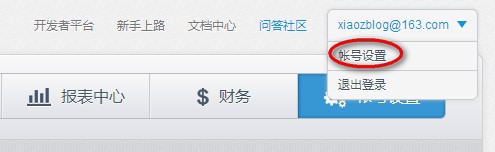
Since the AMH backup directory is located at /home/backup, fill in <SyncDir> with /home/backup. To obtain the keys, click the top right corner, go to Account Settings, and click Keys on the left side to view them:
6. Create a Scheduled Task in AMH
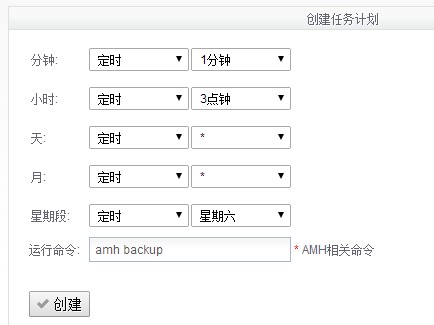
In the AMH backend, create a scheduled task. In the Run Command field, input the backup command: amh backup. You can set the time as needed.
7. Start File Synchronization
Finally, users can use the following command to start file synchronization:
./qrsboxcli sync &
8. Verification
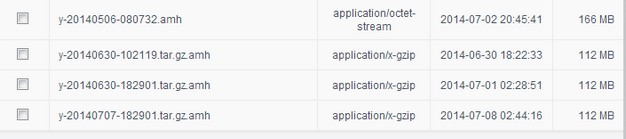
AMH automatically backs up to the /home/backup directory, and the QrsBox tool from Qiniu will automatically synchronize to the bucket. After the backup is successful, you can check it in the Qiniu backend.
PS: For more usage instructions, please check the Qiniu QrsBox Official Documentation.