How to Exclude Specific Categories from the WordPress Homepage
For some websites, you may not want to display articles from certain categories directly on the homepage. You can configure the site to hide posts from specified directories using one of the following two methods:
Method 1: Modify index.php
Locate the index.php file in your theme directory (some themes may use loop.php). Search for the have_posts() function and find the code line <?php if ( have_posts() ) : ?>. Add the following code before it:
<!-- Exclude posts from a specific category on the homepage -->
<?php
	$paged = (get_query_var('paged')) ? get_query_var('paged') : 1;
	$args = array(
	// Category IDs you do not want to display, separate multiple IDs with commas.
	'category__not_in' => array(76), // This means posts from category ID 76 will not be displayed
	'paged' => $paged
	);
	query_posts($args);
?>
Method 2: Modify functions.php
If adding code to the above method causes errors in some themes (e.g., all categories display the same articles or pagination fails), you can try this alternative. Add the following code to the functions.php file in your theme directory:
// Exclude category ID 985 from the homepage
function ex_cat_on_homepage( $query ) {
    if ( $query->is_home() && $query->is_main_query() ) {
        $query->set( 'cat', -985 );
    }
}
add_action( 'pre_get_posts', 'ex_cat_on_homepage' );
Important: Ensure the category ID is entered correctly; otherwise, the changes will have no effect.
How to Get the Category ID:
Go to the WordPress Dashboard >> Posts >> Categories. Hover your mouse over the category you want to target (e.g., "WP Tips"). The category ID will appear in the bottom-left corner of your browser. For example, the ID for "WP Tips" is 299.
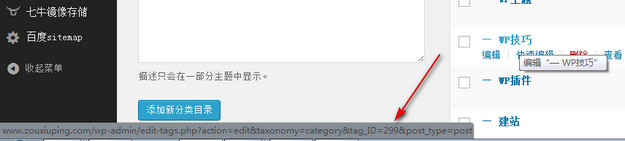
WordPress Category ID