Deploy Your Own 'PicoClaw' AI Assistant in 5 Minutes with Docker
OpenClaw has recently become very popular, and many people want to deploy their own version. However, OpenClaw deployment is complex and resource-intensive. Fortunately, these are no longer issues, as there are many open-source alternatives available online (if you are unsure which AI assistant suits you, visit our comparison site: ClawPulse). Today, we introduce PicoClaw, which xiaoz has been using for over two months and is now officially recommending.
Note: This tutorial is not suitable for complete beginners!!!
About PicoClaw
PicoClaw is an ultra-lightweight personal AI assistant based on the nanobot concept, rewritten from scratch using Go, with extremely low memory usage.
GitHub Open Source Address: https://github.com/sipeed/picoclaw
PicoClaw Features
- Ultra-lightweight: Memory usage under 10MB (claimed by the author)
- Low cost: Extremely low hardware requirements, can even run on $10 hardware (claimed by the author)
- Multi-channel support: Supports integration with personal WeChat, Telegram, Discord, Slack, DingTalk, Feishu, WeCom, LINE, QQ, etc.
- Cross-platform support: Deployment methods include macOS, Windows, Linux, Android, Docker, etc.
- Visual interface: Comes with a built-in WEB interface supporting visual operations, lowering the threshold for use and configuration.
Deploying PicoClaw with Docker Compose
Without further ado, let's follow xiaoz to deploy your own PicoClaw using Docker Compose. Before starting, you need to prepare:
- A VPS (if you don't have one, check out Racknerd: https://dwz.ovh/racknerd)
- Docker installed
- A registered large model API service (if you don't have one, check out: SiliconFlow)
- Personal WeChat (must be updated to the latest version)
Next, create a compose.yaml file with the following content:
services:
  picoclaw-launcher:
    image: sipeed/picoclaw:launcher
    container_name: picoclaw-launcher
    restart: unless-stopped
    environment:
      - PICOCLAW_GATEWAY_HOST=0.0.0.0
      - PICOCLAW_LAUNCHER_TOKEN=password
    ports:
      - "18800:18800"
      - "127.0.0.1:18790:18790"
    volumes:
      - ./data:/root/.picoclaw
Parameter meanings:
PICOCLAW_LAUNCHER_TOKEN: Access token for the WEB interface; please set your own.18800is the WEB access port; the first18800can be modified, but the second18800(container port) cannot be changed.18790is the PicoClaw gateway port; generally, no modification is needed.
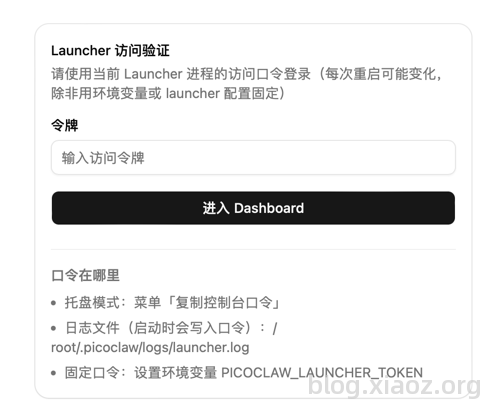
Then, run docker compose up -d to start. After starting, access http://IP:18800. You will be prompted to enter the PicoClaw access token, which is the PICOCLAW_LAUNCHER_TOKEN variable you just set.
Configuring PicoClaw
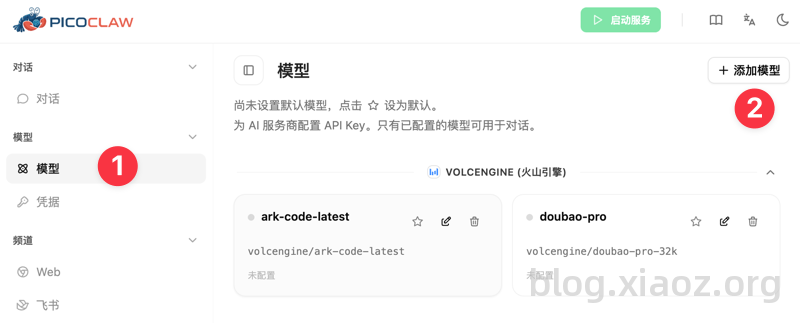
The previous step has installed PicoClaw. Next, you need to connect to a model service so that PicoClaw has its own "brain." Go to [WEB Interface - Models - Add Model].
Here, xiaoz uses SiliconFlow's model as an example, as shown below:
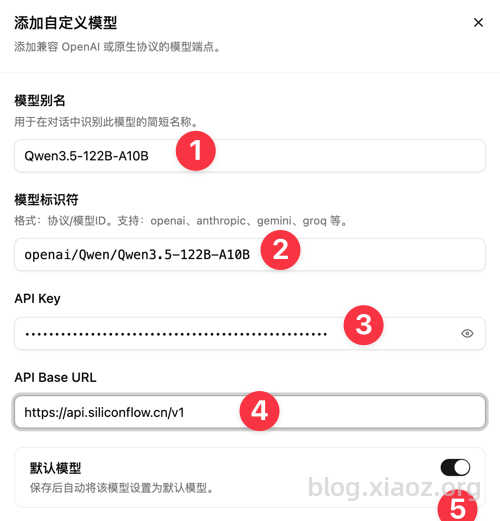
The only thing to note is the Model Identifier field; you must add the protocol prefix. For example, SiliconFlow provides the model ID Qwen/Qwen3.5-122B-A10B. Since SiliconFlow uses the OpenAI API compatible format, the complete model ID with the protocol prefix becomes openai/Qwen/Qwen3.5-122B-A10B.
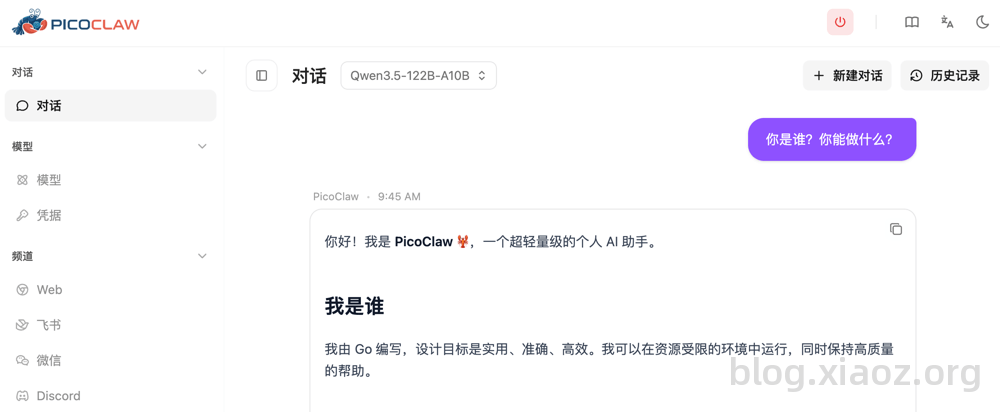
After adding the model, click Start Service in the top right corner, then test in the left Chat section. If it interacts normally with you, the model configuration is correct.
Connecting Personal WeChat
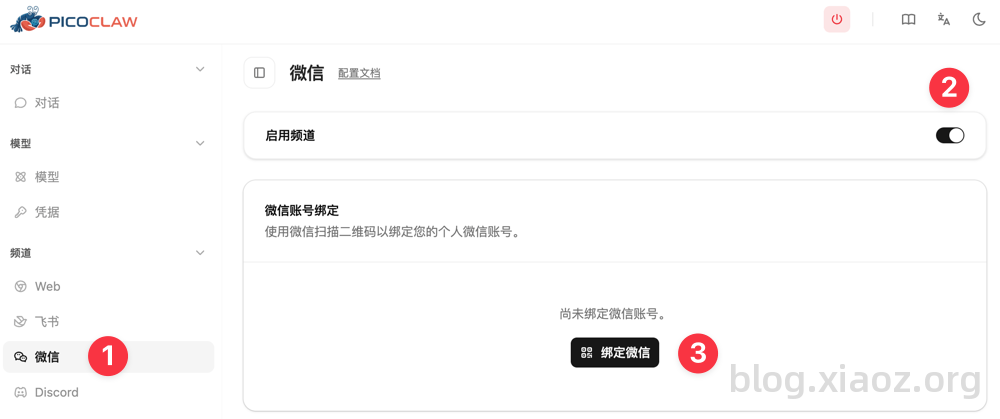
PicoClaw supports connecting your personal WeChat account using Tencent's official iLink API, which is relatively secure as it is an official protocol. Before starting, ensure your WeChat is updated to the latest version (8.0.70 or above). Open [Channels - WeChat - Bind WeChat] and scan the QR code with your WeChat to bind, as shown below.
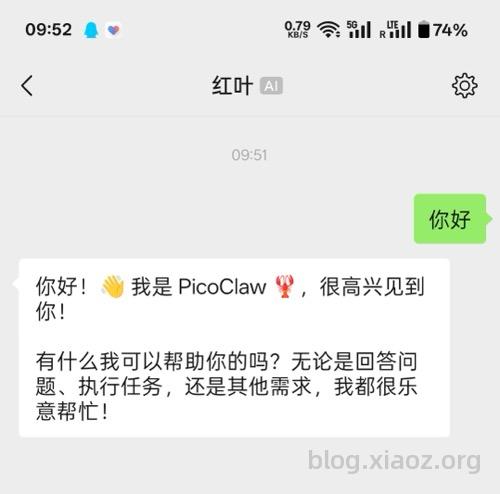
Enter content in WeChat to chat. If you receive a normal response, the configuration is correct.
Other Notes
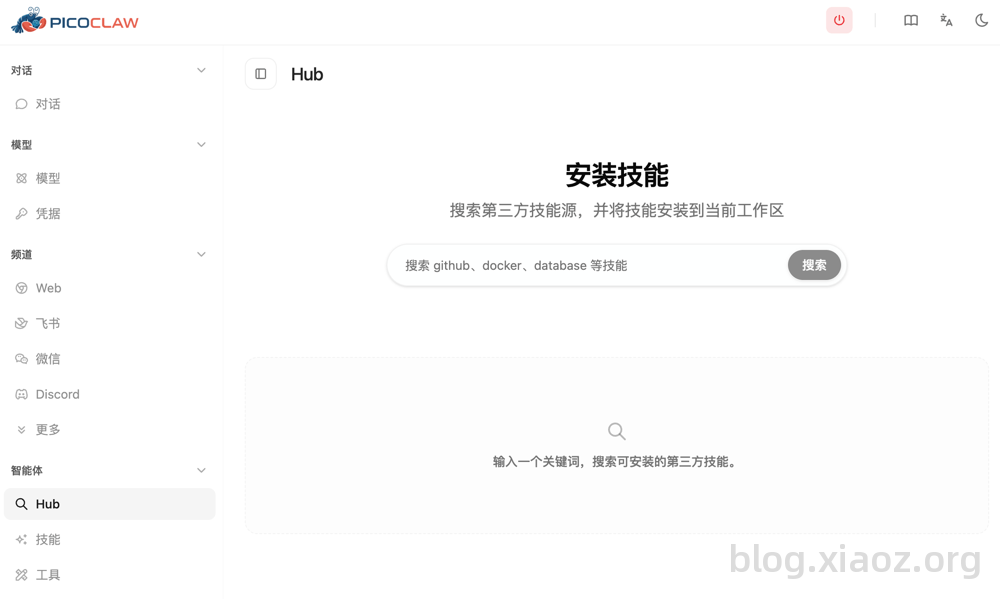
PicoClaw includes built-in features such as scheduled tasks, web search, and weather queries. You can also search for and find more skills in [Agents - Hub] to extend PicoClaw's capabilities and help you complete various tasks more effectively.
The above only demonstrates installing PicoClaw via Docker Compose and connecting personal WeChat. If you need to connect other channels, you can research based on page instructions and official documentation.
Conclusion
Although connecting WeChat to PicoClaw is slightly cumbersome, once configured, your private AI assistant is available on demand with secure privacy. If you find OpenClaw too heavy, consider trying this Golang-developed "PicoClaw."
PicoClaw Official Website: https://picoclaw.io/