OpenCode Setup Guide: My AI Programming Workflow
Previously, I used VS Code + GitHub Copilot as my AI programming solution, but due to increasing Copilot quota limits, I had to find an alternative. About six months ago, I started using OpenCode, and it has since become my primary AI coding tool. Although it took some time to get used to, I now find it increasingly convenient, so I am writing this article to share my OpenCode programming workflow.
Note: This article is not suitable for beginners; it is recommended for readers with some programming experience.
About OpenCode
OpenCode is an open-source AI coding tool. It offers multiple usage methods, including a terminal interface (TUI), desktop application, WebUI, and IDE extensions.
- Open Source Repository: https://github.com/anomalyco/opencode
- Official Website: https://opencode.ai/
Installing OpenCode
You can install it directly using the following commands:
# Install using pnpm
pnpm install -g opencode-ai
# Install using bun
bun install -g opencode-ai
Configuring and Using OpenCode
Using WebUI
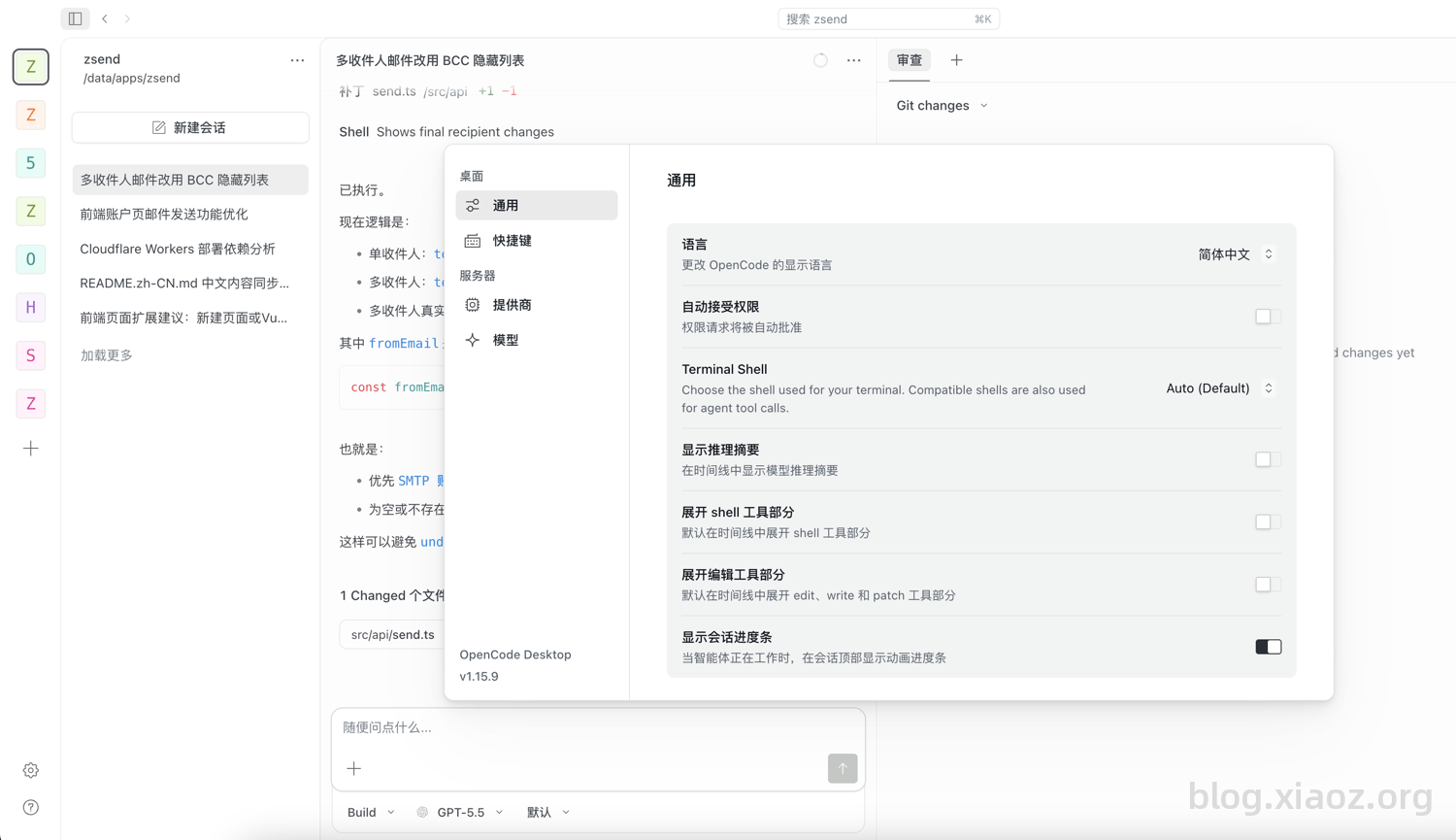
OpenCode provides various usage methods, including Terminal Interface (TUI), Desktop App, and WebUI. Currently, I use the WebUI the most because it allows for quick switching between multiple projects and models. Therefore, the following introduction focuses on the WebUI usage.
To access OpenCode via the web interface, simply navigate to your project directory and enter the command opencode web, as shown below:
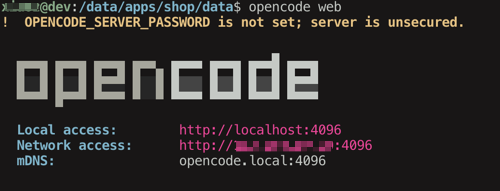
Then, follow the prompt to access the port http://IP:4096.
Two Modes
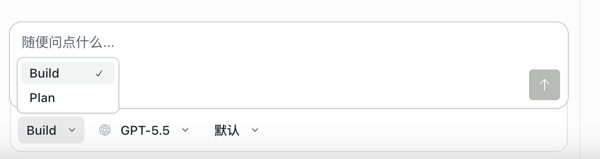
Before starting to use OpenCode, it is important to understand its two modes: Plan and Build. The differences are:
- Plan Mode: Read-only mode that does not modify or create any files. It is suitable for discussing requirements with the AI first.
- Build Mode: Automatically executes code modifications, creation, and deletion. It is suitable for executing tasks after requirements are confirmed.
I recommend using Plan mode first to discuss specific requirements with the AI. Once the requirements are confirmed, switch to Build mode to execute the task. This approach helps generate better, more expected code compared to jumping straight into Build mode. Additionally, switching modes can be done directly in the chat dialog.
Free Models
OpenCode periodically releases free models. You can view available free models at the bottom of the chat dialog under "OpenCode Zen." Recent free models include DeepSeek V4 Flash Free, MiMo V2.5 Free, and MiniMax M3 Free.
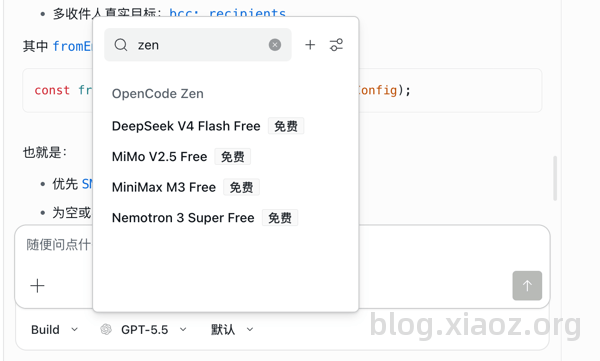
The best part about OpenCode is that using these free models does not require any account registration or configuration; you can switch to them directly. I have found a pattern: top-tier models released in China are often provided for free by OpenCode for a certain period, though these free models change frequently.
Paid Subscription
OpenCode offers its own programming package, OpenCode Go. New users pay $5/month, with a renewal rate of $10/month. This subscription allows access to top-tier domestic large models, including Qwen-3.7, GLM-5.2, and Deepseek V4 Pro, with a monthly quota of $60, offering excellent value.
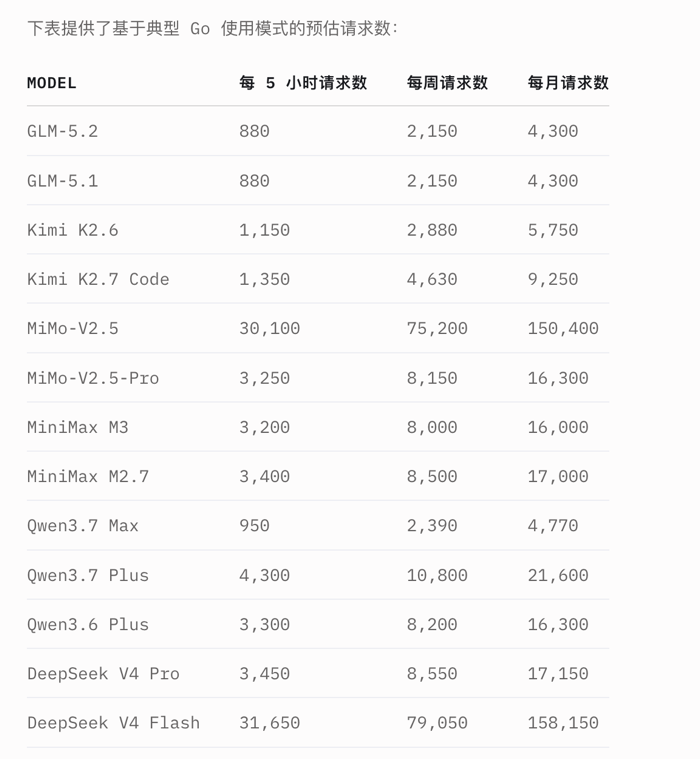
OpenCode Go Subscription Link: https://opencode.ai/go?ref=8VVFR54MQF. You can receive a `$5 usage credit by subscribing via an invitation.
Configuring More Models
As the name suggests, OpenCode is very open and supports almost all AI large models available on the market. You can select a provider in the settings or configure a custom API (as long as it is compatible with the OpenAI format).
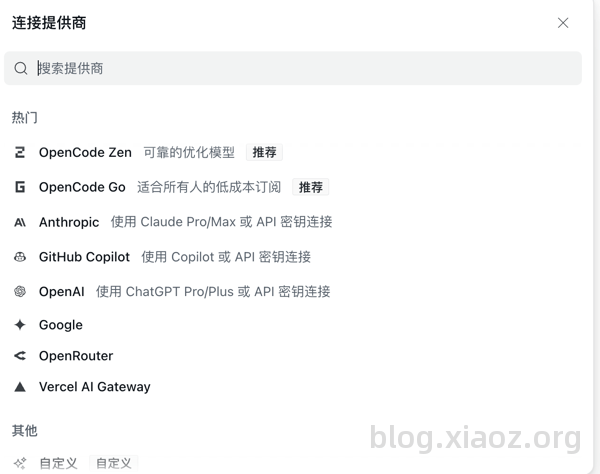
Viewing Code
I do not recommend using the WebUI for viewing code as it is not very convenient. Instead, I suggest using it in conjunction with a professional editor. My preferred editors are Zed and VS Code.
Initializing Projects
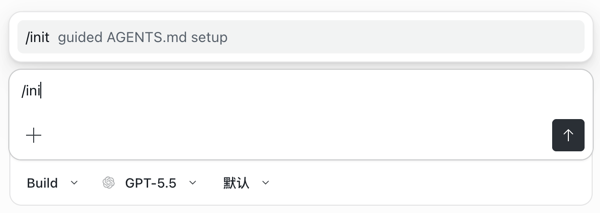
To fully leverage the capabilities of AI coding tools, do not start coding blindly. Instead, enter the /init command in the chat dialog. OpenCode will scan the project structure, technical frameworks, components, etc., and organize them into an AGENTS.md file. Subsequent AI coding will reference the content within AGENTS.md (except for some weaker models). If the content does not meet your expectations, you can manually adjust or supplement it.
For more reusable specifications, functions, or documentation, you can ask OpenCode to organize them into skills to improve code quality.
How Good is OpenCode for Coding?
Model Capability Differences
OpenCode is essentially an AI coding tool, and the final result heavily depends on the capabilities of the large model. The difference in output quality between different models can be significant. My commonly used models include:
- GPT-5.5, GPT-5.4
- DeepSeek V4
- Mimo V2.5
- Latest Qwen models
If possible, using flagship models is the best choice.
Some Usage Tips
- Use Plan mode to discuss functional requirements first, then switch to Build mode to execute. It is not recommended to use Build mode immediately unless the requirements are very simple and clear.
- Always use the
/initcommand to initialize and organize the project. - When modifying files, describe and specify the file clearly rather than letting the AI search and guess. This saves tokens and improves accuracy.
- Organize specifications or reusable functions into skills.
- Use higher-quality large models whenever possible.
Project Maintainability
AI programming has certainly lowered the barrier to entry, but not everyone can do development well—especially for projects that need long-term maintenance. If you do not understand the technical framework, project structure, or business logic, the project is destined to be unsustainable. Eventually, it becomes impossible to maintain. If you cannot clearly explain the framework and process to the AI, the AI cannot provide the code you want. Therefore, with the same tools and models, some developers produce clear, long-lasting project structures, while others create a mess that must be rewritten. The difference lies not in the AI, but in the developer's logical ability and engineering literacy.
Before starting a new project, I personally confirm the development language, framework, components, specifications, directory structure, and routing organization. I only use the stack I am familiar with and ensure the project remains under control. In a sense, at this stage, you act as an architect or product manager rather than just a programmer.
Other Notes
Upgrading OpenCode Version
# Upgrade OpenCode version
opencode update
Configuration File
OpenCode global configuration is located at: ~/.config/opencode/opencode.json
Documentation
OpenCode now provides Chinese documentation. It is recommended to skim through the documentation before use to significantly improve efficiency and results: https://opencode.ai/docs/zh-cn/
Conclusion
In summary, OpenCode has become my primary AI coding tool due to its open and flexible model integration and convenient WebUI. However, tools are merely amplifiers; the true determinant of a project's long-term maintainability is the developer's own engineering literacy and architectural capability. By effectively using /init, combining Plan and Build modes, and leveraging high-quality models, you can achieve twice the result with half the effort. Happy coding!
OpenCode Go Subscription Link: https://opencode.ai/go?ref=8VVFR54MQF. You can receive a `$5 usage credit by subscribing via an invitation.