Jenkins Publish Over SSH: Practical Guide to Common Issues and Solutions
Recently, I planned to optimize Jenkins build projects by replacing traditional scp commands with the Publish Over SSH plugin to execute remote commands and file transfer operations, thereby improving security and simplifying the workflow. This article shares some experiences and pitfalls encountered while using the Jenkins Publish Over SSH plugin.
Installing the Publish Over SSH Plugin in Jenkins
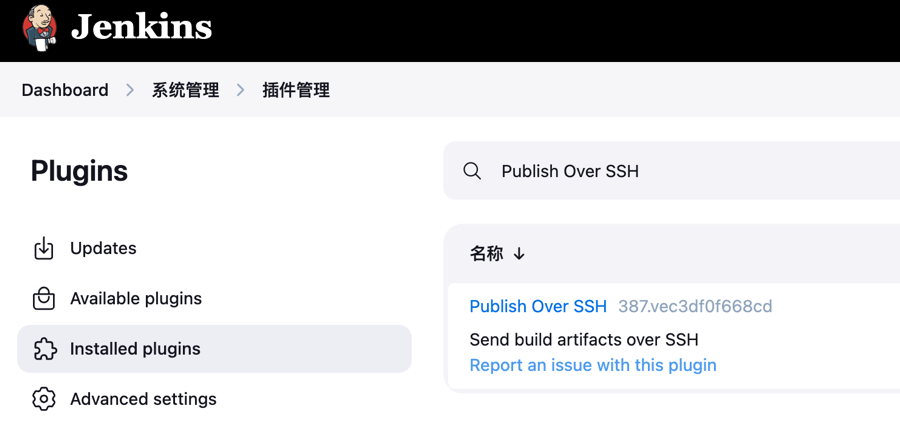
In the Jenkins backend, go to [System Management - Manage Plugins], search for Publish Over SSH, install it, and restart Jenkins for the changes to take effect.
Configuring Publish Over SSH
In the Jenkins backend, navigate to [System Management - System Configuration], find SSH Servers, and fill in the target server's IP, username, password, and other information as shown below.
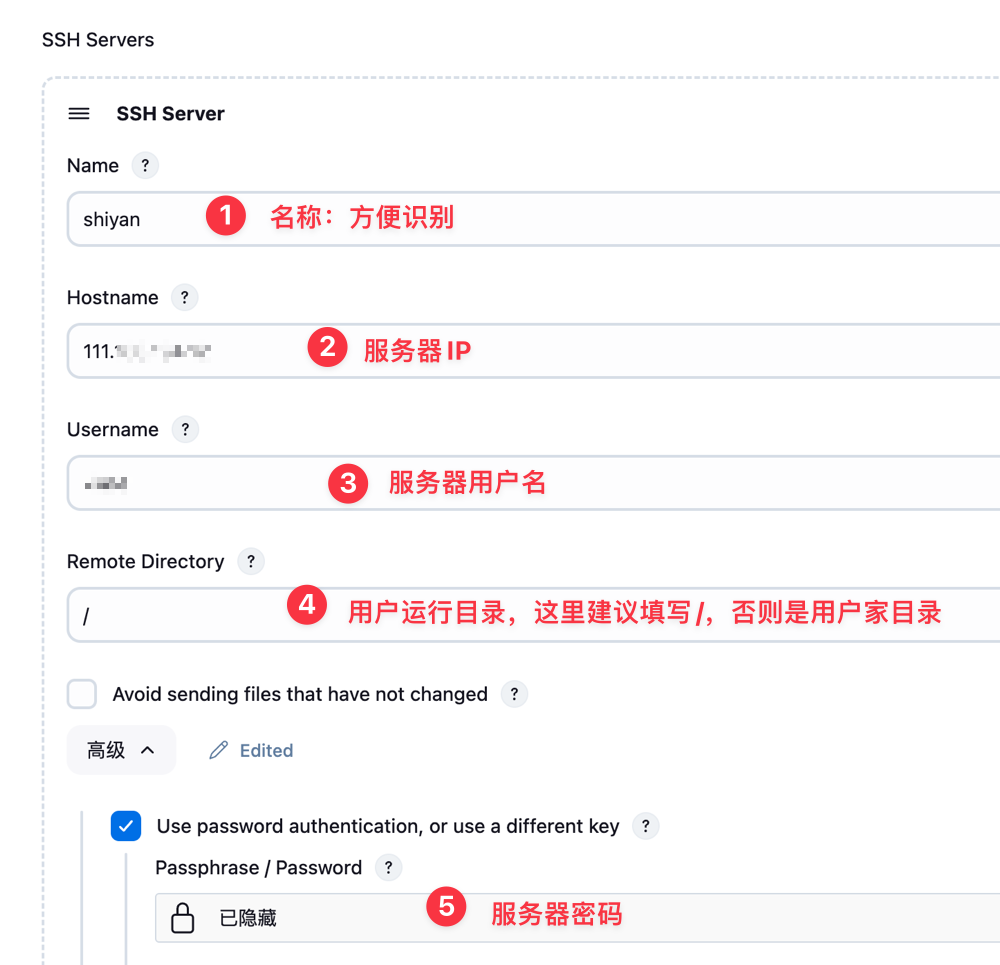
The only thing to note is the Remote Directory field. If you leave it empty, even if you specify an absolute path for file copying, the system will prepend the home directory to it.
For example, if Remote Directory is left blank and the configured server username is test, the following situation occurs:
- If you specify the target path as
/tmp - The actual copy target path becomes
$HOME/tmp, which is/home/test/tmp
Therefore, it is crucial to pay attention to this. I personally recommend setting the path to /, which ensures the use of the actual absolute path.
Using Publish Over SSH in Build Tasks
When creating a build task, you can select Send files or execute commands over SSH to use the Publish Over SSH plugin. For instance, if I need to copy the built onenav.tar.gz file to the absolute path /data/apps/dnmp/wwwroot/onenav.xiaoz.top/main/${VERSION}/, the configuration would be:
- Source files:
onenav.tar.gz - Remote directory:
/data/apps/dnmp/wwwroot/onenav.xiaoz.top/main/${VERSION}/
If the execution is successful but the corresponding file is not found in the target path, consider the following points:
- The
Remote Directorymight have been left empty during the Publish Over SSH configuration. - The source file might not exist; you can add print debugging to check the results.
- The target path might lack the necessary execute and write permissions.
Failed Directory Copy
If you need to copy a directory using Publish Over SSH instead of a single or multiple files, you might encounter copy failures.
- Initially, I set Source files to
test(wheretestis an existing directory). - I set Remote directory to an absolute path.
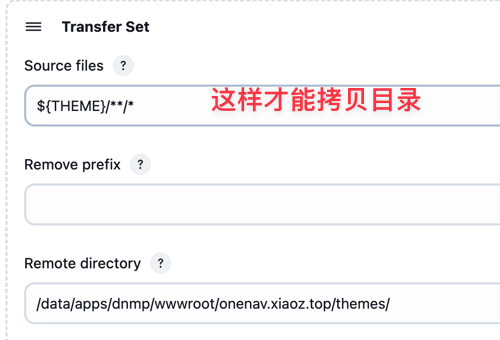
The copy failed without a detailed error message. After searching, I found that to copy a directory and its sub-files, you need to append /**/* to the path. For example, test should be changed to test/**/*, as shown below.
Conclusion
By using the Jenkins Publish Over SSH plugin, we can significantly improve the security and efficiency of remote file transfer and command execution. This article introduces the plugin's installation, configuration, and solutions to common issues such as path settings, permission checks, and directory copy failures. I hope these experiences help you optimize your Jenkins build processes more efficiently, reduce the cost of pitfalls, and facilitate smoother CI/CD practices!
Some parts of this article reference: