Exploring the New Outlook Client on Windows 10 and Windows 11
Recently, when I opened the built-in "Mail" client on Windows, I received a prompt to upgrade to the new version. I proceeded with the upgrade and experienced the brand-new Outlook client. Personally, I found it quite good and recommend it to anyone interested in trying it out.
Installing the New Outlook
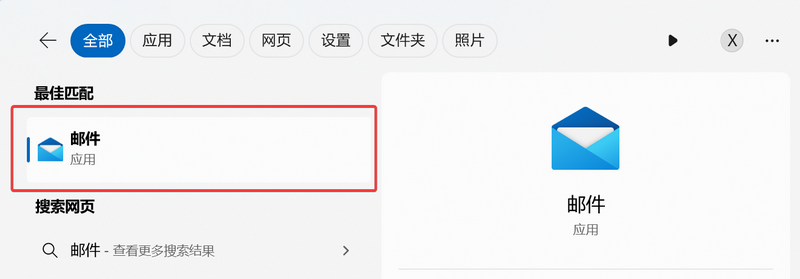
The new version of Outlook is only available for Windows 10 and Windows 11 operating systems. First, search for the keyword "Mail" in the bottom-left corner, then locate the following icon and click to open it. A prompt for the new version will appear automatically; wait for the upgrade to complete.
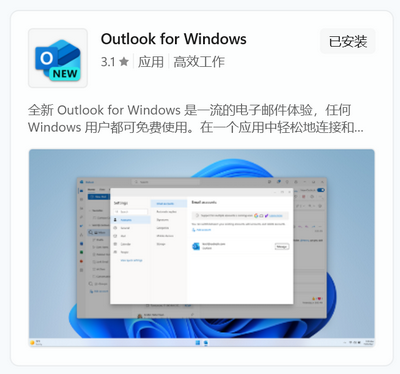
Alternatively, you can open the Windows App Store, search for "Outlook," and find "Outlook for Windows" to install it.
Using the New Outlook on Windows
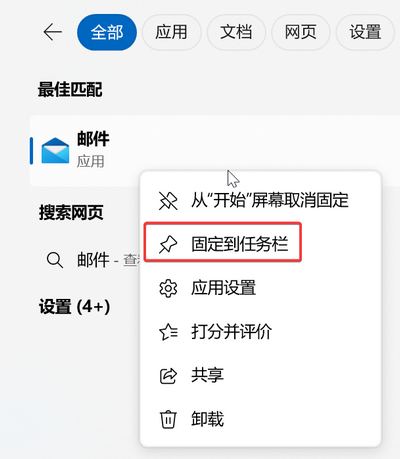
Search for the keyword "Mail" in the bottom-left corner and open the client. If you use it frequently, I recommend pinning it to the taskbar for quick access next time.
Then, enter any email account you wish to add. This is not limited to Outlook.com; Gmail, QQ Mail, and others are also supported.
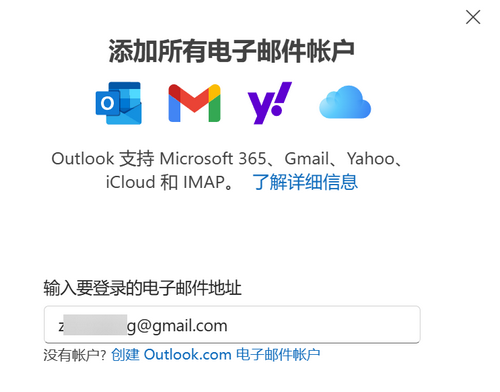
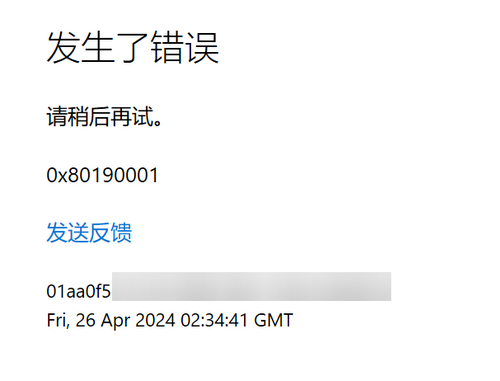
If you are adding an @outlook.com email, you might encounter error 0x80190001 during login. This could be due to using a proxy or VPN. Please turn off the proxy/VPN software first, log in successfully, and then turn it back on.
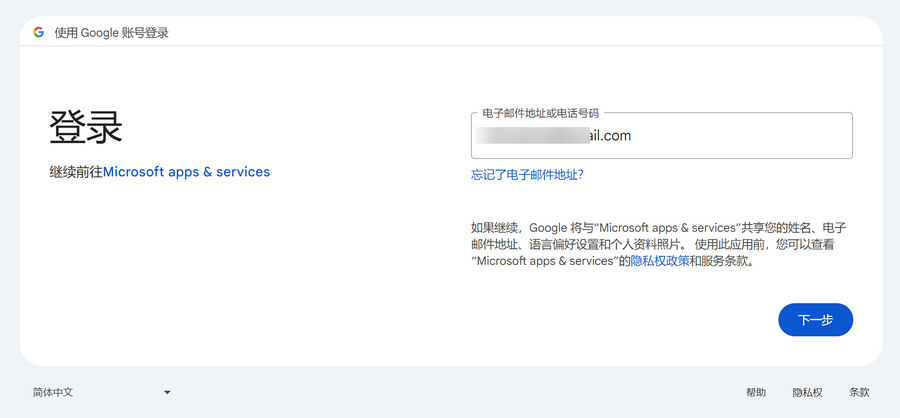
If you add a @gmail.com email, it will redirect to a Google webpage for authorization. You will need to use a proxy or VPN software to complete the webpage authorization.
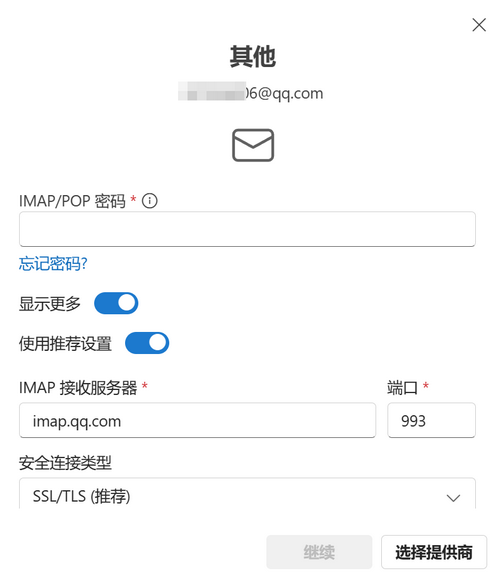
For other non-standard email accounts, you will need to manually configure the IMAP and SMTP information.
The experience of the new Outlook client is basically consistent with the web version; the interfaces are now identical. Additionally, Microsoft has integrated its own products like Todo and OneNote into Outlook.
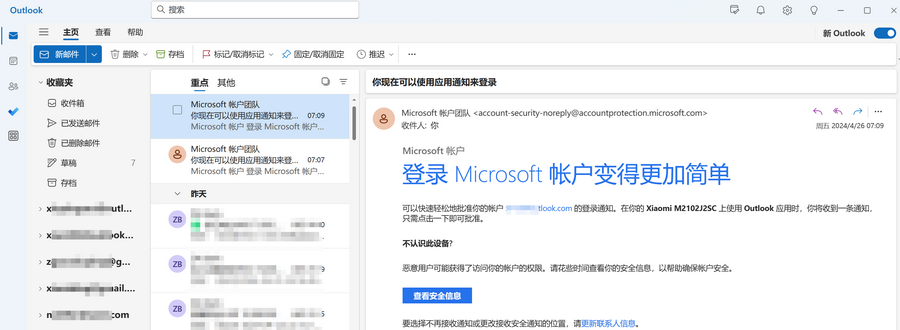
Some users have commented that the new version is not as smooth as the old one, but I haven't noticed a significant difference. It is worth mentioning that the new version appears to use WebView2 technology. Another interesting point is that after adding Gmail, it seems you no longer need a proxy to receive emails. Interested users are encouraged to test this themselves.
Conclusion
Overall, the new Outlook has made significant improvements in interface design, feature integration, and ease of use, making our work more efficient. Of course, the new version may take some time to adapt to, but it is worth it on the path to exploring and improving work efficiency. I hope this article helps you better understand and utilize the new Outlook. If you have any questions or insights during use, feel free to leave a comment. Wish you a pleasant workday!