ChatGPT Not Responding? 3 Proven Fixes to Restore Functionality
Recently (2024.03.08), xiaoz encountered an issue where sending messages to ChatGPT yielded no response. Repeated attempts failed, and switching network nodes proved ineffective. It is suspected that ChatGPT may have implemented certain security updates. Below are the solutions compiled by xiaoz, which are hoped to be helpful.
Problem Reproduction
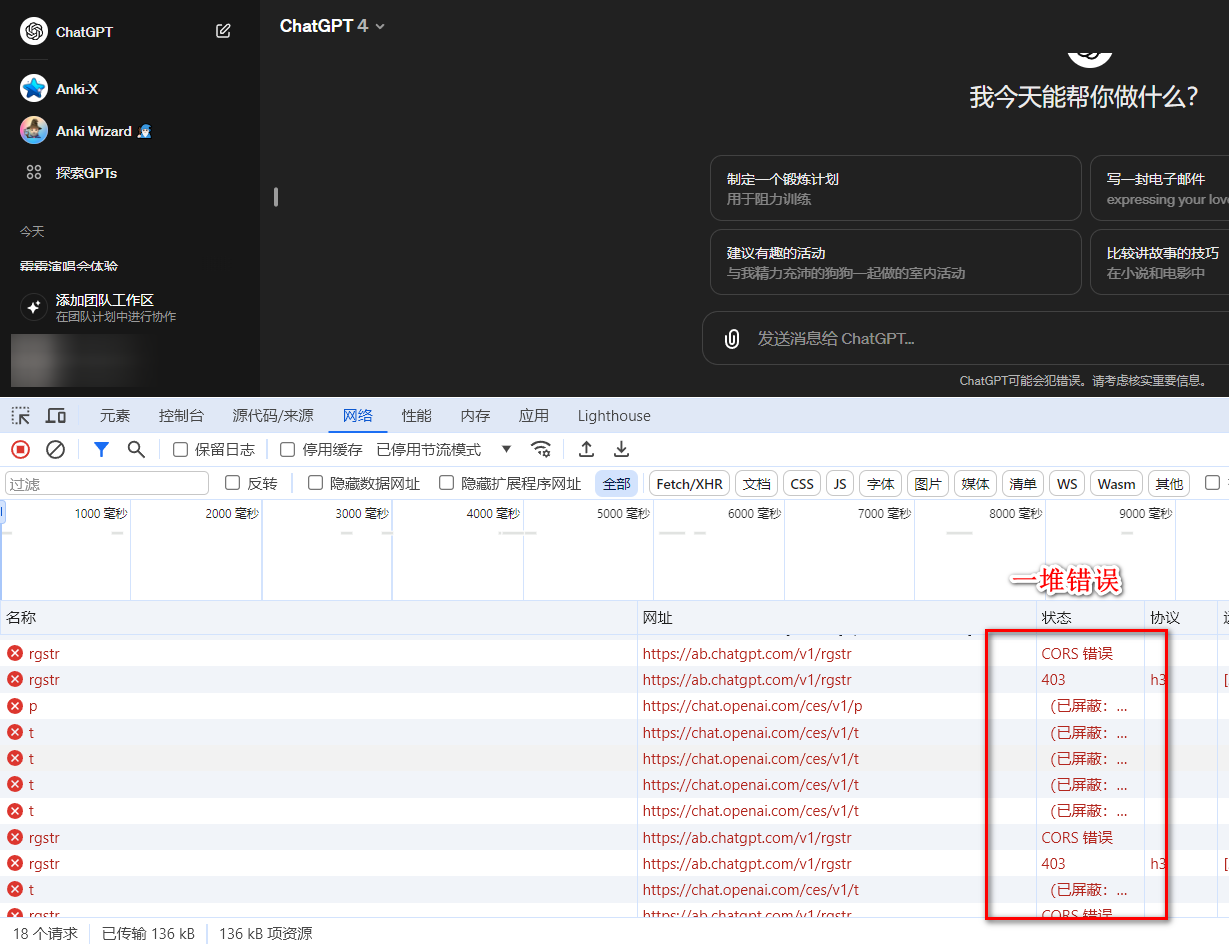
- Sending messages to ChatGPT results in no reaction.
- Browser developer tools reveal numerous errors similar to the following:
Solutions
Method 1: Clear Browser Cache
Clearing the browser cache is suitable for beginners and is the simplest method. After clearing the cache, log in to your account again to restore normal usage.
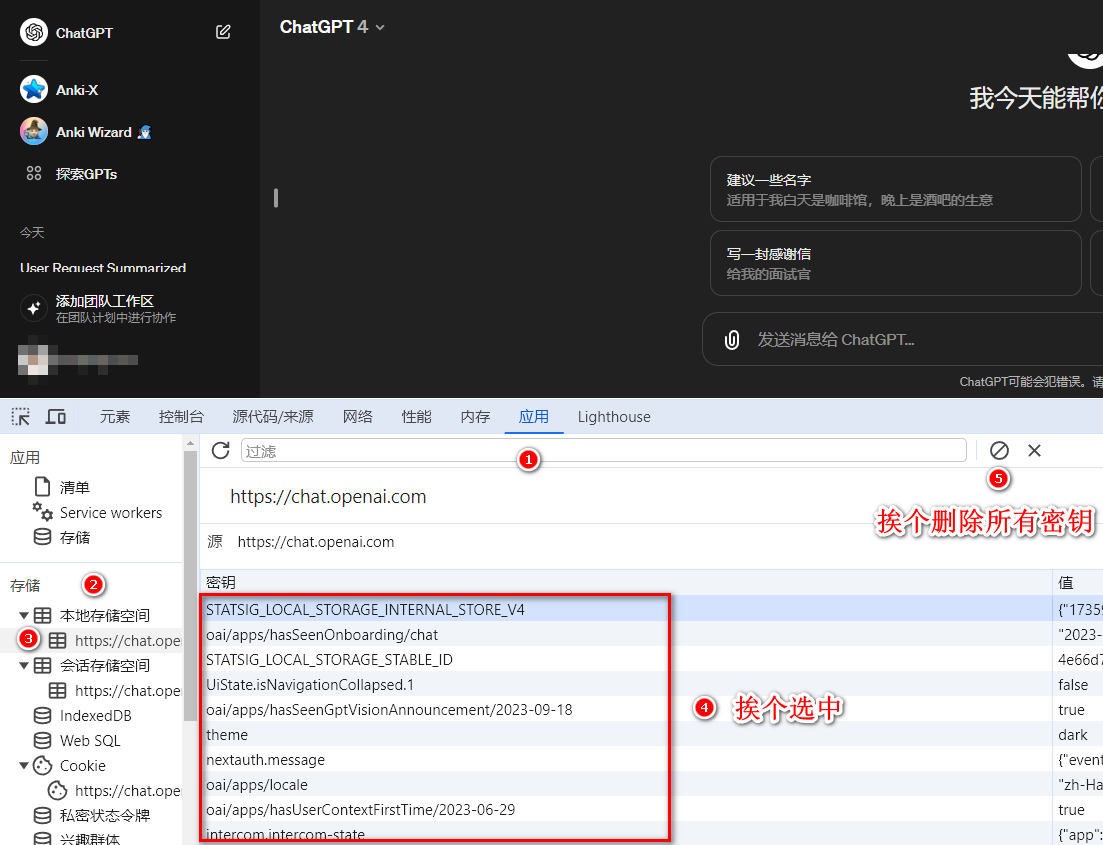
Method 2: Clear Browser Local Cache Data
This method is more professional and suitable for developers. Using Chrome as an example, first press F12 to open the browser debugging tools, switch to "Application" > "Local Storage" > "https://chat.openai.com" > "Delete all keys," and then refresh the page to restore normal usage.
Method 3: Switch Browser or Use Incognito Mode
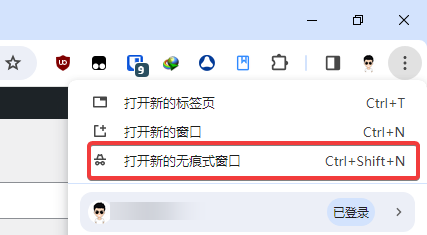
Switch to a browser that has never been used for ChatGPT, or use the browser's incognito mode to log in and use it again, as shown below (using Chrome as an example).
Conclusion
The above are the solutions for when ChatGPT fails to respond to messages. Beginners are recommended to clear the browser cache, while professionals are advised to use browser debugging tools to clear local storage data. xiaoz has personally tested these methods and they are effective.
We have created an OpenAI/ChatGPT Telegram group. Those interested can join: https://t.me/+L0g2D-hecQM4ODVl