Practical Guide: Registering for an AWS Account and Creating an Amazon RDS Database
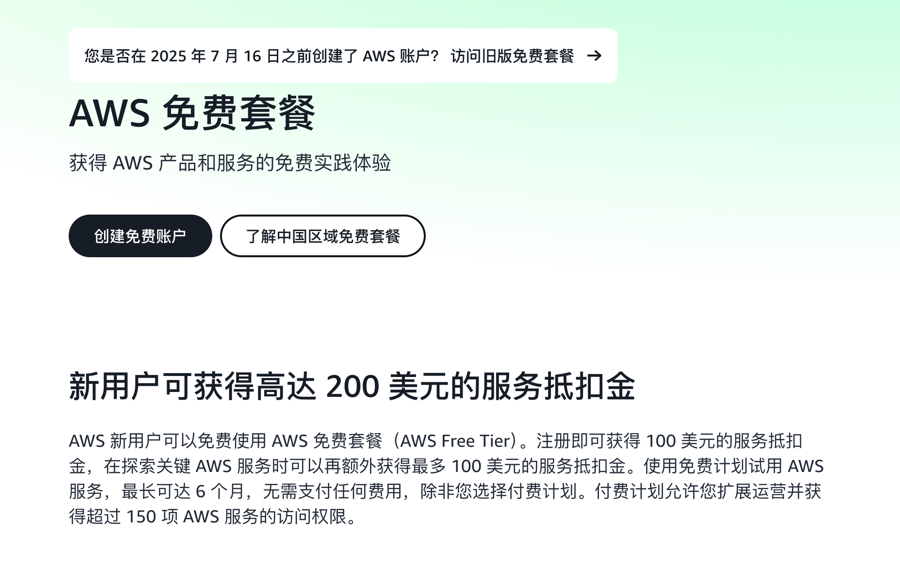
AWS provides generous free trial resources for new users. Upon successful registration, you will immediately receive $100 in service credits to experience various core services. After completing new user tasks, you can earn an additional $100 in service credits. This article introduces how to register for an AWS account and create an Amazon RDS database.
Contents:
- Register for an AWS Account
- Verify and Activate Account to Get $100 Credit
- Complete Amazon RDS Database Creation to Get $20 Credit
- Check Service Credits
Register for an AWS Account
Before registering, you need to prepare:
- Common Email Address
- Common Mobile Phone Number
- A Debit Card or VISA/MasterCard Credit Card
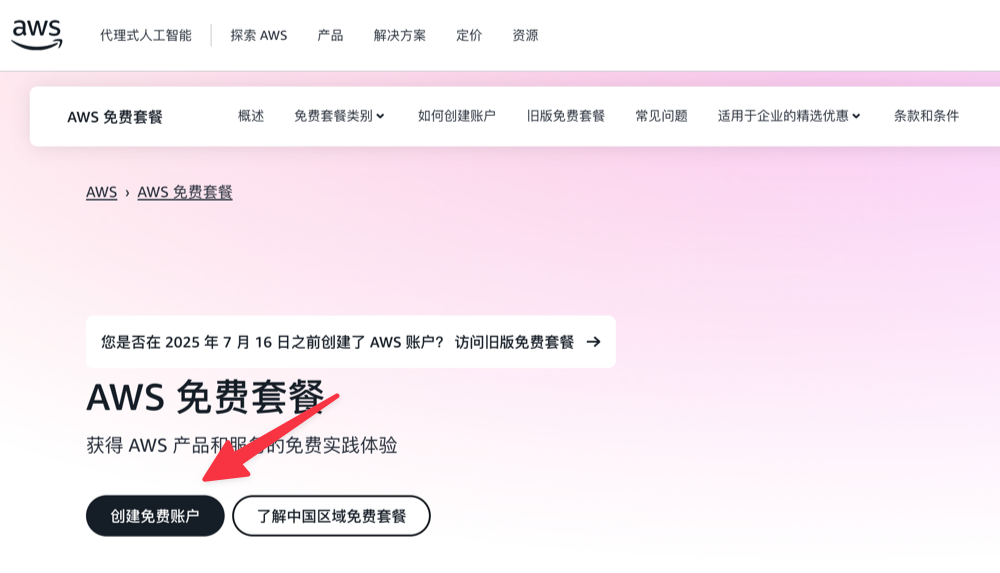
First, open the AWS Registration Page and click Create Free Account.
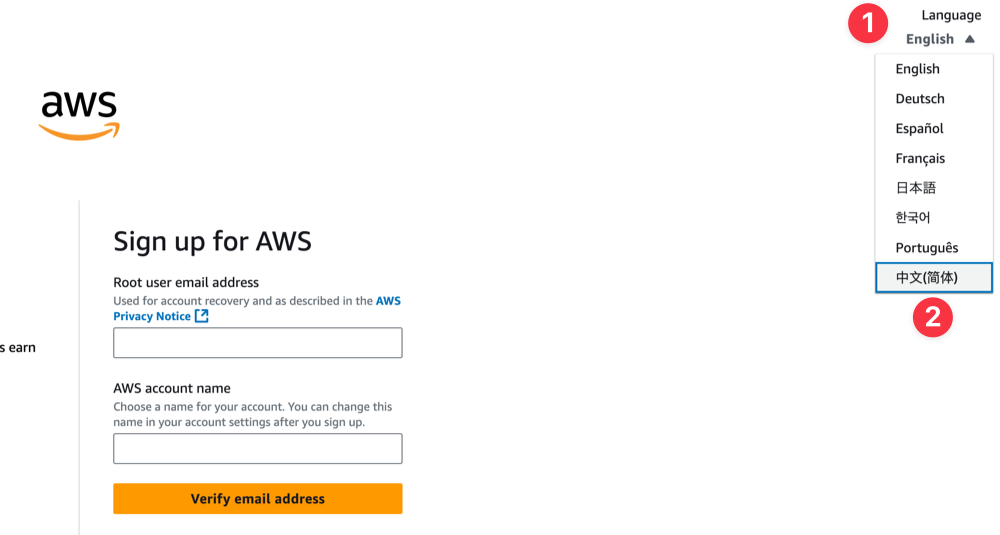
Switch Language to Chinese in the top right corner to facilitate the subsequent registration process.
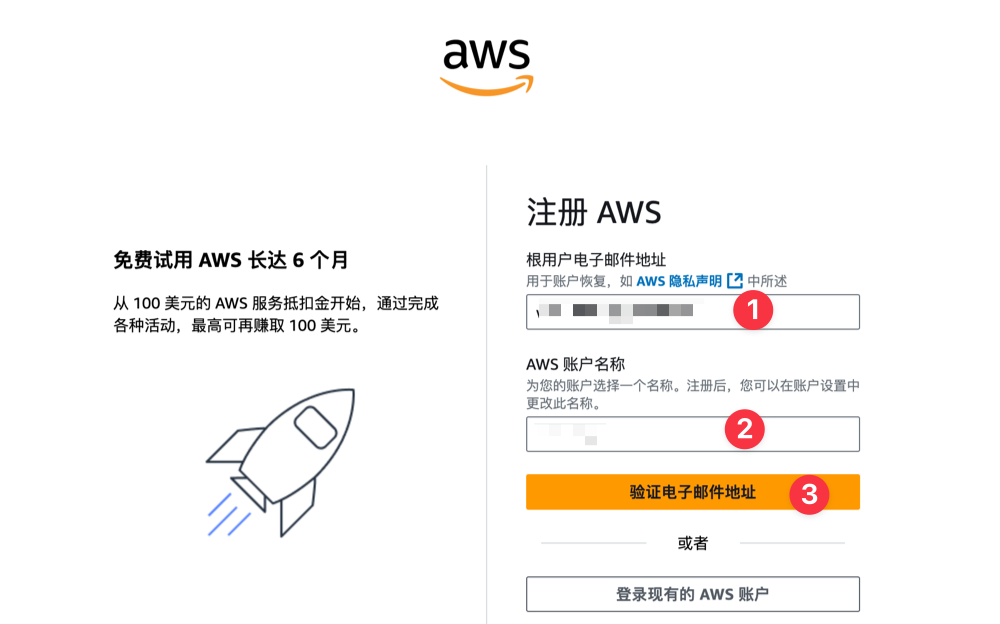
Then enter your common email address and set a username, then click the Verify Email Address button.
After entering the email verification code to complete verification, set an account password.
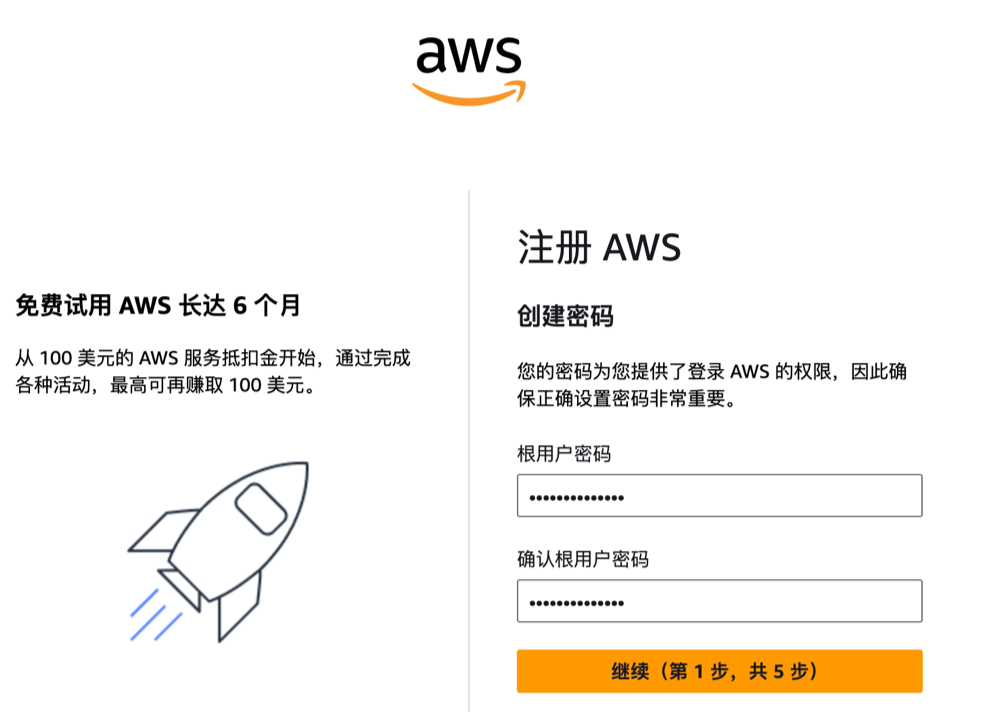
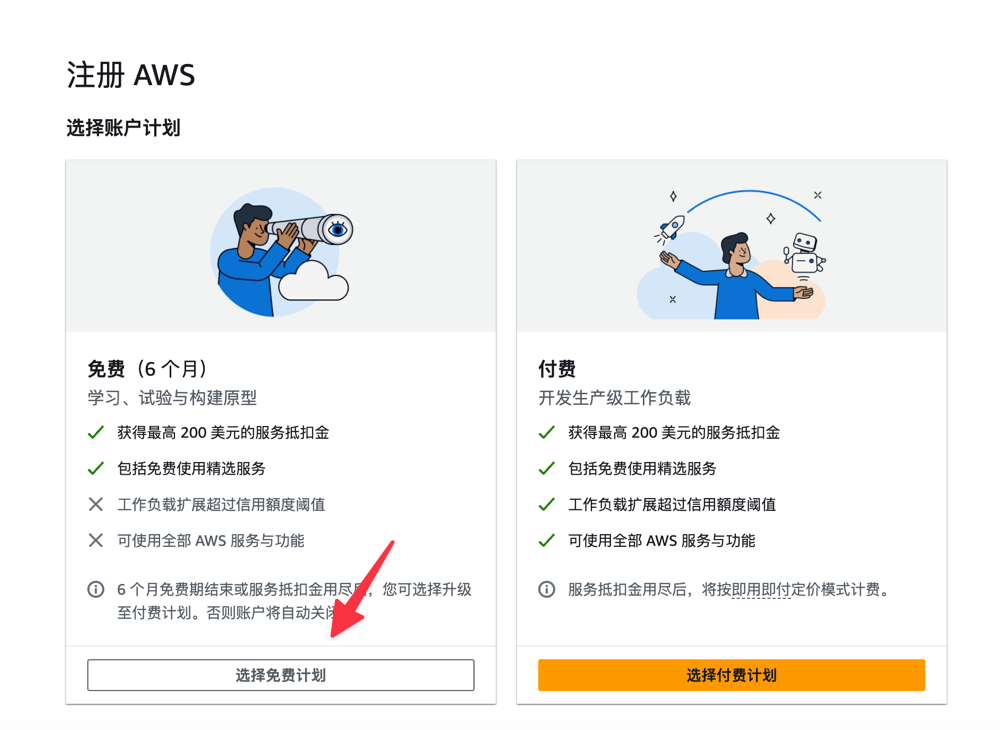
Then select Account Plan. It is recommended to choose the Free Plan first, and consider upgrading to a paid plan later based on usage.
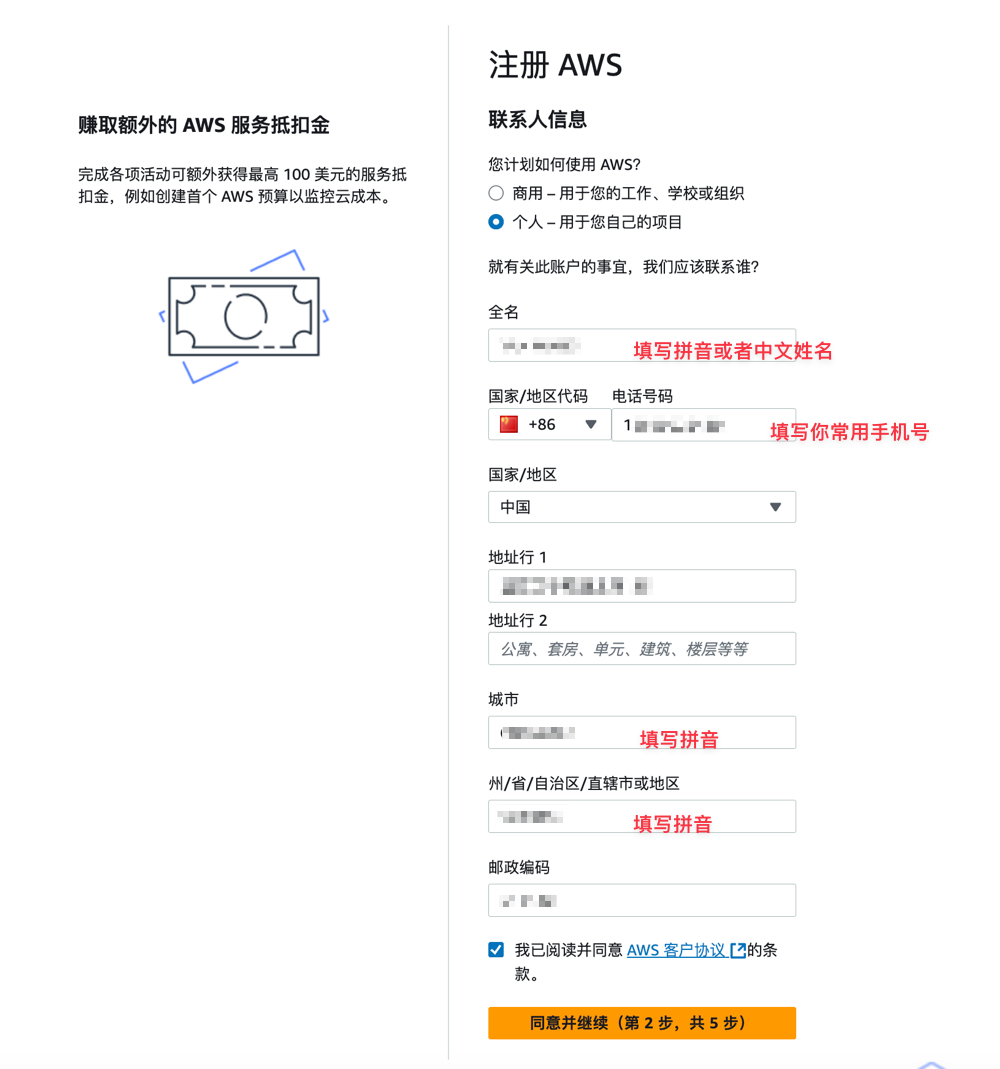
Next, fill in contact information. This step is important. Please fill in information truthfully, do not fill randomly, otherwise it may trigger risk control.
Bind UnionPay Card/Credit Card
Next, you need to bind a domestic UnionPay card or VISA/MasterCard credit card for verification. If you have a VISA/MasterCard, it is recommended to choose Other Credit or Debit Card first (this verification process is simpler). If you do not have a VISA/MasterCard credit card, choose China UnionPay Credit Card, this verification step is slightly more cumbersome.
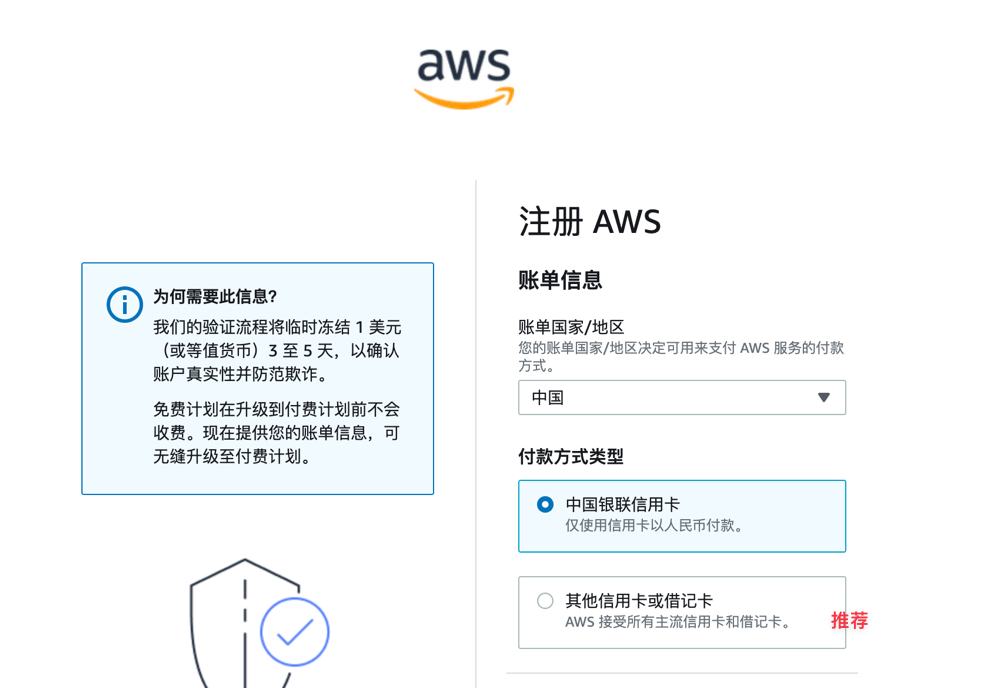
After the credit card binding is successful, a small fee will be deducted for verification and will be automatically refunded later.
The next step will continue to require binding a mobile phone number for verification. It is recommended to select China (+86) for the country.
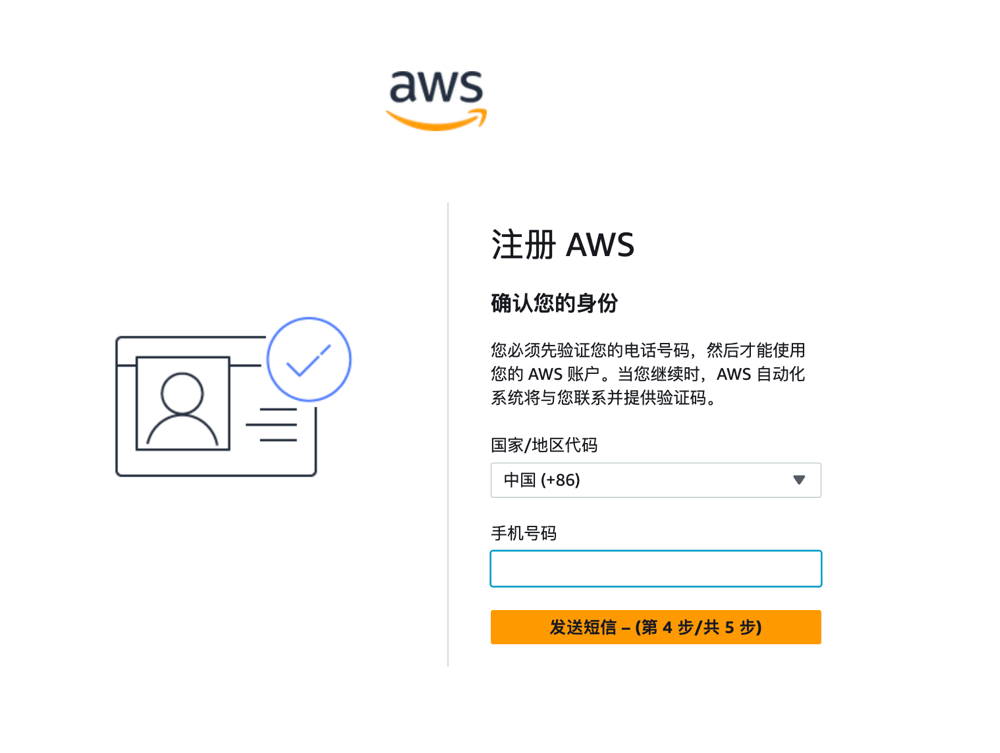
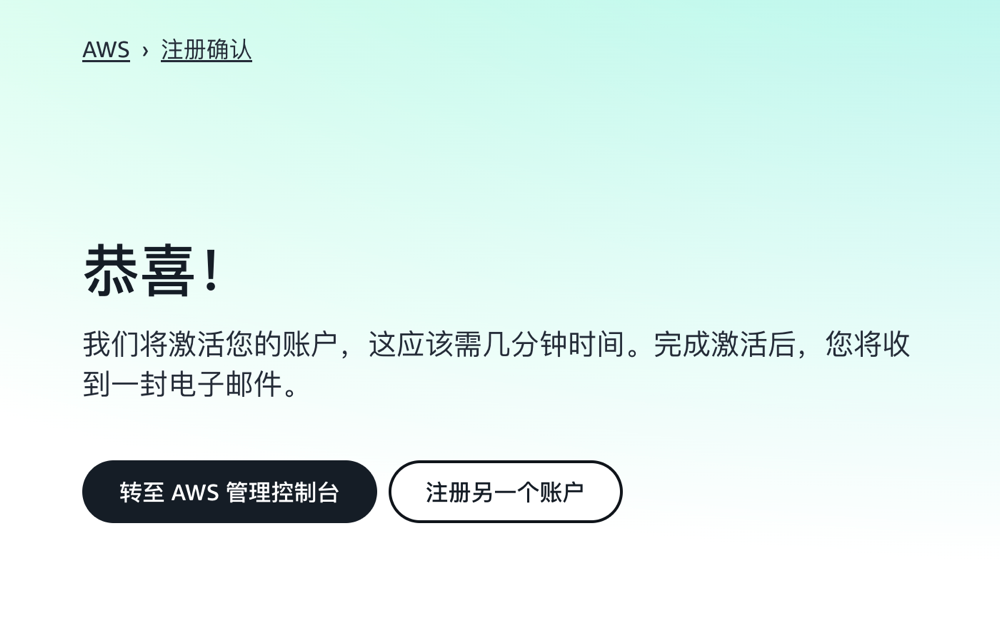
If everything goes smoothly, it will prompt that the account activation is successful, and then receive a successful email.
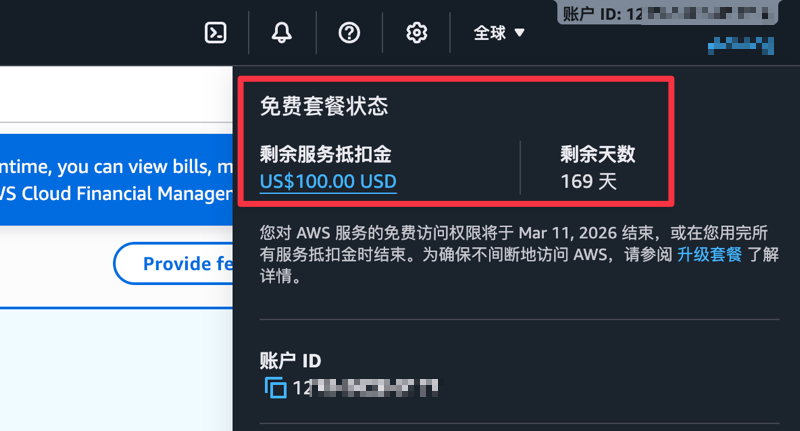
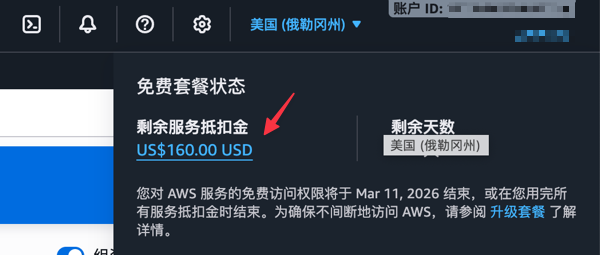
Log in to the AWS console. Click on the ID in the top right corner to see the gifted $100 credit and expiration time (valid for half a year).
Complete Amazon RDS Creation Task
In addition to the $100 coupon gifted upon registration, AWS has also arranged 5 simple tasks to help us familiarize with the products. One of the tasks is Create Amazon RDS Database. Each completed task can earn an additional $20 service credit.
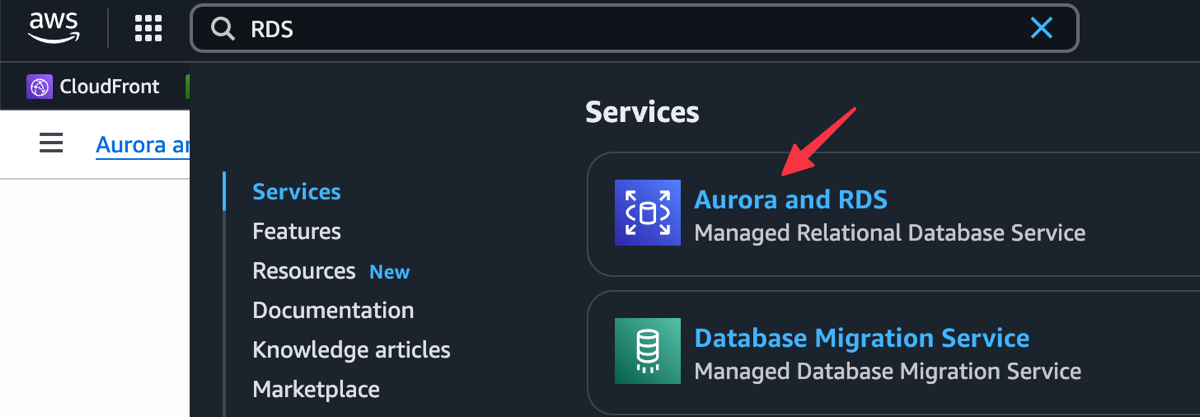
Enter RDS in the console search box to find Aurora and RDS and enter.
Then select according to the requirements below:
- Database Creation Method: Easy Create
- Engine Type: MySQL
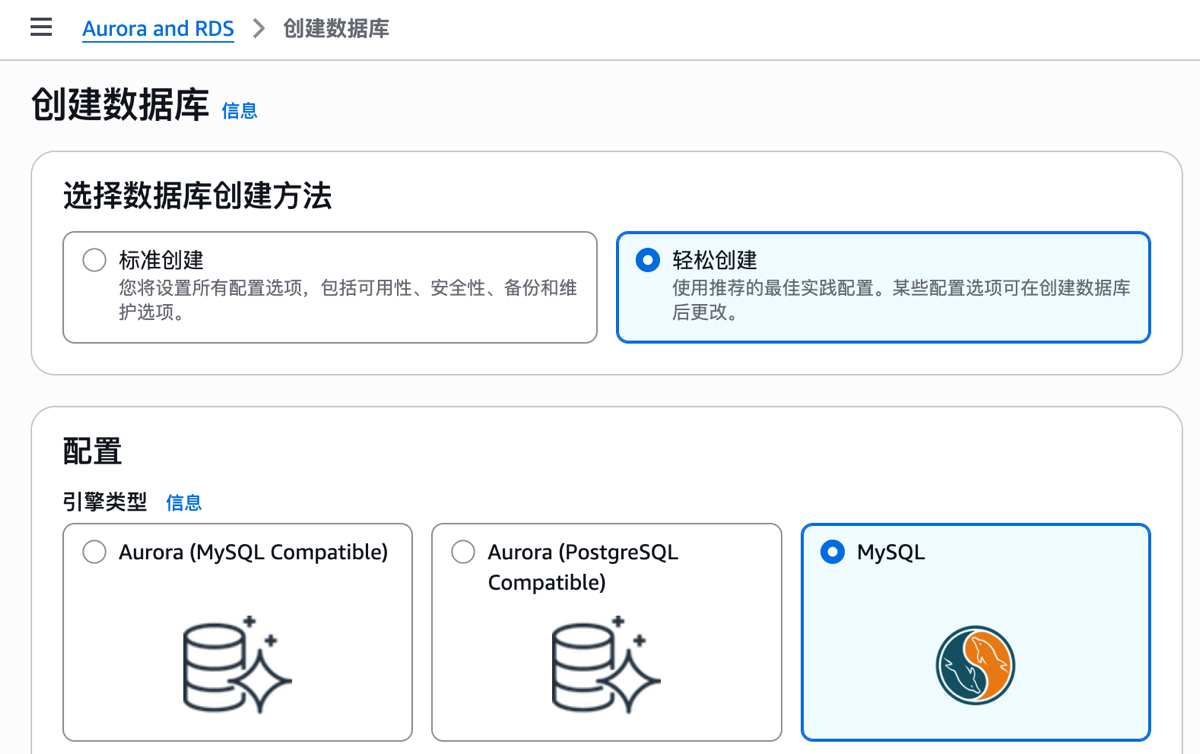
Continue to fill in according to prompts:
- Version: MySQL Community
- Database Instance Size: Choose according to your own situation
- Database Instance Identifier: Keep default, or fill in yourself
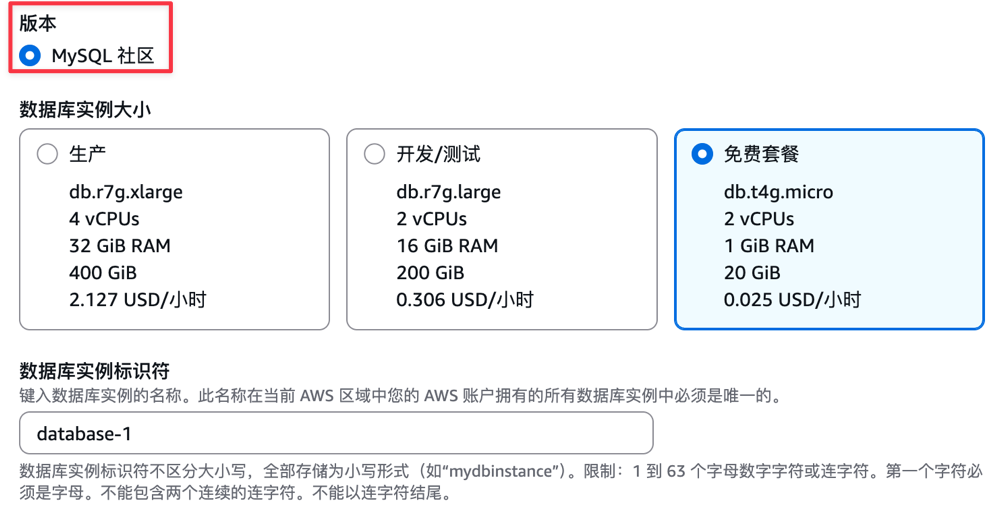
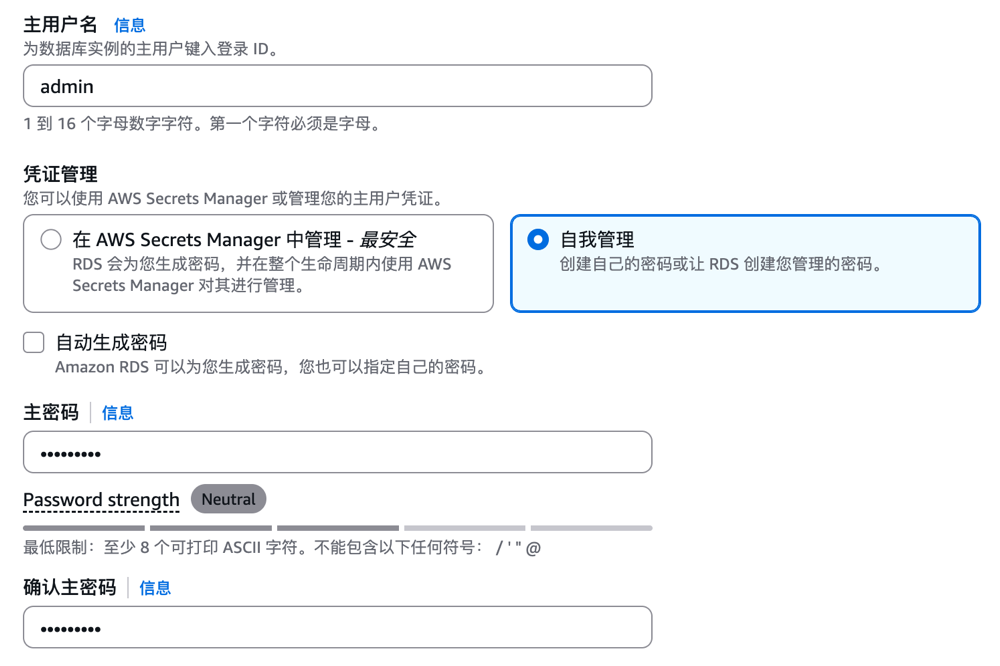
Next is setting the username and password.
- Master Username: Keep default or set yourself
- Credential Management: Self-managed
- Master Password: Set yourself
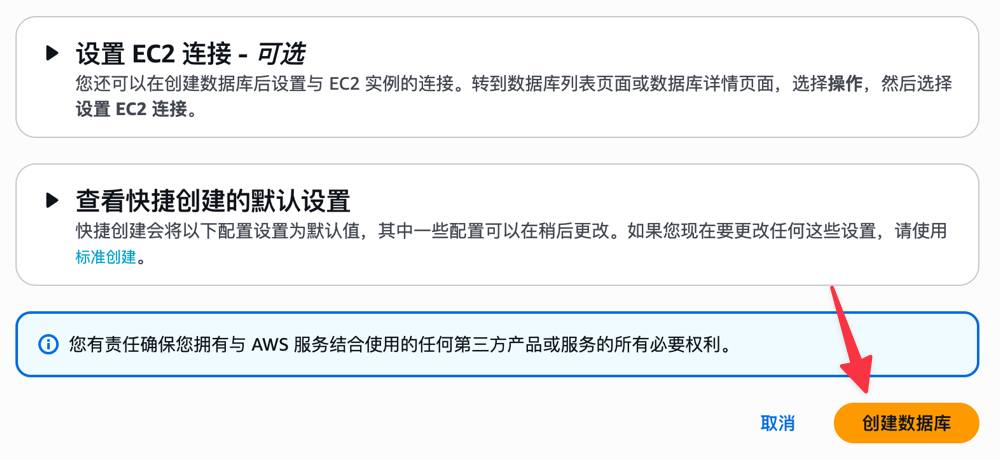
Finally, click the Create Database button to complete the creation.
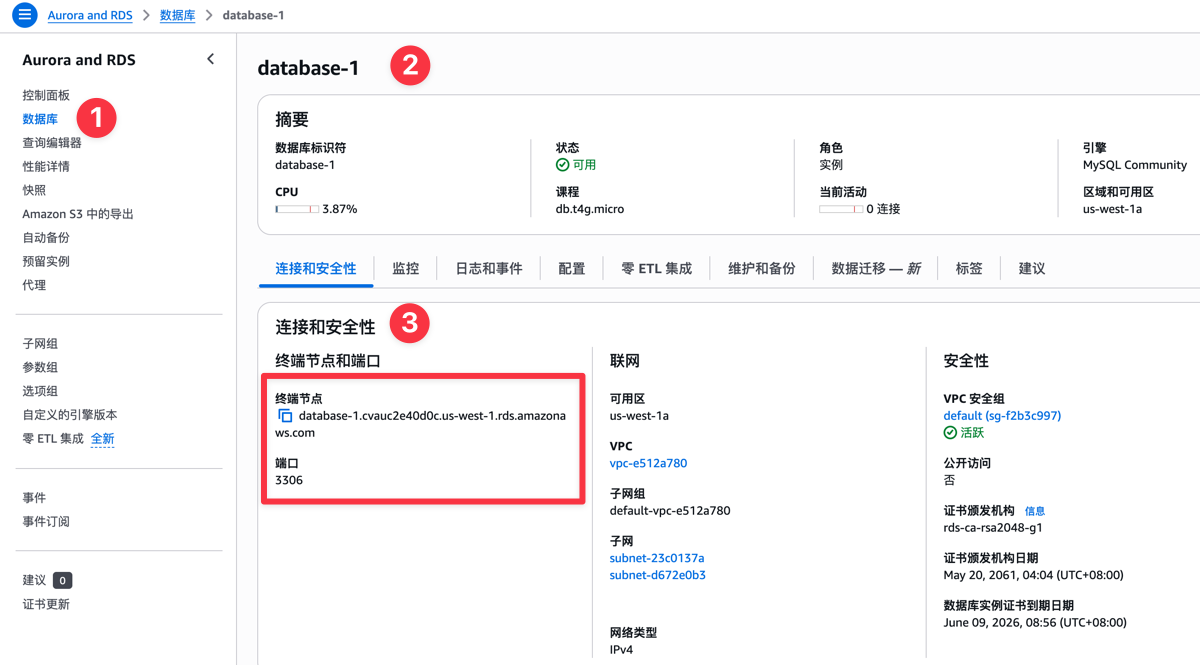
After the MySQL database is created, switch to Database - Click Database - Find Connection and Security, you can see the database connection information, as shown in the figure below.
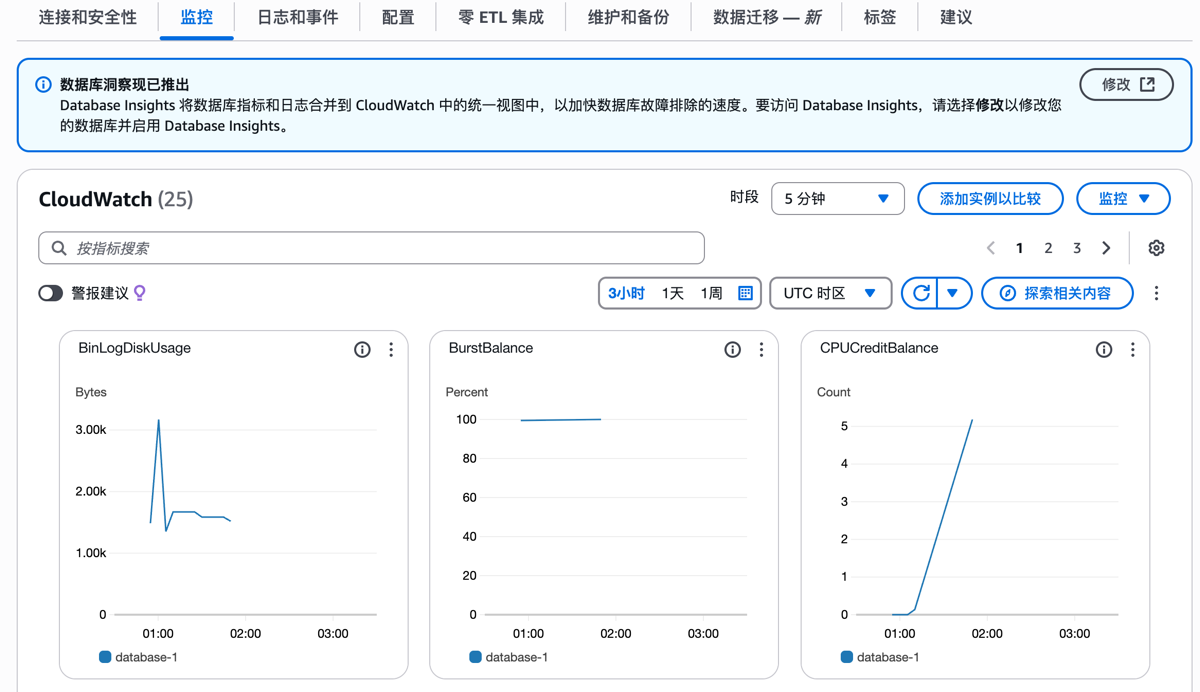
In the Monitoring option bar, you can intuitively see multiple indicators such as database CPU usage and connection count, which is convenient for us to monitor the database status at any time.
In the Maintenance and Backup option, the database enables automatic backup by default (you can also modify the backup cycle), thereby ensuring data security.
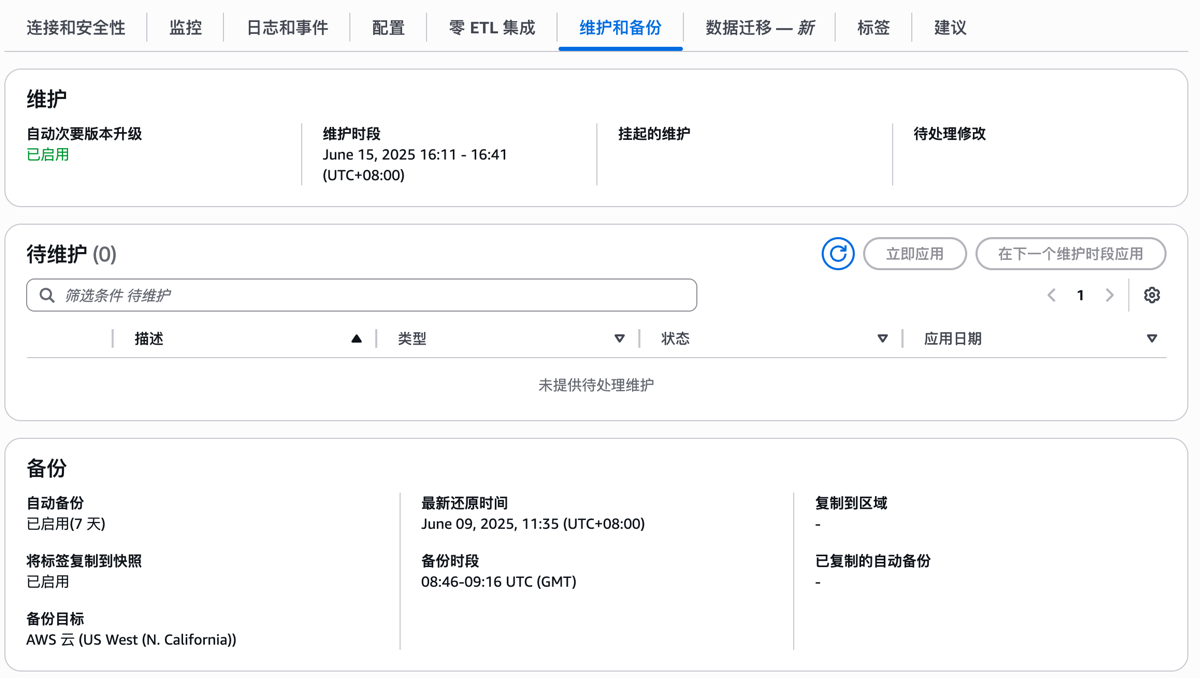
In addition to automatic backup, you can take snapshots and snapshot restoration at any time, which greatly improves security and convenience. These functions are not available in native MySQL.

Amazon RDS also provides reserved instances and proxy functions. Friends who are interested can create a database to try. From the functions above, it can be seen that Amazon RDS is more powerful than native self-built MySQL, and maintenance is also easier.
Check Service Credits
Click the ID in the top right corner to view the service credit balance and expiration time.
On the console homepage, you can see the completion status of each task. In the previous step, we have completed the Create Amazon RDS Database task. The task shows as completed and the $20 reward has been issued.
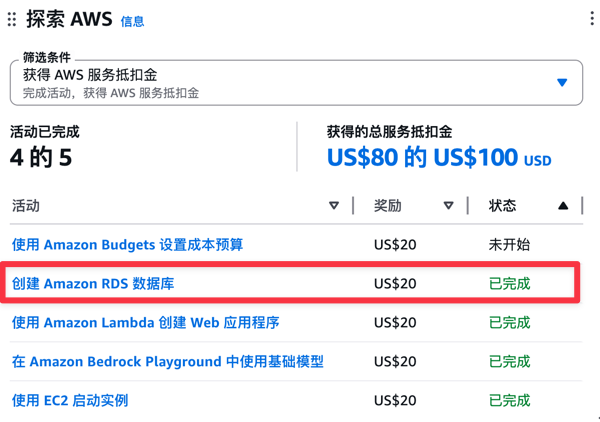
There are a total of 5 tasks. After completing all of them, you can earn an additional $100. Plus the $100 gifted upon registration, totaling $200 in service credits, which is very good for deducting core services of AWS.
Conclusion
AWS provides generous free resources for new users. Register to get $100, and complete 5 new user tasks to get another $100 credit. Through the steps in this article, you can easily register an account, create a database, and claim rewards to efficiently start your cloud service experience journey.
Tip: If you decide not to use the service, remember to close and delete the service in the console to avoid generating fees!