How to Easily Deploy 1Panel Server Management Panel on Amazon Lightsail
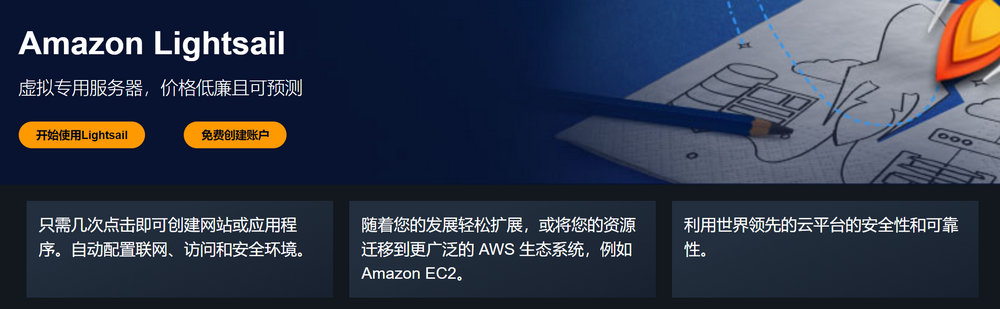
Amazon Lightsail is a simplified virtual private server (VPS) service provided by Amazon Web Services (AWS). It offers pre-configured virtual server instances and a range of convenient features and services, allowing users to quickly create, manage, and scale server instances for various applications and workloads. New users can also enjoy a 3-month free trial to experience its powerful features and fully understand its value.
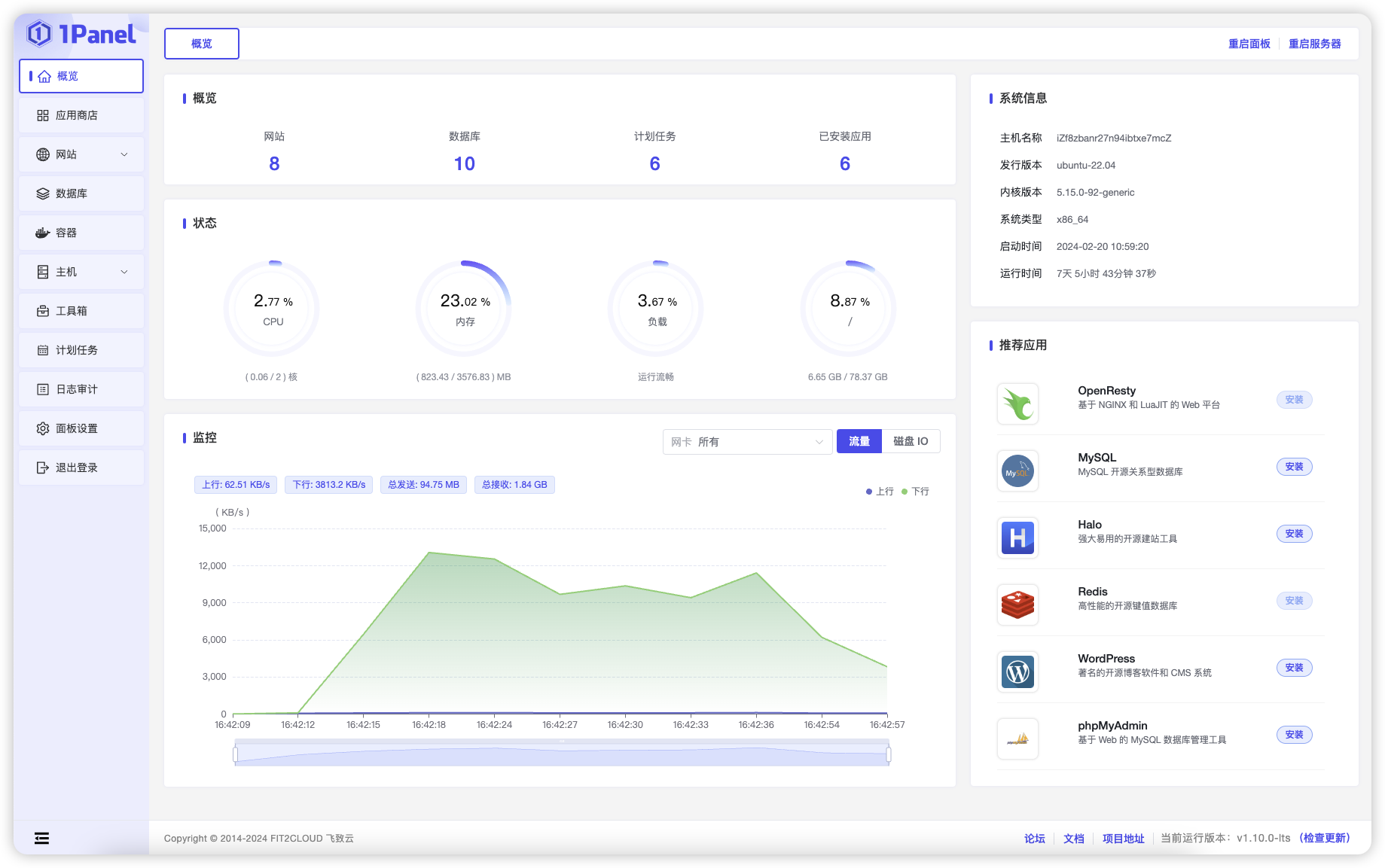
1Panel is a simple and easy-to-use server management tool, similar to a control panel on a computer. It helps you easily install software, manage websites, and view server status without needing extensive technical knowledge.
The article content includes the following steps:
- Register Amazon Web Services Account
- Create Amazon Lightsail
- Deploy 1Panel Server Panel
Register Amazon Web Services Account
Before using Amazon Lightsail, we need to register an Amazon Web Services account first. After registration, you can experience many free cloud products provided by AWS. However, before starting, you need to prepare:
- A frequently used email address
- A frequently used phone number
- UnionPay/VISA/MasterCard credit card
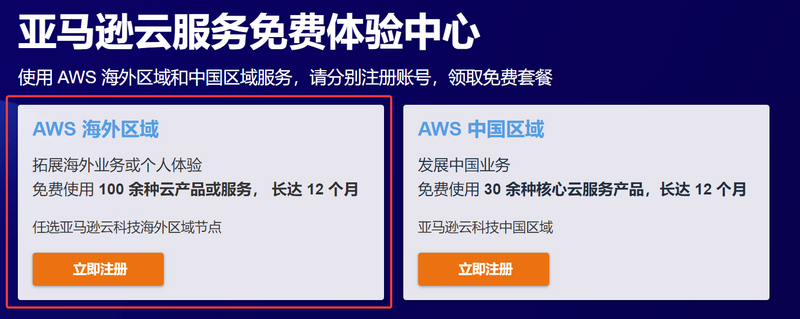
Click the link: Amazon Web Services to go to registration. When registering, please select "Amazon Web Services Overseas Region". Overseas regions do not require enterprise verification.
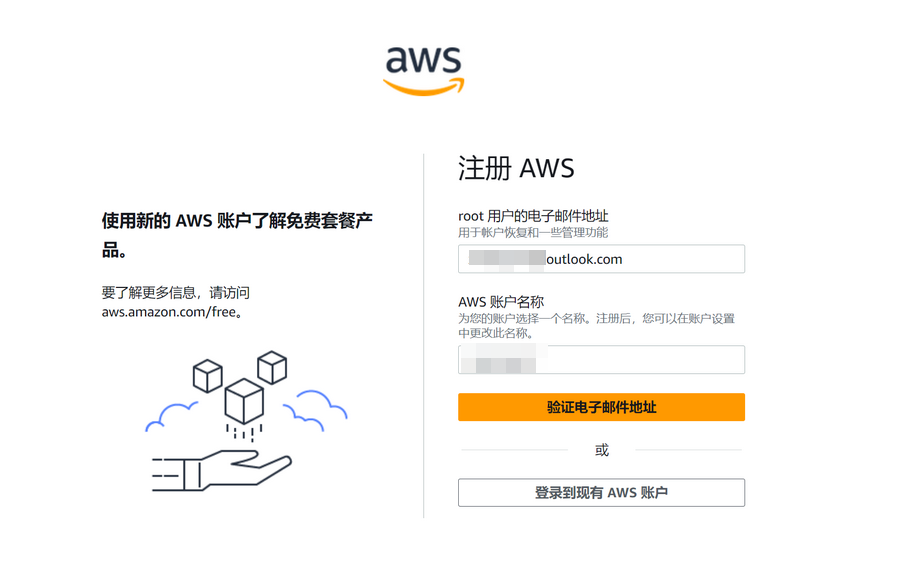
Fill in your email and account name.
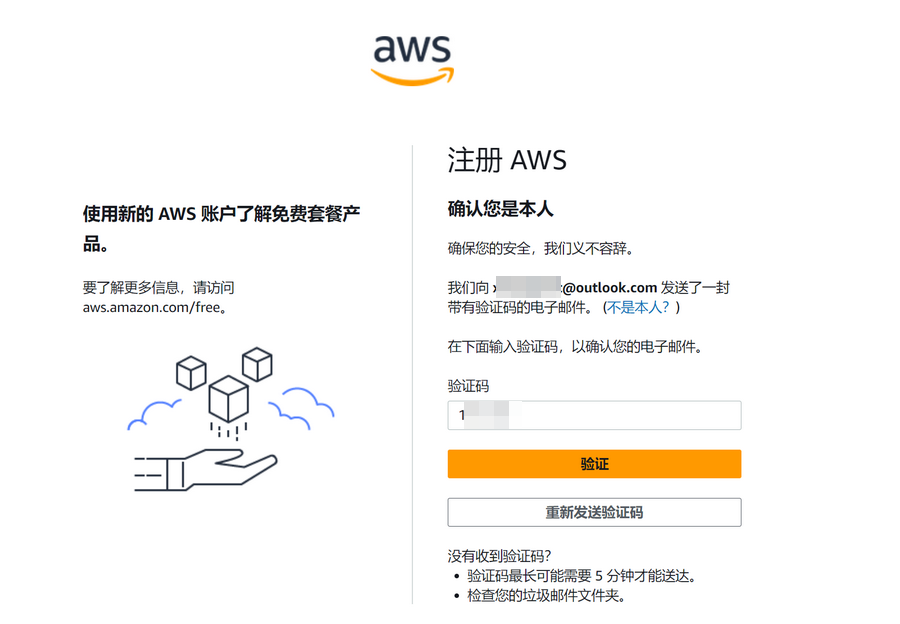
Enter the verification code sent by Amazon Web Services to your email for verification.
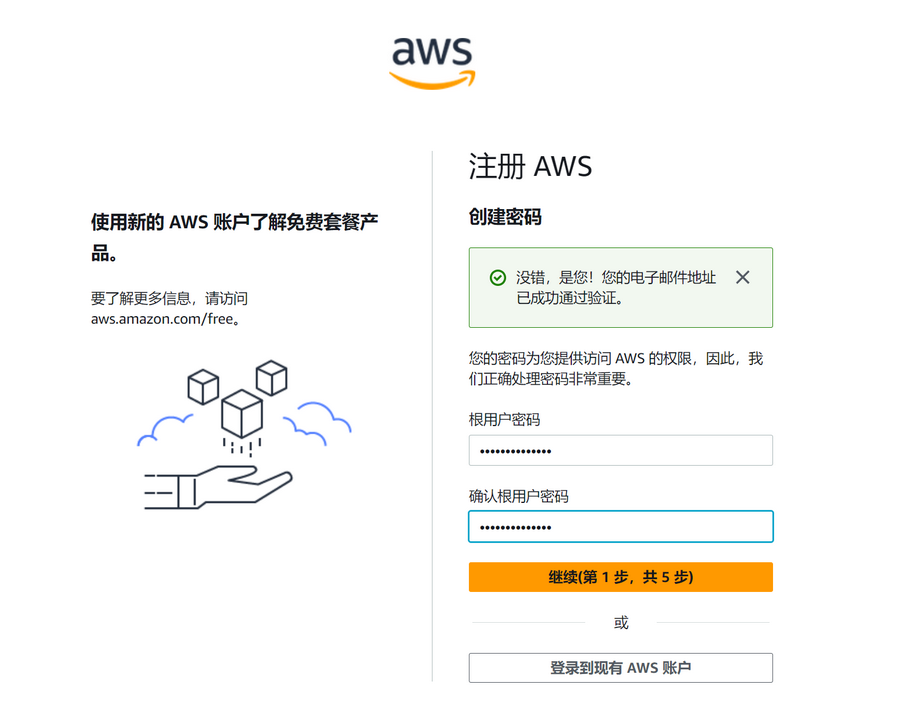
Continue to set the account password.
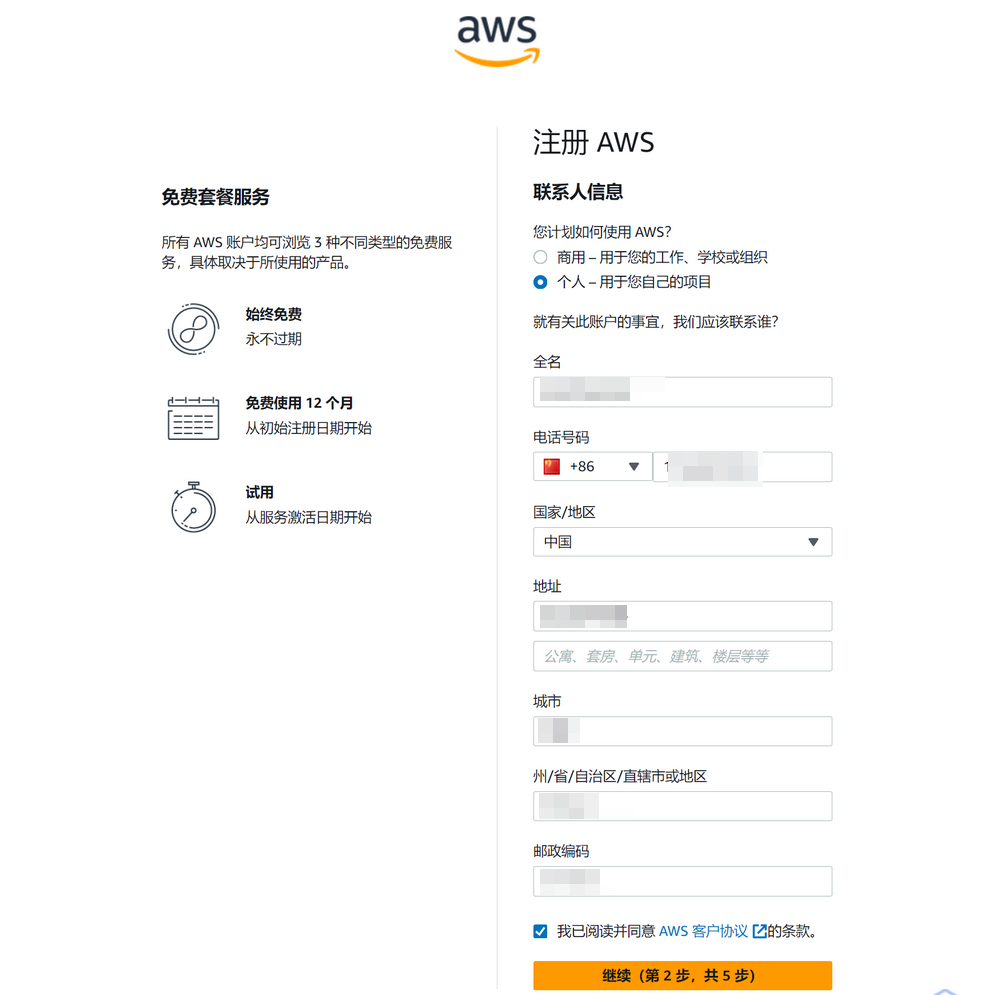
Next, fill in contact information. Note:
- Select Individual or Business User based on your actual situation. The author selected Individual.
- Please fill in full name, phone number, address, and other information truthfully. Do not make up information, otherwise it may trigger risk control.
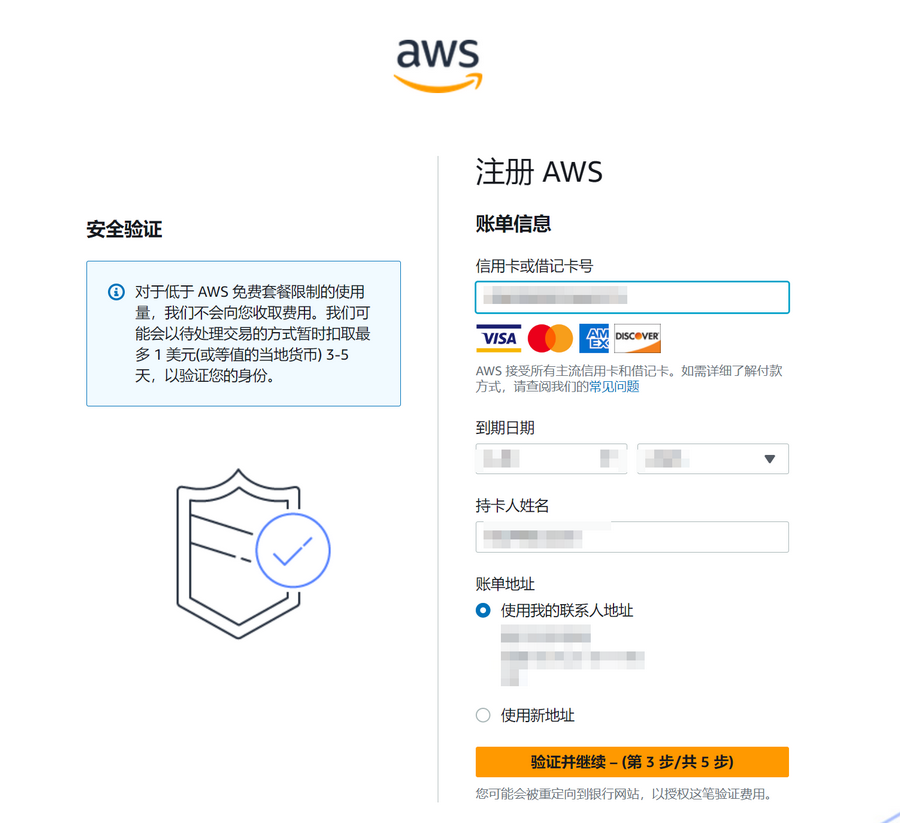
Next, you need to verify with a credit card. UnionPay/VISA/MasterCard/AE credit cards are supported. Fill in credit card/name/address information based on your actual situation. During verification, a maximum of 1 USD will be temporarily deducted, which will be refunded after verification passes.
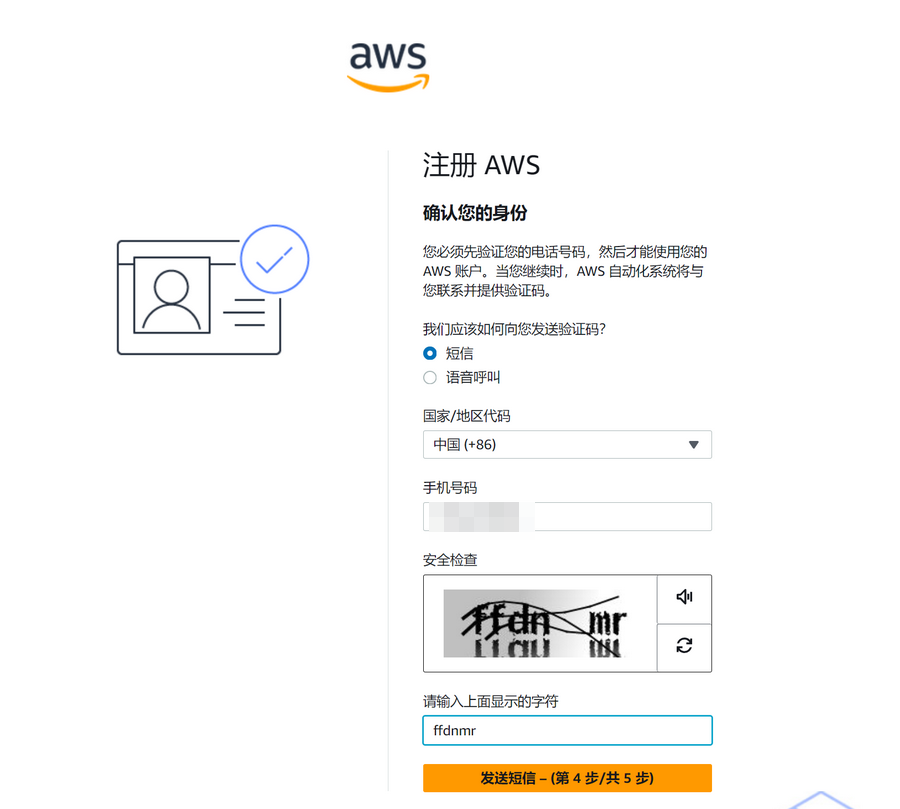
Continue to verify the phone number.
The final step is to select "Support Plan". The author selected "Basic Support - Free".
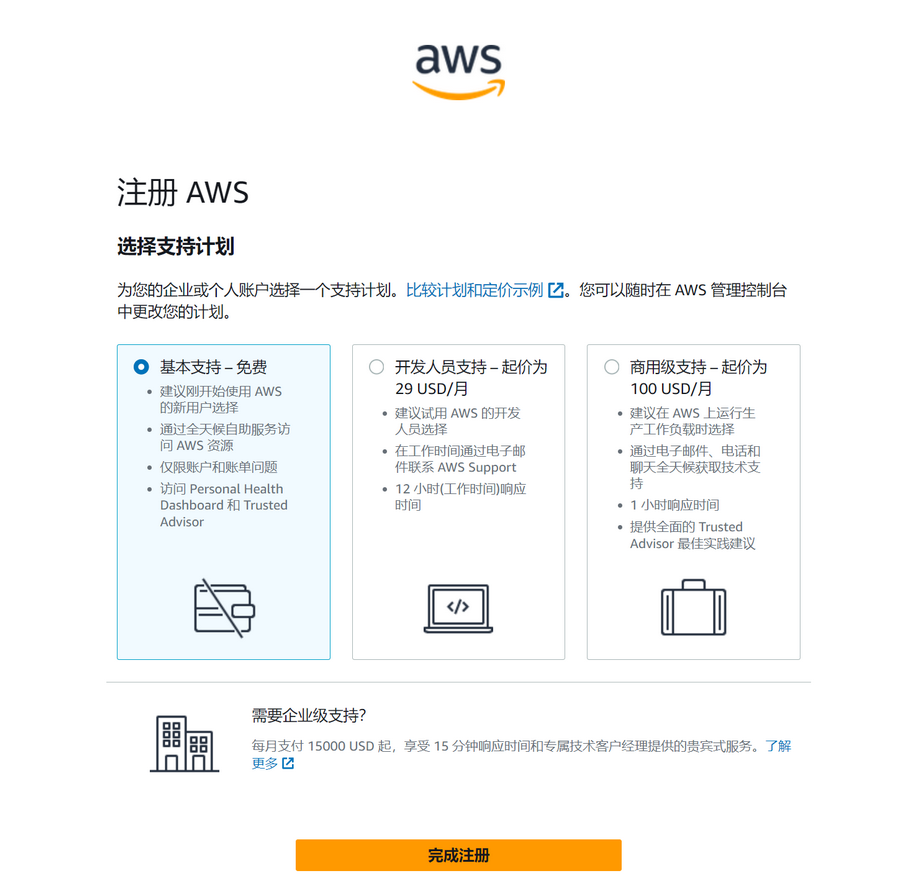
After registration, wait for the account verification to pass before starting to experience the free package provided by Amazon Web Services.
Create Amazon Lightsail
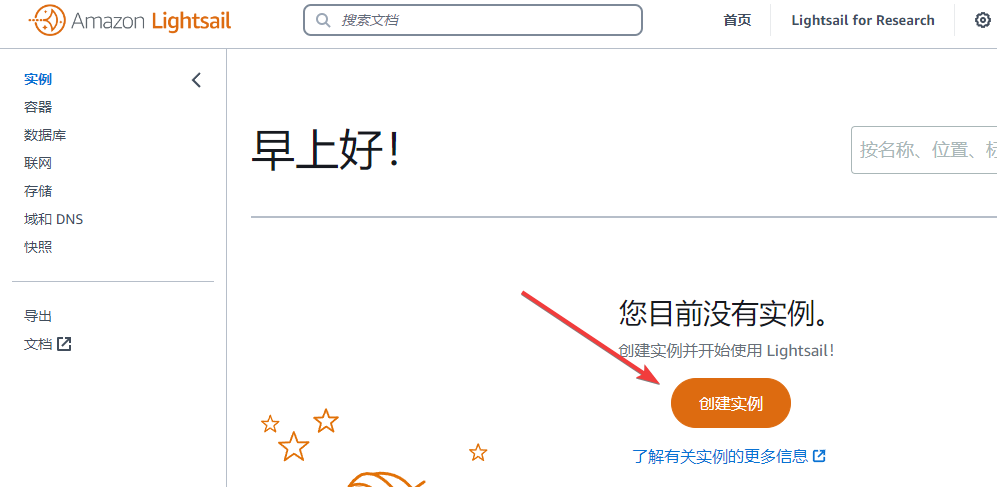
Next, enter the Amazon Lightsail Console and click Create Instance.
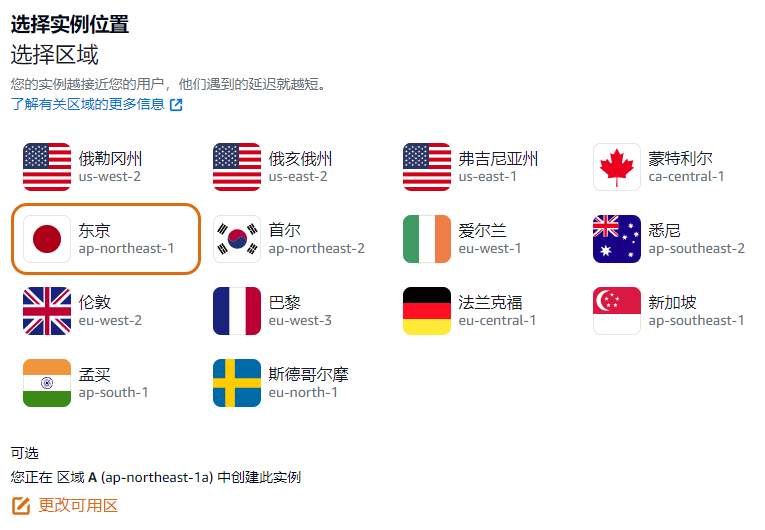
Region can be selected according to your situation. The author selected Tokyo, Japan.
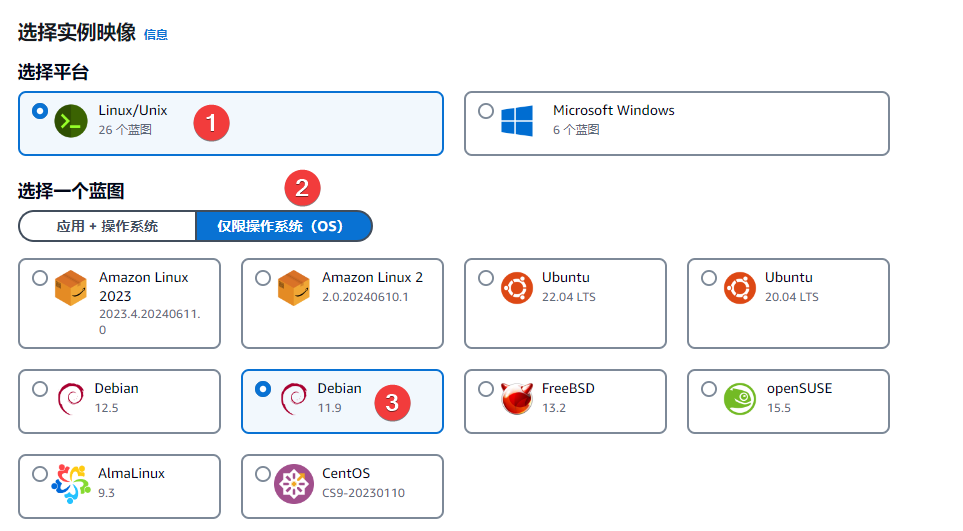
Platform selection: Linux/Unix. Blueprint switch to OS Only. Choose a system you are familiar with. If you do not know how to choose, you can choose Debian 11.x like the author.
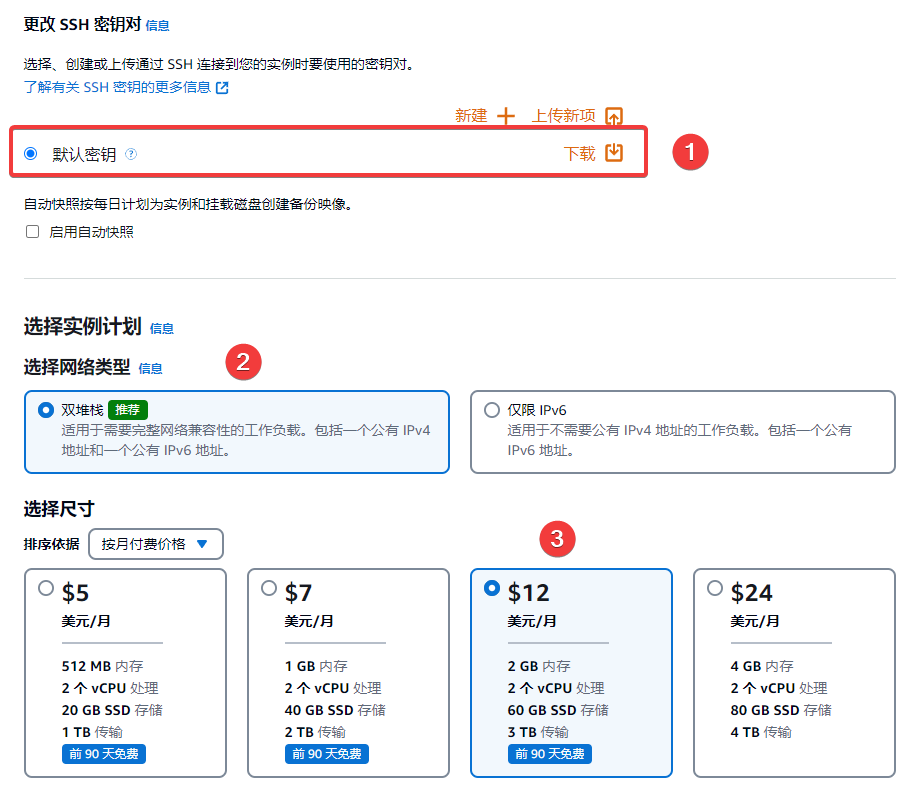
Then download the Default Key locally for backup. Network type select Dual Stack. Size select according to your needs. For the first 3 months, we can use the free trial, so the author selected the 12$/month specification (specifications exceeding this are not free).
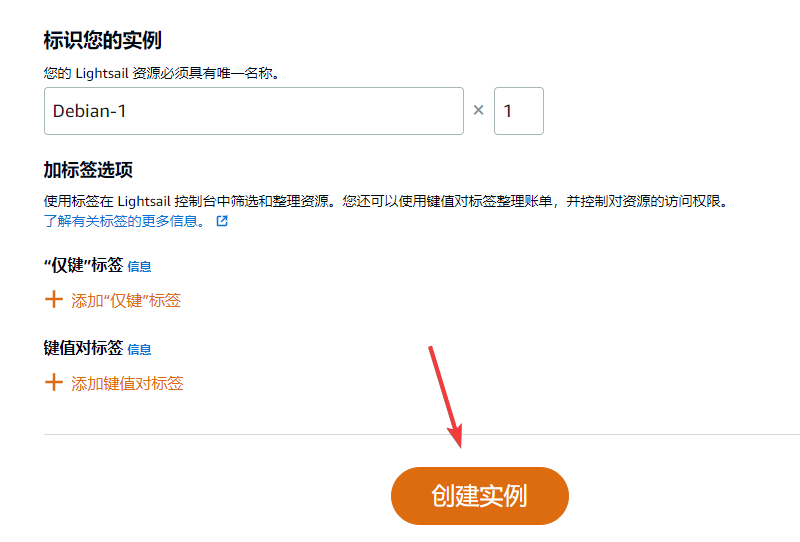
Finally, click Create Instance and wait for about tens of seconds to complete creation.
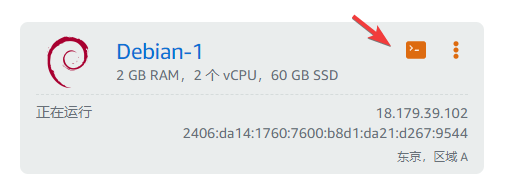
After Amazon Lightsail creation is complete, click the Terminal icon.
After entering the terminal, the first thing we need to do is reset the root password (because we need to use the root user to install 1Panel). Use the command sudo passwd root to reset.
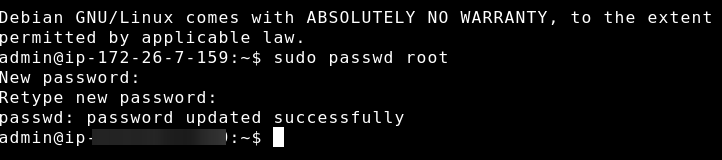
After setting the root password, enter the command su - to switch to the root user.

Then enter the command apt-get update && apt-get install -y curl to update system software.

Deploy 1Panel Server Panel
Next, we enter the one-click installation command provided by 1Panel:
# One-click install 1Panel
curl -sSL https://resource.fit2cloud.com/1panel/package/quick_start.sh -o quick_start.sh && bash quick_start.sh

Select language according to the prompt. The author selected 1 to use English.
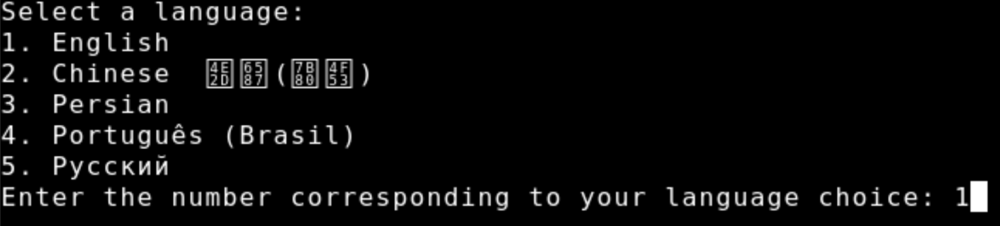
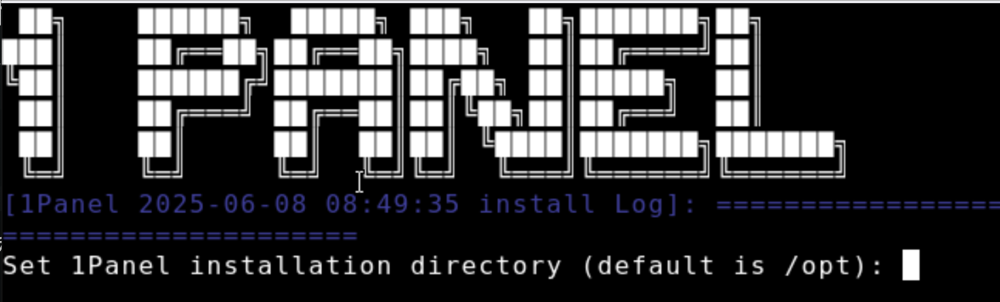
The script prompts to select the installation directory. Just press Enter for the default.
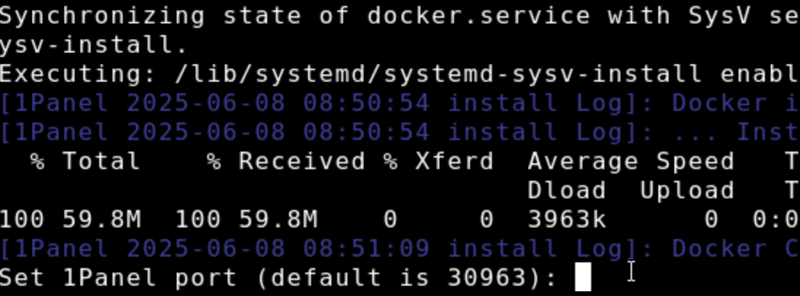
The script prompts to set the 1Panel access port. Default is 30963. Just press Enter.
The script requires setting the 1Panel login entry: Set 1Panel secure entrance (default is xxx): Continue to press Enter to keep the default.
The script requires setting the username: Set 1Panel panel user (default is xxx):. You can enter the username yourself or keep the default.
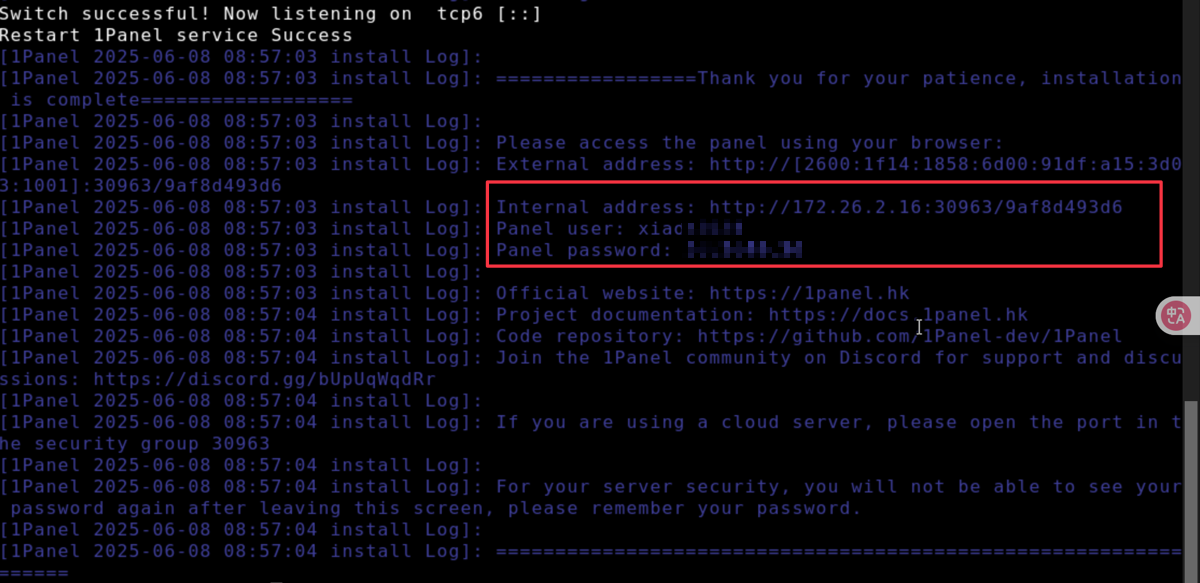
After successful installation, the prompt is as follows. We need to find the login address, username, and password.
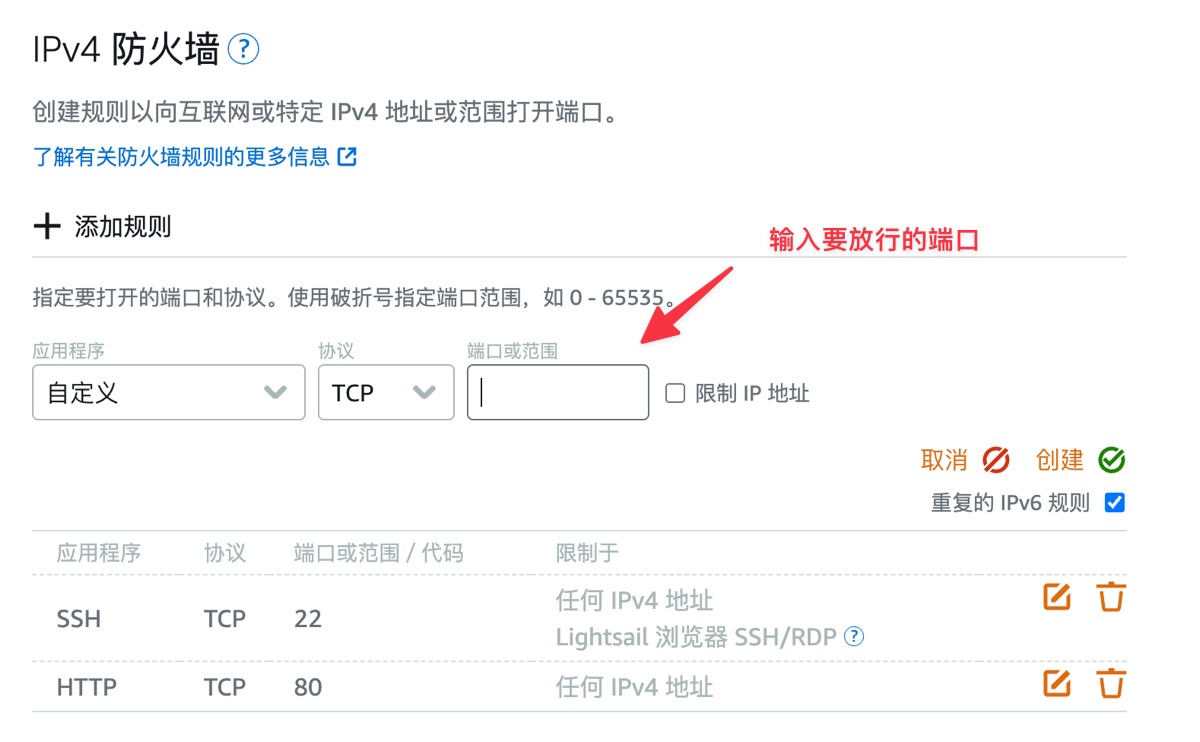
Enter the Amazon Lightsail management page, switch to Networking >> IPv4 Firewall >> Add Rule, and add the 1Panel port 30963 just now to the firewall to allow it.
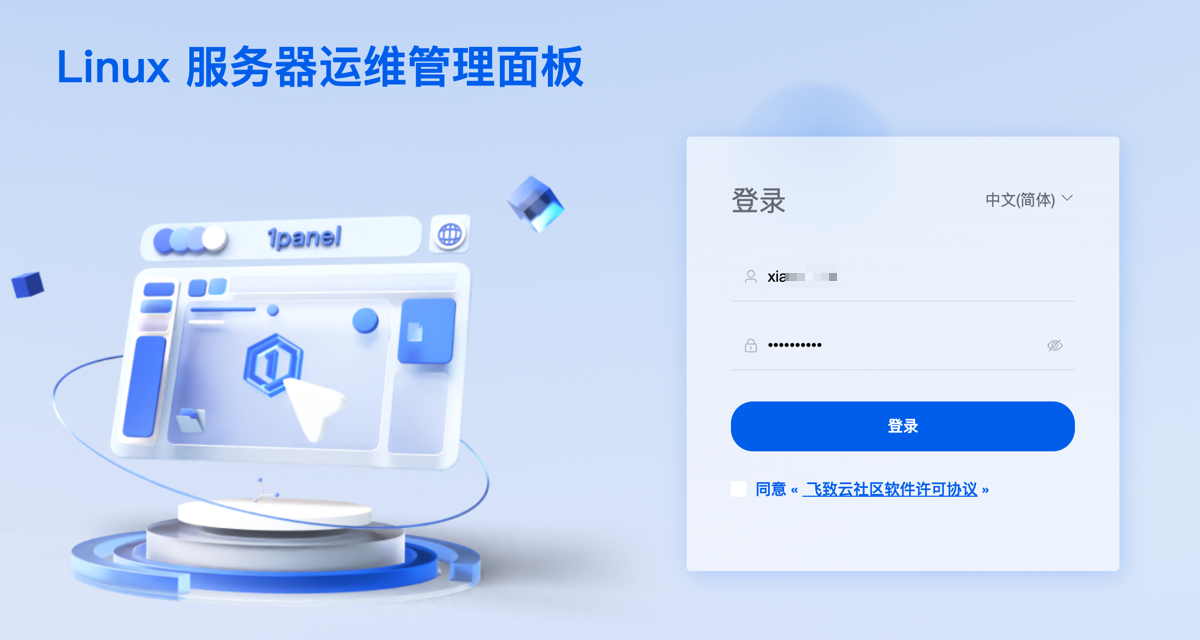
Finally, visit Public IPv4 + Port + Path prompted on the page to access 1Panel, and use the username and password prompted in the successful installation message to log in and use it.
Conclusion
If you are interested in other free services from Amazon Web Services, you can visit the Amazon Web Services Free Tier page to learn more details. Through these free services, you can further explore and utilize various cloud solutions from Amazon Web Services to improve your work efficiency and business capabilities.
On June 19-20, 2025, the Amazon Web Services China Summit will be held in Shanghai, focusing on innovative technologies such as Generative AI and Big Data. Participate in hands-on experiments and expert lectures, register now, get cutting-edge cloud computing knowledge, and help your technology upgrade and business transformation!
Friendly Reminder: If you decide not to use the service anymore, remember to close and delete the service in the console to avoid generating fees!