How to Set Up OneNav on FnOS NAS for Efficient Bookmark Management
OneNav is an efficient browser bookmark management tool developed by xiaoz. It allows centralized management of browser bookmarks, perfectly solving synchronization and access issues across devices, platforms, and browsers. Deploy once, access anywhere.
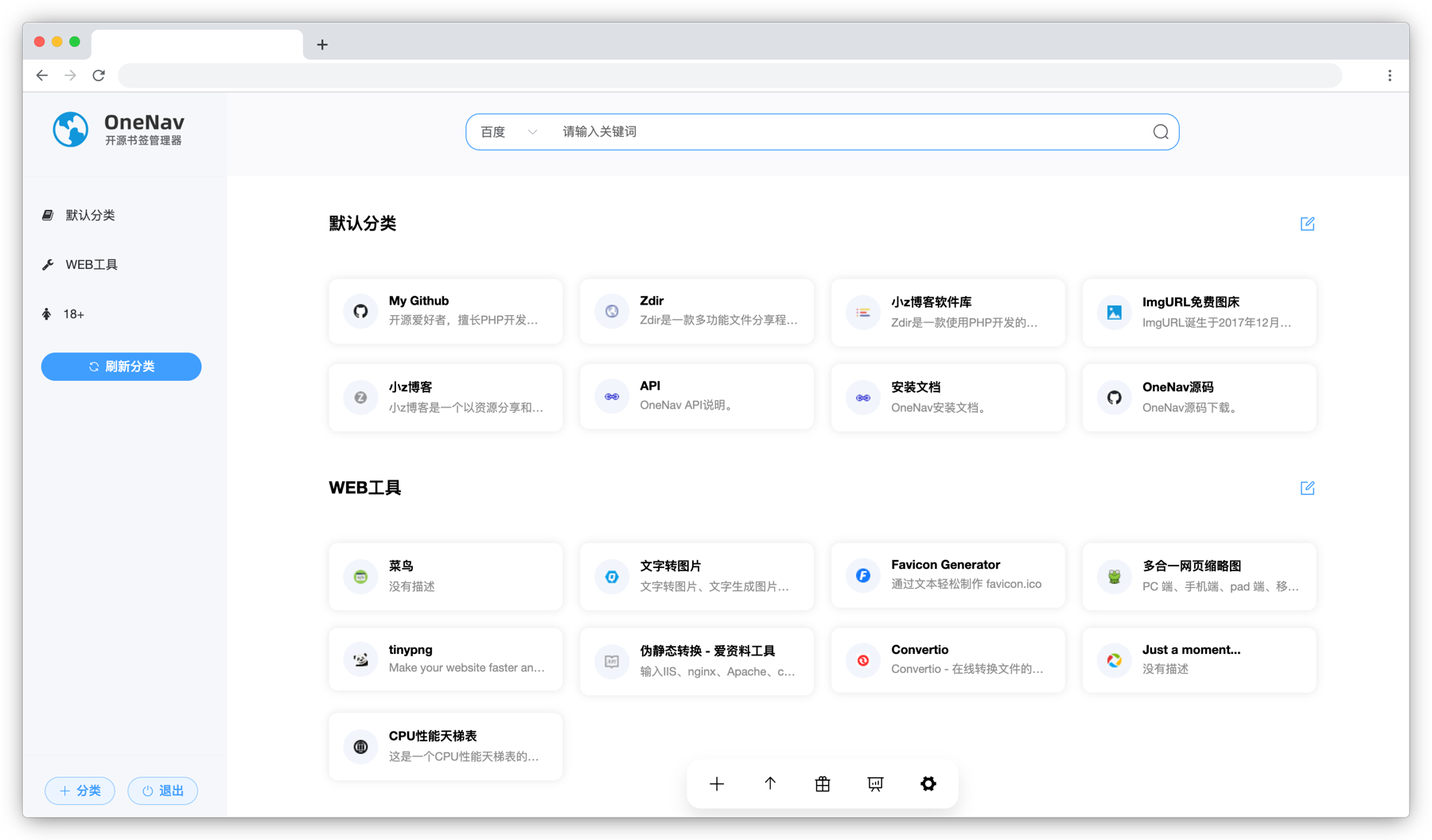
OneNav offers multiple installation methods, with Docker deployment being the most common. This article shares how to build the OneNav navigation page on FnOS NAS to help you manage browser bookmarks efficiently.
Install OneNav on FnOS
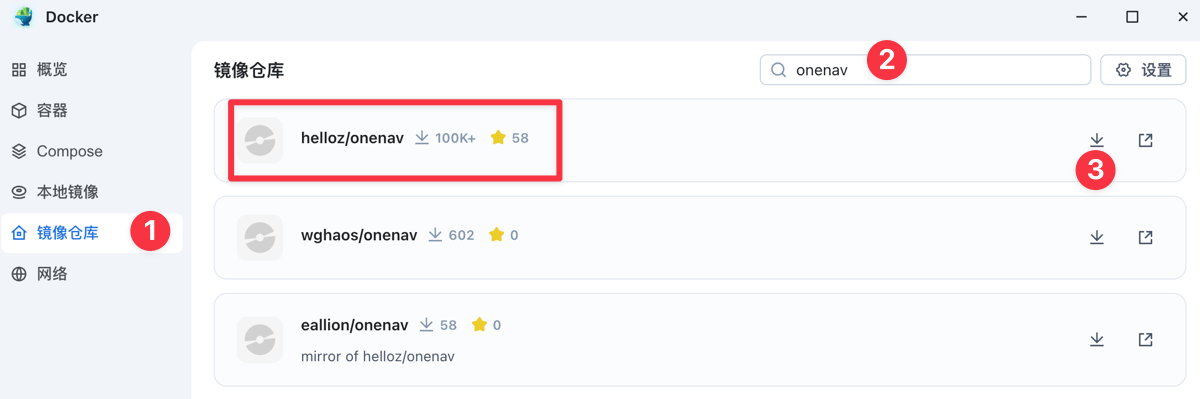
Open [Docker - Image Repository] on the FnOS desktop, search for the keyword onenav, find helloz/onenav, and then download it.
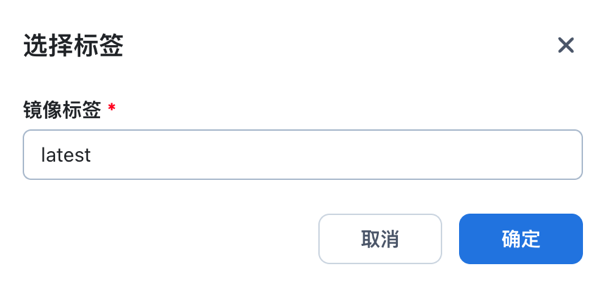
Select the latest tag.
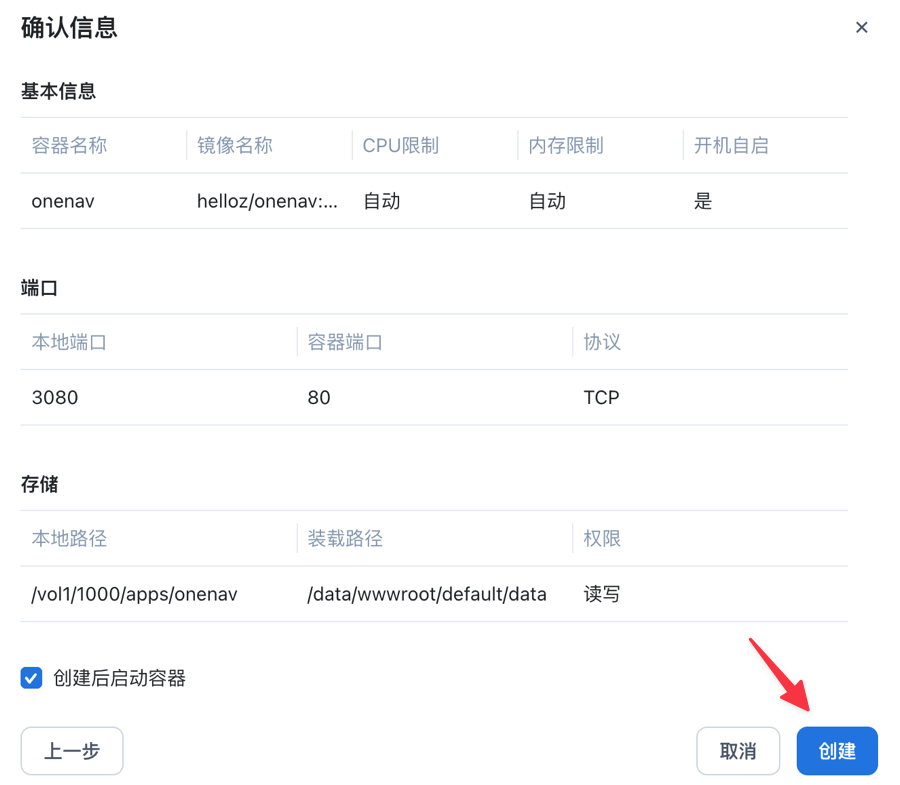
After downloading, click Run, check 'Start on boot', and then click Next.

In Advanced Settings, fill in as shown in the image below, and then click Next.
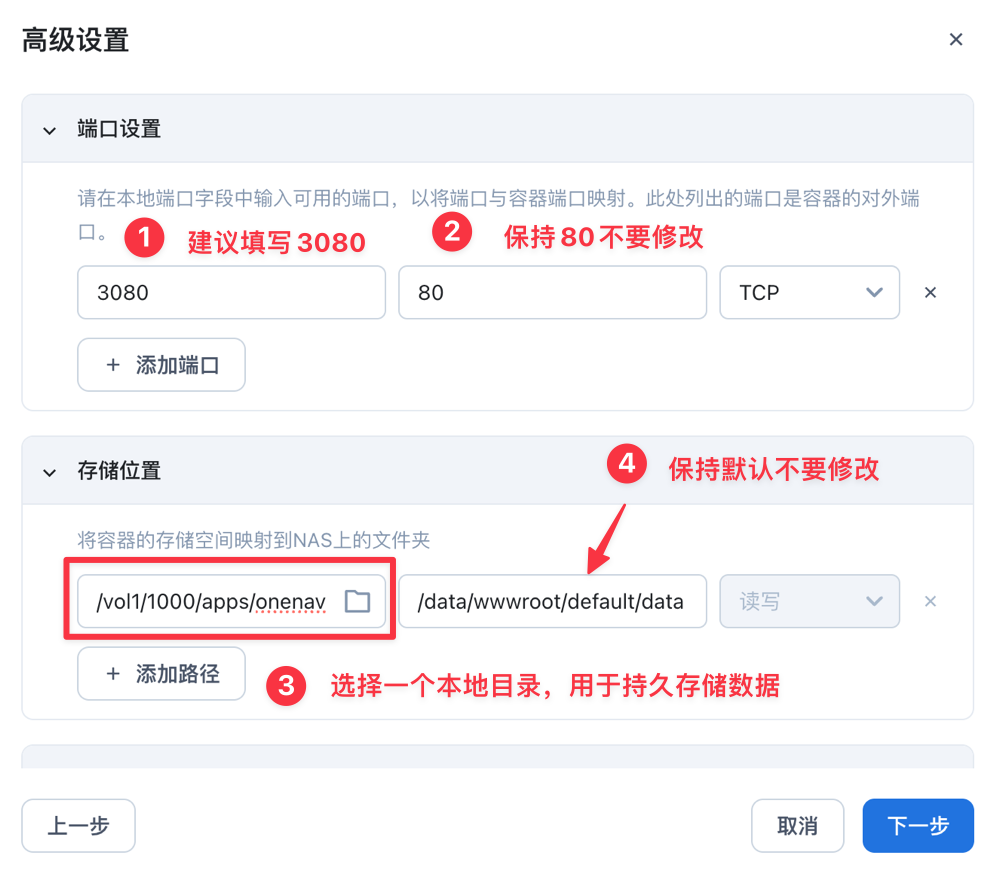
- First column Port: Suggest filling
3080, or an unused port - Second column Port: Keep the default
80, do not modify - First column Storage Location: Choose a local directory yourself to persistently store OneNav data
- Second column Storage Location: Keep the default, do not modify
- Keep other parameters as default
Finally click Create.
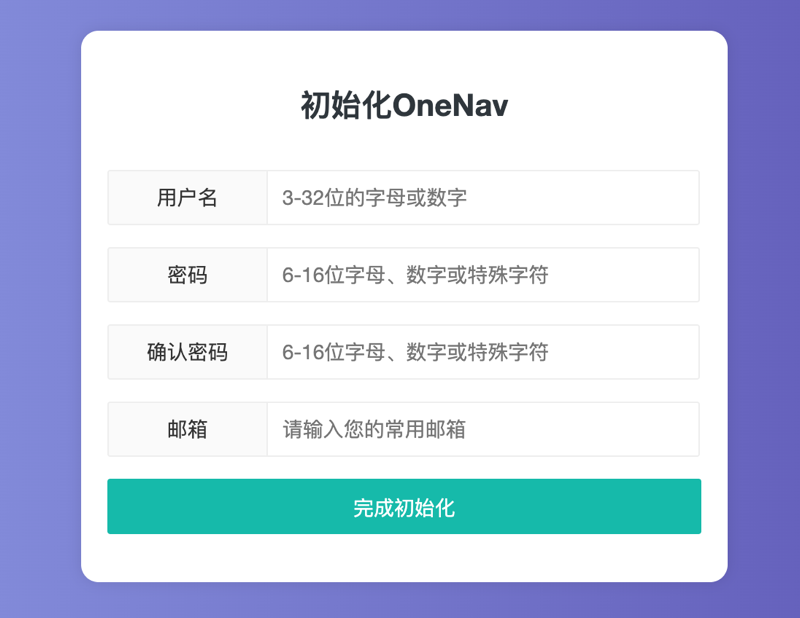
After the container is created successfully, access FnOS IP:3080, for example: http://192.168.1.5:3080. Follow the page prompts to set up the OneNav account and password to complete initialization.
Featured Features
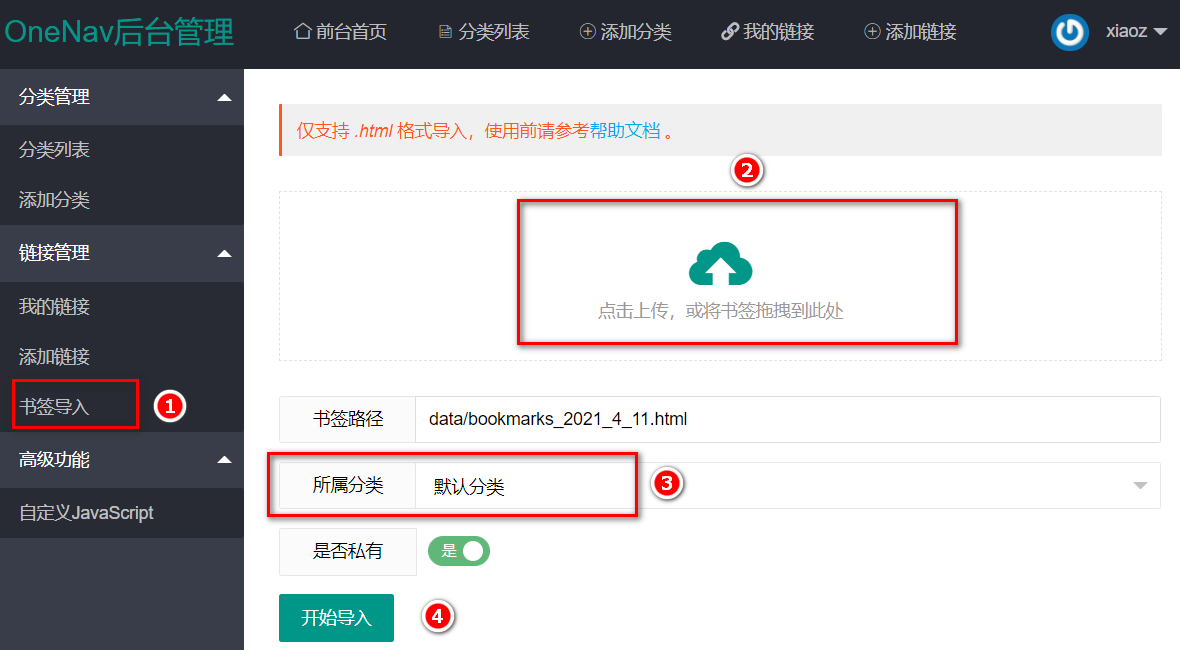
Bookmark Import
You can export existing browser bookmarks and then import them into OneNav for a seamless switch.
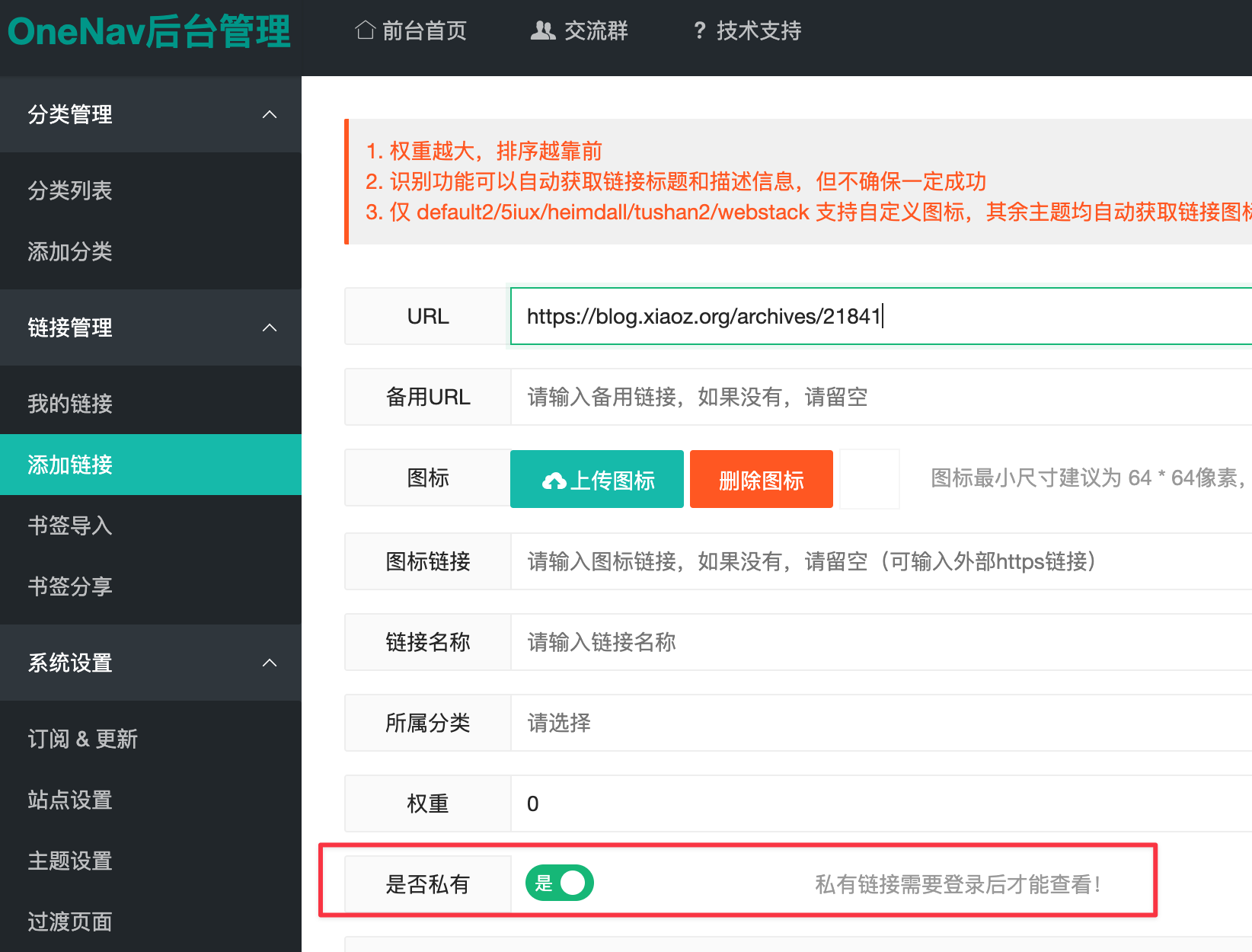
Private Links
OneNav supports public and private links. You can set categories or links to private if you don't want others to see them.
Backup Links
If a target has multiple links, such as a service deployed on your NAS with both public and internal network addresses, you can use OneNav's backup link feature.
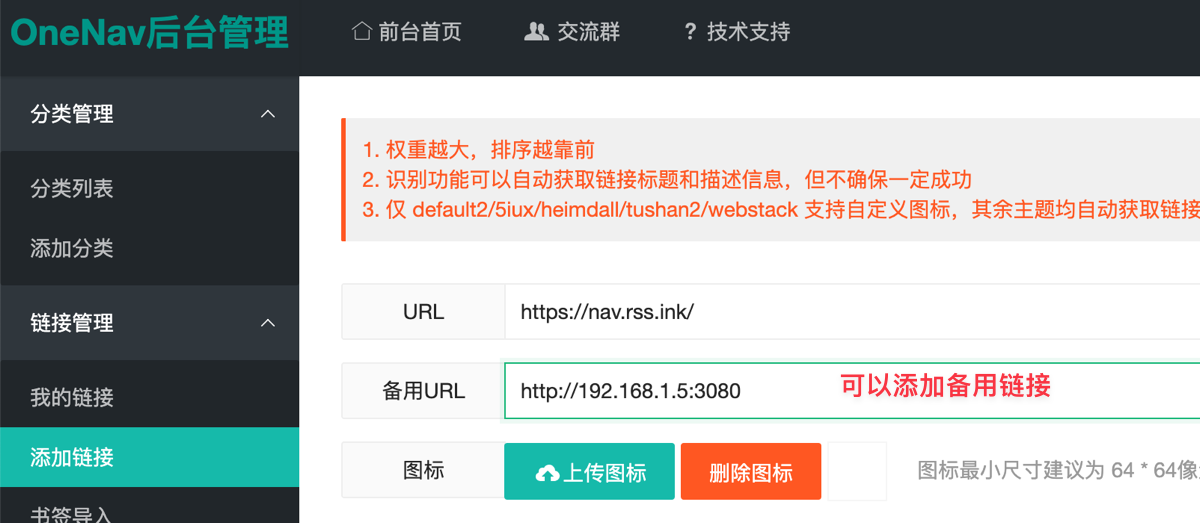
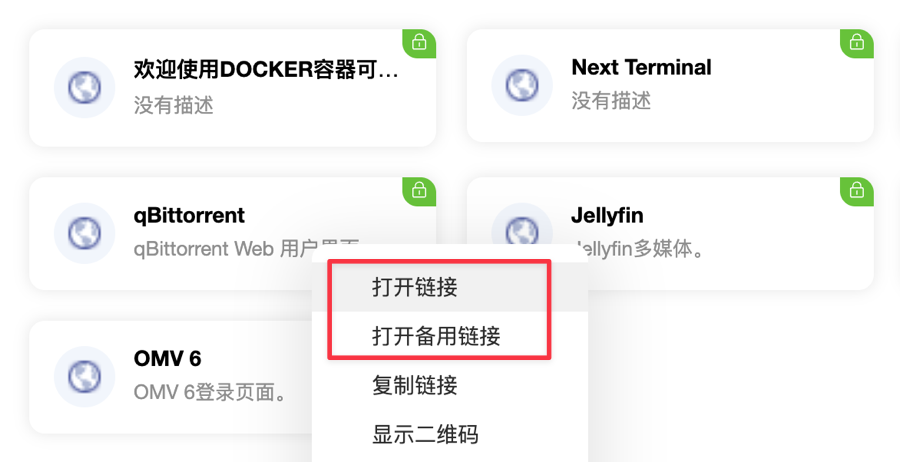
Then you can choose to open the backup link via right-click on the default2 theme.
Browser Plugins
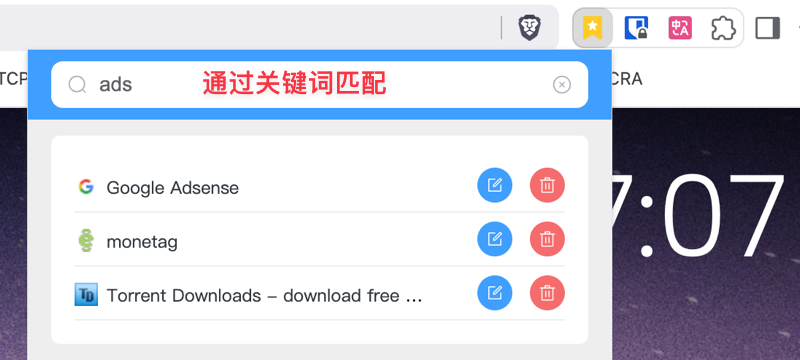
OneNav also thoughtfully provides Chrome, Edge, and Firefox browser plugins to help users manage browser bookmarks more efficiently. For example, you can find bookmarks by searching keywords.
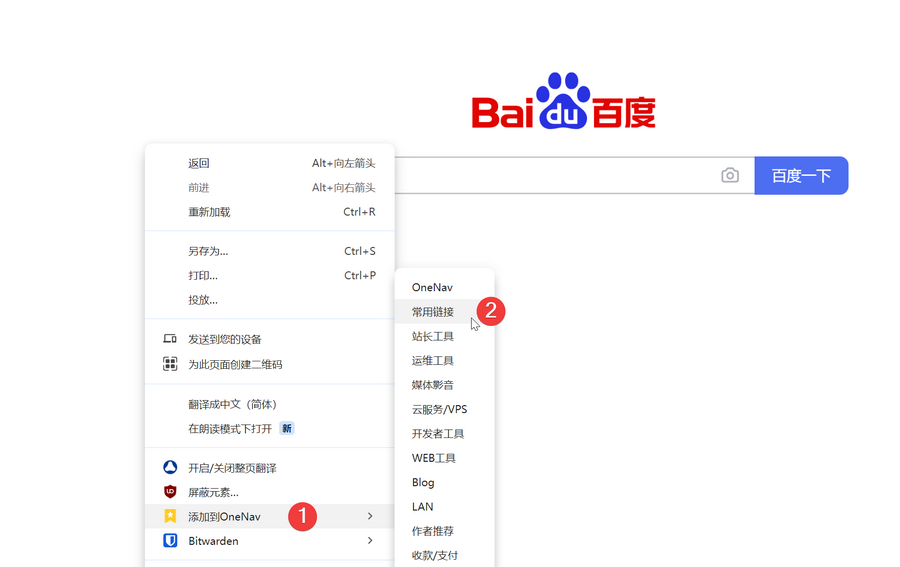
When you want to add a bookmark, you just need to click the right mouse button to complete it, as shown below.
OneNav also provides advanced features such as AI search and dead link detection. Due to space limitations, we cannot elaborate further. If you are interested, you can deploy and experience it yourself.
Conclusion
After deploying OneNav, you can easily access and manage bookmarks across different browsers and devices. At the same time, thanks to OneNav's centralized management method, you don't need to worry about synchronization issues at all.
- OneNav Official Website: https://www.onenav.top/
- Demo: http://demo.onenav.top/index.php?c=login, Username/Password:
xiaoz/xiaoz.me