Minisforum WTR PRO 5825U: Setting Up iGPU Passthrough in Proxmox VE
In previous articles, we introduced the unboxing, BIOS settings, and hard drive passthrough for the Minisforum WTR PRO 5825U. This article continues to explore GPU passthrough settings for the Minisforum WTR PRO 5825U in a PVE virtual machine, which is the most challenging part of the process. After two days of repeated attempts by xiaoz, this configuration was finally successfully implemented.
Note: This tutorial is not suitable for beginners, and there may be certain risks. Please back up important data before operating. Readers assume all related risks themselves!!!
Environment Preparation
- Hardware: Minisforum WTR PRO 5825U
- PVE Version:
8.3.0 - Virtual Machine OS: OpenMediaVault 7.x
Note: Steps differ for different PVE versions. PVE 8.x has simplified the GPU passthrough process, so this tutorial is only suitable for users of PVE 8.x!
BIOS Settings
Refer to the tutorial: Minisforum WTR PRO 5825U BIOS Settings: Power-on Self-Start and Hardware Passthrough Configuration to enable the IOMMU parameter.
Create Virtual Machine
When creating a virtual machine in PVE, certain setting parameters need special attention, otherwise GPU passthrough may not be completed.
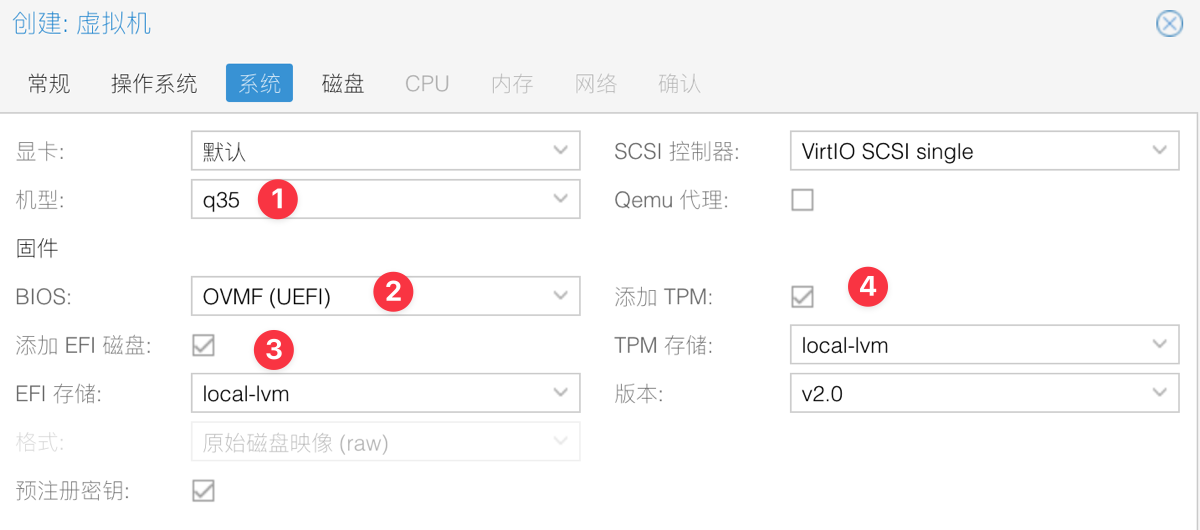
In the [PVE VM - System] options, please configure according to the following parameters:
- Machine: q35
- BIOS: OVMF
- Check: Add EFI Disk
- Check: Add TPM
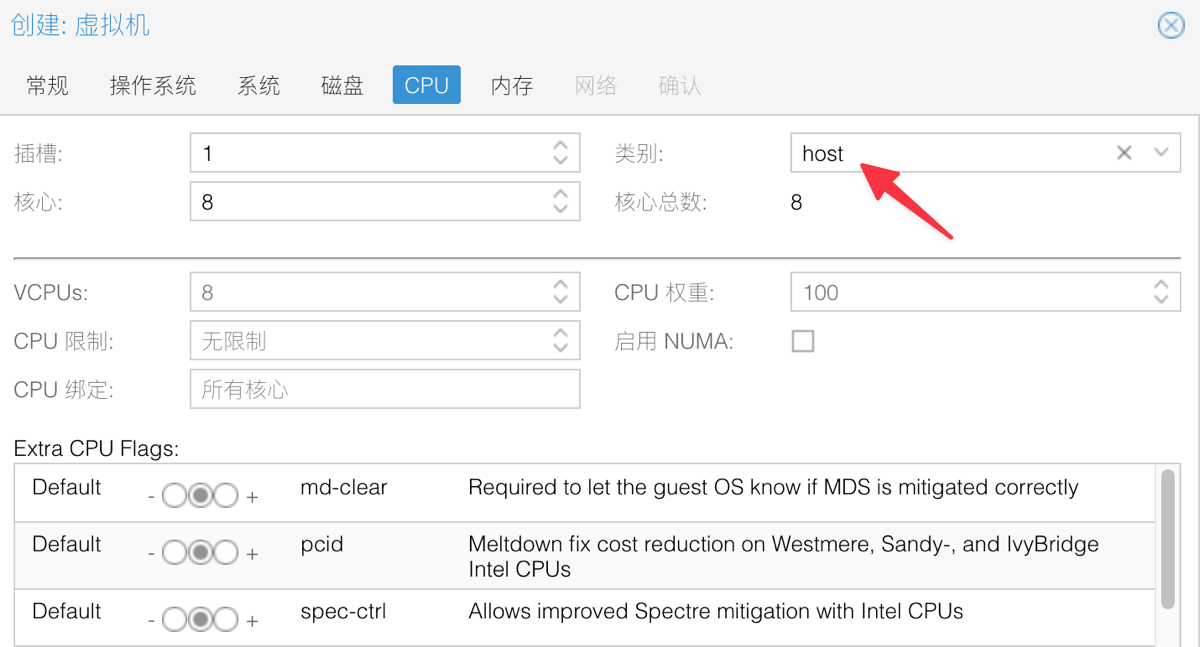
In the [PVE VM - CPU] options, the category is recommended to be host for better performance.
There is nothing else to note; allocate memory, disk, etc., according to your own situation.
Install Virtual Machine OS
xiaoz uses the OpenMediaVault 7.x virtual machine OS. Complete the OS installation normally via the console according to the guide.
Adjust VM BIOS
After OpenMediaVault installation is complete, it will fail to start because the boot loader cannot be found. At this time, we need to download the Minisforum WTR PRO 5825U boot firmware and use the corresponding firmware to start.
- Minisforum WTR PRO 5825U Firmware Download Link: https://soft.xiaoz.org/#/source/WTR_PRO_5825U/5825.rom?type=file
After downloading, place the firmware in the PVE /usr/share/kvm directory, or enter this directory directly to download the firmware.
# Enter PVE firmware directory
cd /usr/share/kvm
# Download firmware
wget https://soft.xiaoz.org/source/WTR_PRO_5825U/5825.rom
Then shut down the virtual machine completely, and find the virtual machine configuration file /etc/pve/qemu-server/VMID.conf (VMID is your virtual machine ID number), and add the following content:
romfile=5825.rom
Then start the virtual machine. After starting, press ESC in the console to enter the virtual machine BIOS mode, sequentially enter [Device Manager > Secure Boot Configuration > Attempt Secure Boot], uncheck Attempt Secure Boot, press F10 to save, return to the BIOS initial interface, and select RESET to restart. This will allow normal entry into the operating system.
Set VM Integrated GPU (GPU) Passthrough
Modify Boot Configuration
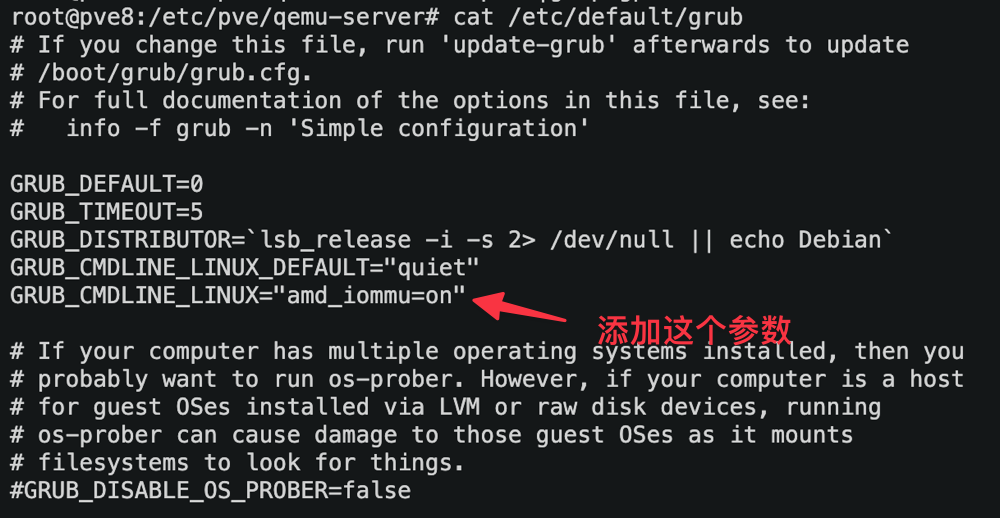
In PVE, edit the /etc/default/grub file, find the GRUB_CMDLINE_LINUX line, and add the amd_iommu=on parameter value, as shown in the figure.
Update GRUB and reboot the host:
update-grub
reboot
Verify
Enter the following command to verify if IOMMU is enabled:
dmesg | grep -e DMAR -e IOMMU
Copy the output results to AI to judge whether IOMMU is enabled successfully.

Continue to verify if IOMMU interrupt remapping is enabled, enter the following command:
dmesg | grep 'remapping'
You can see results similar to: AMD-Vi: Interrupt remapping enabled, which means it is OK.

Prevent Host from Loading GPU Default Drivers
Enter the following command:
echo "blacklist amdgpu" >> /etc/modprobe.d/blacklist.conf
echo "blacklist radeon" >> /etc/modprobe.d/blacklist.conf
Modify Virtual Machine Settings
Enter command lspci |grep VGA to find the GPU ID number, for example, 04:00.0 below is the GPU number, copy and record it.

Continue to find the virtual machine configuration file /etc/pve/qemu-server/VMID.conf (VMID is your virtual machine ID number), change:
romfile=5825.rom
to:
hostpci0: 04:00.0,pcie=1,x-vga=1,romfile=5825.rom
- hostpci0: This
0can be any unused number. 04:00.0corresponds to your GPU number.- pcie=1: Enable PCI Express (PCIe) function.
- x-vga=1: Enable X-VGA function, allowing the virtual machine to use the GPU as the main display device.
Then continue editing the virtual machine configuration in the PVE WEB console, set [Hardware - Display] to None.
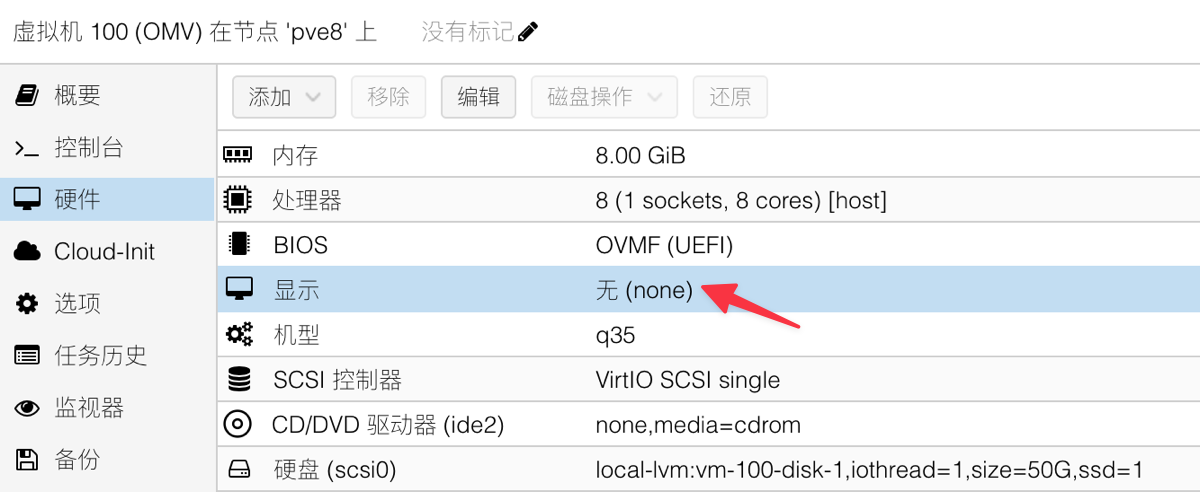
Finally, stop the virtual machine and restart it.
Verify
After the virtual machine restarts successfully, you can enter the following command to check GPU loading and kernel information:
# Check if GPU is loaded
lsmod | grep amdgpu
# Check kernel information
dmesg | grep amdgpu
You can copy the results to AI for interpretation.
Also check if the file ls /dev/dri/renderD128 exists. If it does not exist, it is most likely not successful.
Continue to install the radeontop tool, which can be used to view the system's AMD GPU usage.
apt install radeontop
Try to enable hardware decoding for Jellyfin, play video and use the radeontop tool to monitor GPU status. You can see the screenshot below.
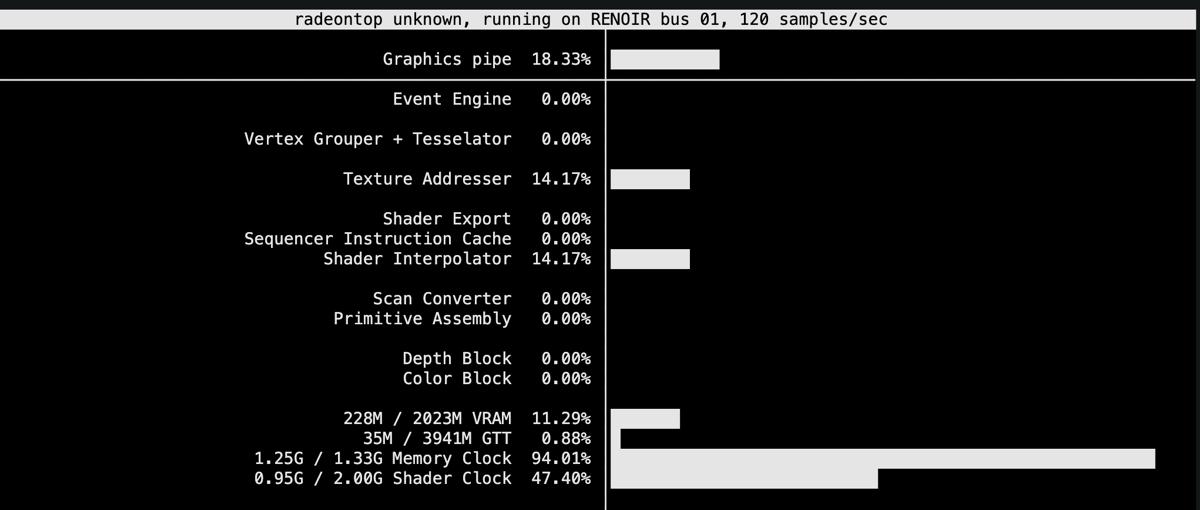
Graphics pipe: Indicates the busy level of the GPU graphics processing unit. 18.33% indicates that the GPU graphics pipeline has an occupancy rate of 18.33%. It shows the GPU is working.
228M / 2023M VRAM 11.29%:
- 228M: Current used VRAM size.
- 2023M: Total VRAM size.
- 11.29%: VRAM occupancy rate.
1.25G / 1.33G Memory Clock 94.01%:
- 1.25G: Current VRAM frequency.
- 1.33G: Maximum VRAM frequency.
- 94.01%: VRAM frequency occupancy rate.
Summary
- Enable IOMMU in BIOS
- Enable IOMMU in PVE boot (PVE8 whether this is required not tested)
- When creating a virtual machine, note that the machine type is
q35, BIOS: OVMF, add EFI disk and check TPM - Note modifying the virtual machine:
/etc/pve/qemu-server/VMID.conf, add5825.romboot firmware - The virtual machine BIOS needs to uncheck
Attempt Secure Boot, otherwise it cannot start - Find the AMD GPU ID, then modify
/etc/pve/qemu-server/VMID.confagain to add passthrough - Use
radeontopto monitor GPU status
The above content is only applicable to Minisforum WTR PRO 5825U PVE8 system, other hardware may not be usable. This article references some content from: