Quickly Deploy WP2AI with Docker to Turn WordPress Articles into an AI Knowledge Base
WP2AI can transform your WordPress articles into an intelligent knowledge base, using AI matching and interpretation to answer questions more accurately. Developed by xiaoz using Golang and Vue3, it is lightweight and easy to use, and is open-sourced on GitHub for WordPress users to deploy and experience.
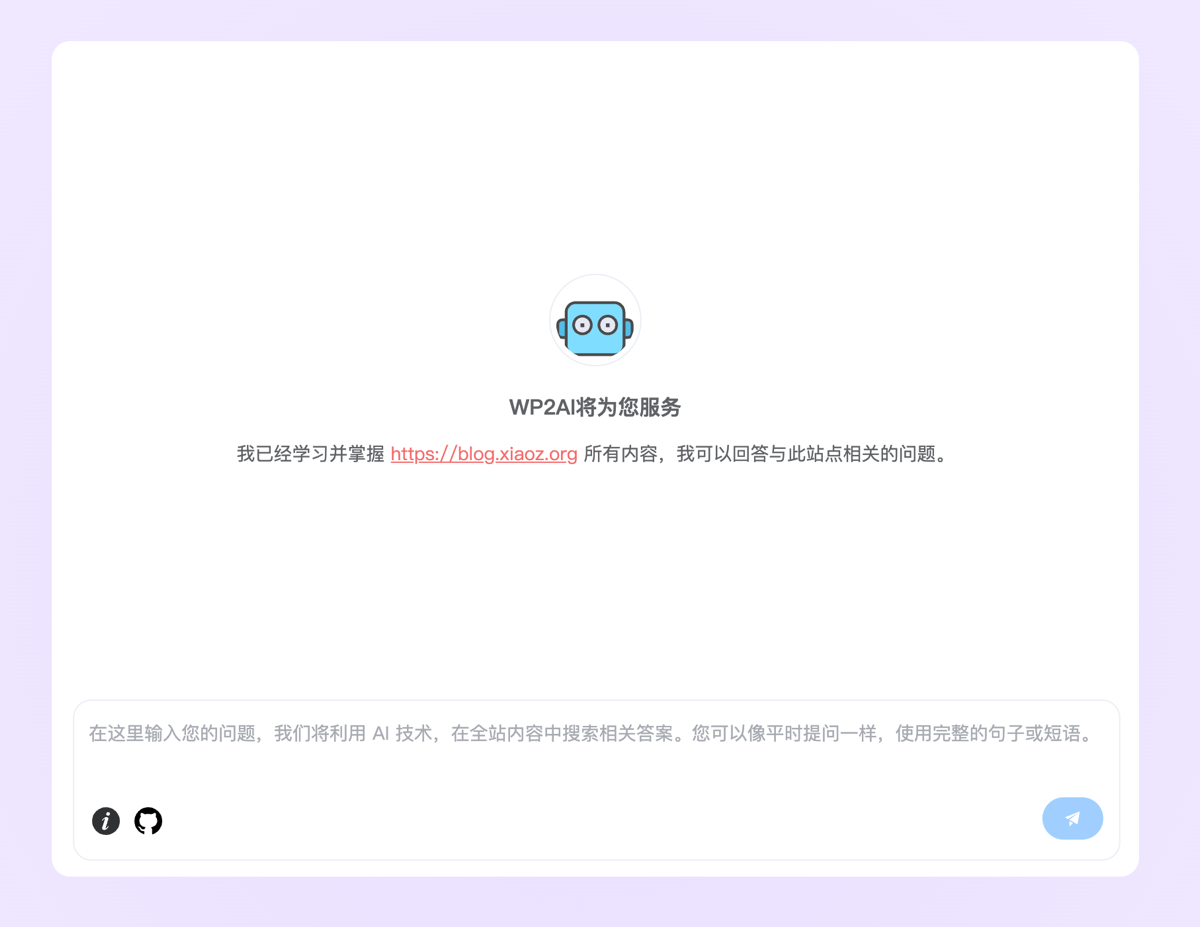
- Demo address: https://ai.xiaoz.top/
- GitHub project address: https://github.com/helloxz/wp2ai
Features
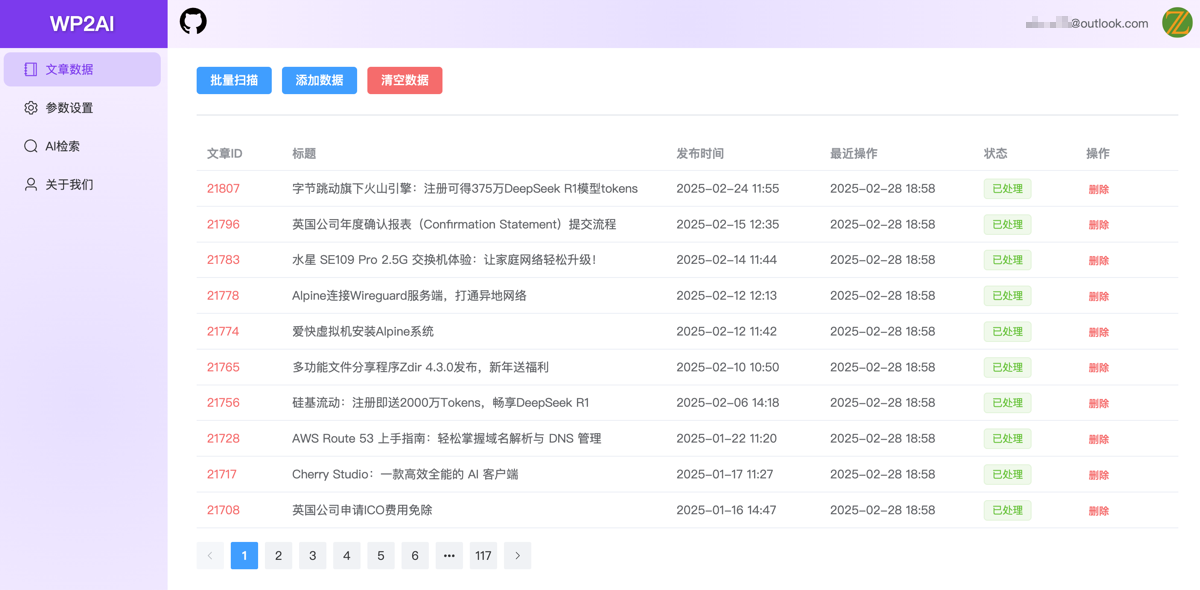
- Scan WordPress articles
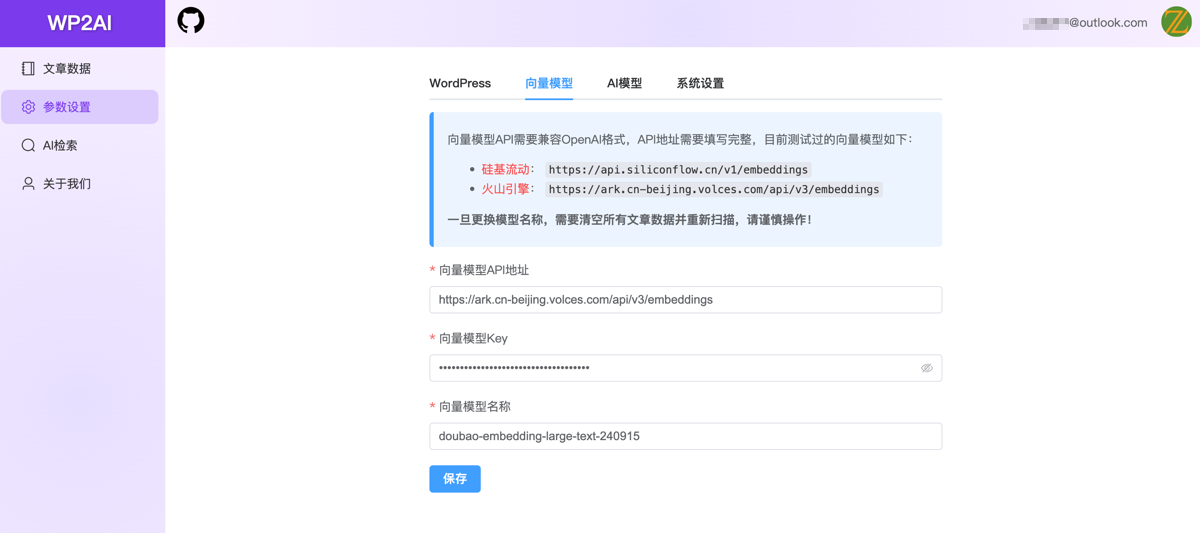
- Vectorize WordPress article data
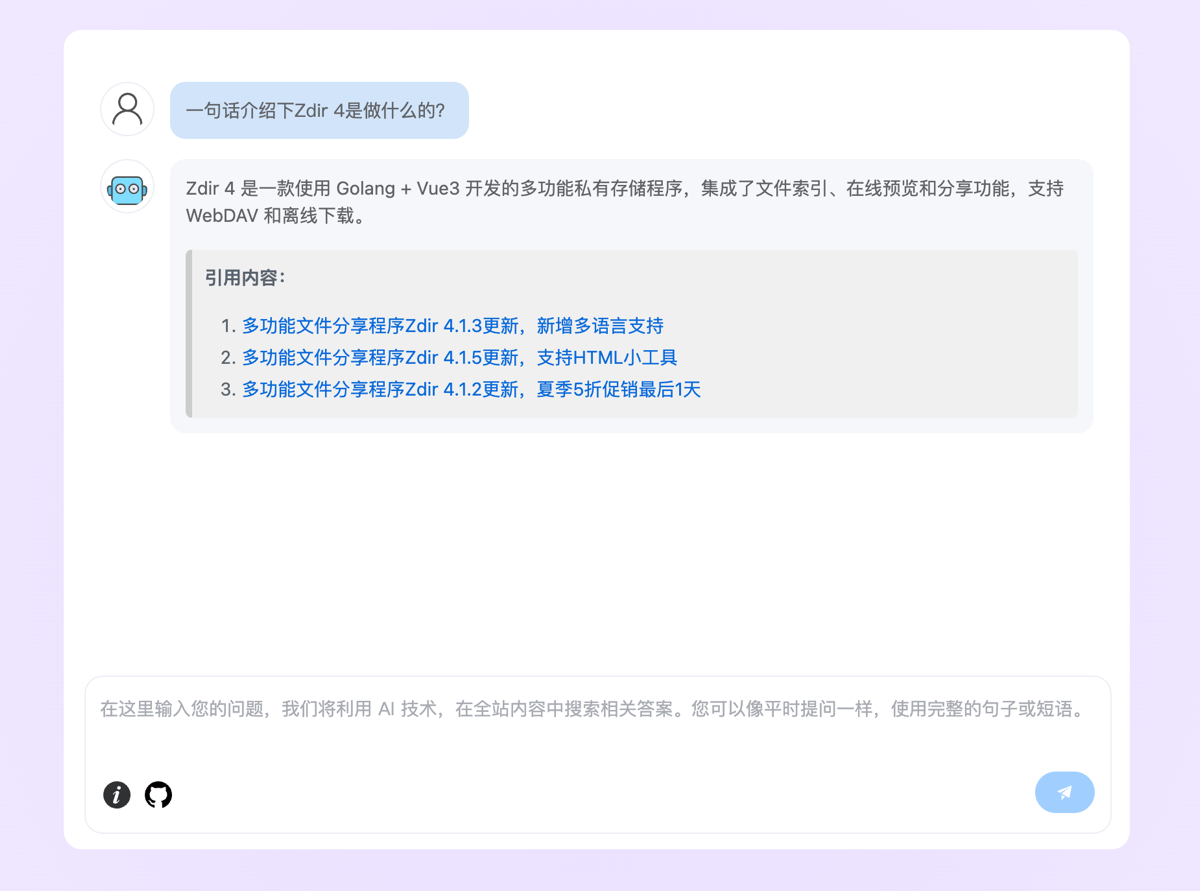
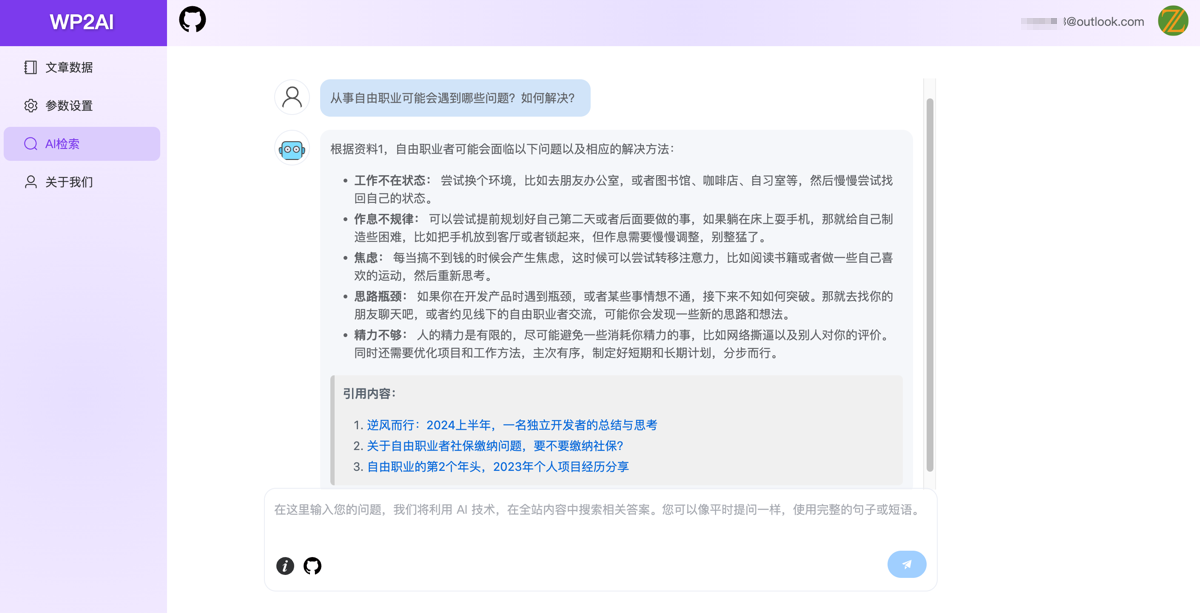
- AI Q&A search
- Backend management
- API interface
Use Cases
- Blog sites needing improved internal search efficiency
- Online platforms with large amounts of professional knowledge content
- Corporate websites aiming to provide users with better search services
Screenshots
Installation
Currently, only Docker installation is supported. Please ensure you have a Docker environment installed.
Method 1: Docker Compose Installation
The content of docker-compose.yaml is as follows:
version: '3'
services:
    wp2ai:
        container_name: wp2ai
        volumes:
            - '/opt/wp2ai/data:/opt/wp2ai/data'
        network_mode: "host"
        restart: always
        image: 'helloz/wp2ai'
Note that the HOST network mode is used above. After installation, you need to allow port 2080 in your firewall or security group. If WP2AI and WordPress are not on the same server, you can also use bridge network mode by commenting out network_mode and customizing the port, for example:
version: '3'
services:
  wp2ai:
    container_name: wp2ai
    volumes:
      - '/opt/wp2ai/data:/opt/wp2ai/data'
    ports:
      - '2080:2080'
    image: 'helloz/wp2ai'
    restart: always
Method 2: Docker Command Line Installation
Using HOST network mode requires manually allowing port 2080!
docker run -d \
  --name wp2ai \
  -v /opt/wp2ai/data:/opt/wp2ai/data \
  --network host \
  --restart always \
  helloz/wp2ai
Using network_mode mode allows customizing the access port:
docker run -d \
  --name wp2ai \
  -v /opt/wp2ai/data:/opt/wp2ai/data \
  -p 2080:2080 \
  --restart always \
  helloz/wp2ai
Note: If you cannot pull the image from Docker, you can use our provided image acceleration address:
pub.tcp.mk/helloz/wp2ai
Usage
- After installation, visit
http://IP:2080and follow the prompts to complete initialization. - In the backend [Parameter Settings], fill in WordPress data, vector model, AI model, and other information.
- In the backend [Article Data - Batch Scan], scan WordPress articles into the library. The system will automatically vectorize the data during this process (approximately 15 items per minute).
- Once data processing is complete, perform Q&A tests in [Backend - AI Search] or on the homepage.
Community Group
QQ Group: 964597848
WeChat Group:

Conclusion
WP2AI can transform your WordPress website content into a powerful AI Q&A system, enhancing the user search experience. Whether you are a blog owner, knowledge platform operator, or corporate website manager, you can benefit from it. With quick Docker deployment and simple configuration, you can give your WordPress website intelligent Q&A capabilities.
GitHub project address: https://github.com/helloxz/wp2ai