How to Install Alpine Linux on Aikuai Virtual Machine for WireGuard
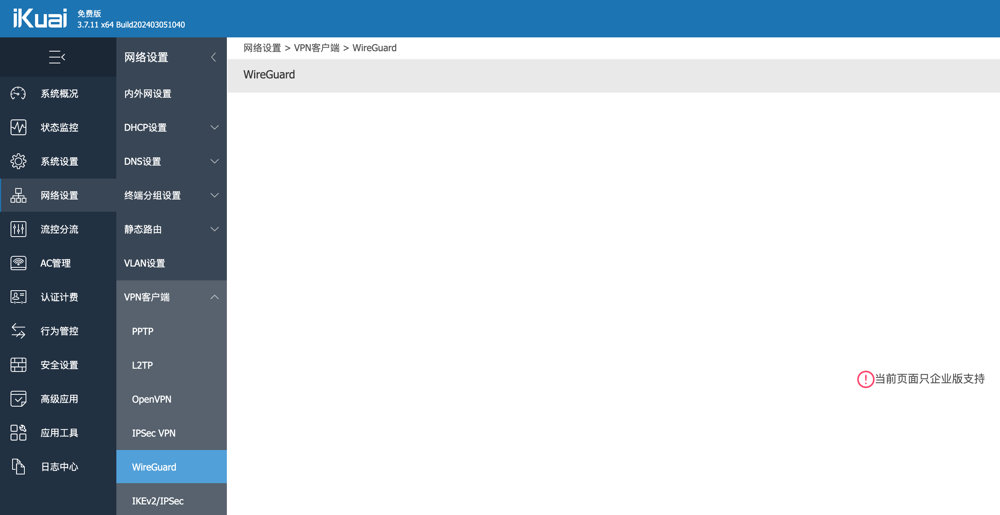
Recently, I planned to connect my home and office networks using a WireGuard solution, but discovered that Aikuai's WireGuard feature is only available in the Enterprise Edition. So I changed my approach and decided to install Alpine on the Aikuai virtual machine, using Alpine as a WireGuard client to connect to the WireGuard server at the office.
Download Alpine Image
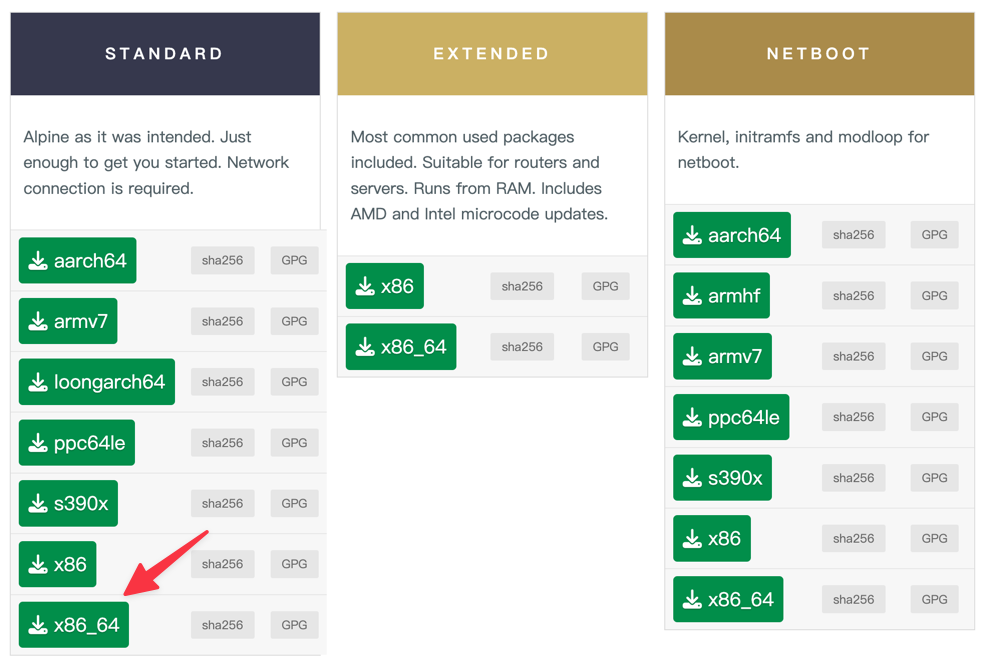
Official Alpine download page: https://www.alpinelinux.org/downloads/
I chose the Standard X86_64 version.
Install Alpine on Aikuai Virtual Machine
Go to [Aikuai Backend - System Settings - Disk Management - File Management] and upload the downloaded .iso image.
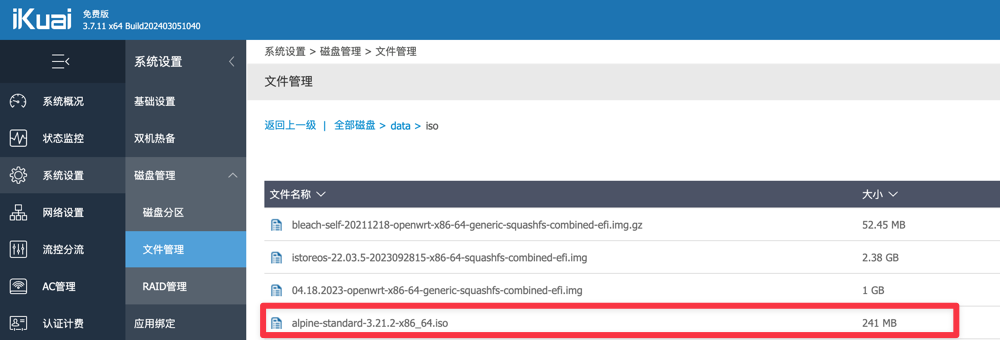
After uploading, copy the .iso path for later use.

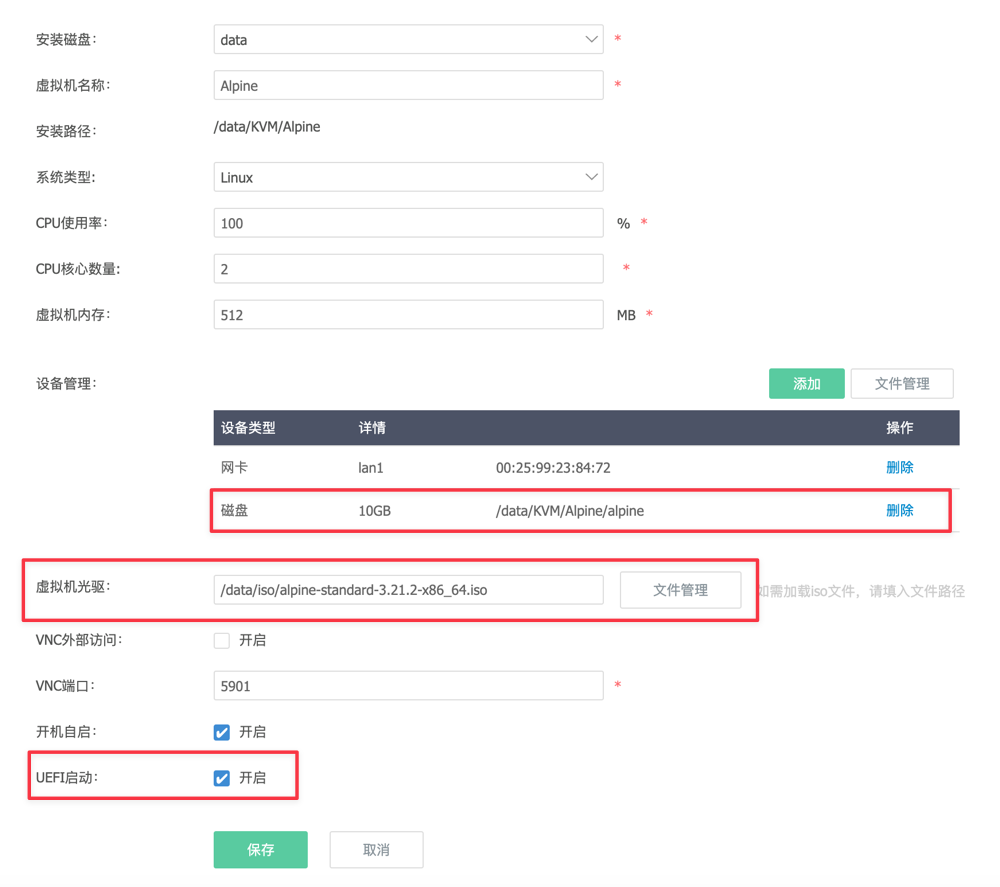
Open [Aikuai Backend - Advanced Applications - Virtual Machine - Add]. You need to create a new disk device; I allocated 10GB (though 5GB is sufficient).
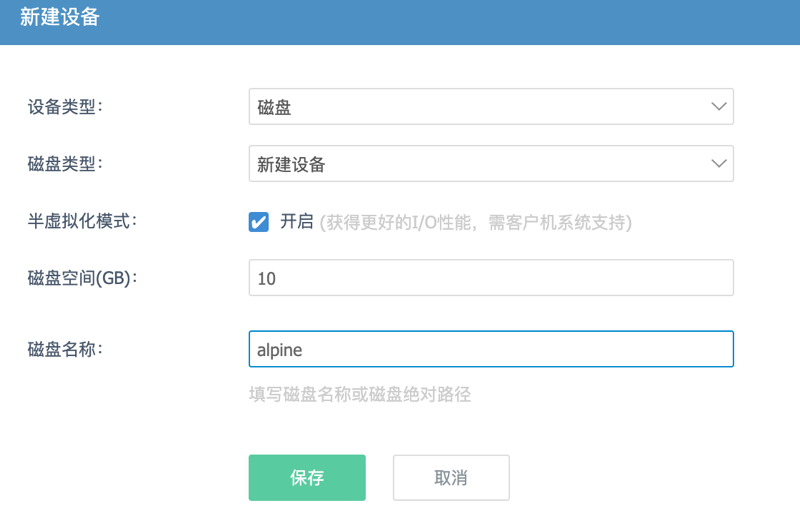
Then configure as shown below. Pay attention to the following points:
- Create a new disk device.
- Virtual Machine CD/DVD Drive: Enter the
.isopath copied earlier. - UEFI Boot: Check this option.
Other settings can be left as default.
After starting the virtual machine, open it via VNC, log in with username root and an empty password to access the Alpine system.
Once logged in, run the command setup-alpine to initialize Alpine. You will be prompted to set the keyboard layout, network information, partition scheme, etc. I used AI to guide me through this step; if you are unsure about any option, ask AI for help.
One important point: after selecting the installation disk, the system will ask erase the abolve disk and continue?, which means it will ask if you want to format the disk and proceed. You must enter y and press Enter; otherwise, the virtual machine will be restored to its original state upon reboot.
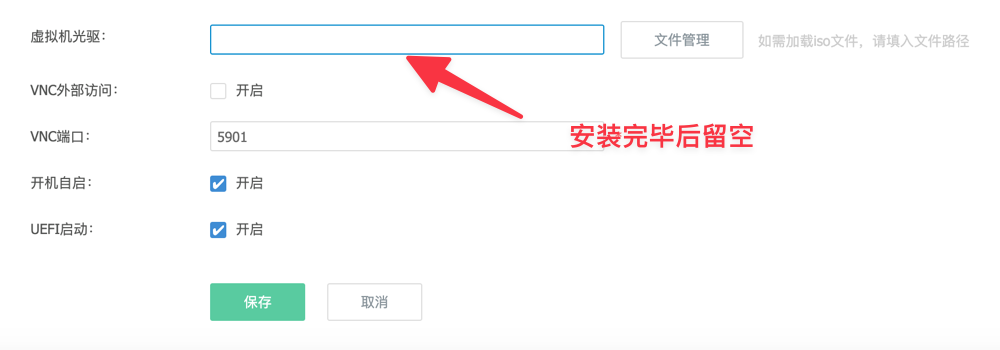
After the system installation is complete, enter the command poweroff to shut down. After shutting down, edit the virtual machine configuration, leave the Virtual Machine CD/DVD Drive field empty, save the changes, and start the machine again.
Conclusion
At this point, Alpine has been successfully installed and is running on the Aikuai virtual machine, laying the foundation for configuring the WireGuard client. Next, simply follow the plan to configure WireGuard and connect to the office server to achieve network connectivity between the two locations (I will share this in a follow-up article). This approach not only bypasses the limitations of the Aikuai Enterprise Edition but also offers greater flexibility and control. If you have similar needs, feel free to try this solution; it is cost-effective and highly customizable.
Follow-up: Connecting Alpine to WireGuard Server to Bridge Remote Networks